Ghost touch on Android can come from moisture, accessories, the charger, or touchscreen damage. Disconnect power, wipe the display dry, and take off its protector and case before considering an erase.
If the phone still taps by itself, restart it and test safe mode.
A phone that speaks each item and needs a double-tap to open it may have TalkBack enabled instead. That's different from apps opening while your hands aren't touching the display.
In this guide
1. Unplug the charger and uncover the screen
Disconnect the charging cable and use the phone on battery for a short time. If the unwanted taps stop, try a suitable charger and cable with no damage before blaming the display. A faulty power supply can interfere with touch.
Look for cracks, chips, or other damage. Tell the repair provider about any drop, liquid exposure, or recent display replacement that happened before the unwanted taps began. Software settings can't repair cracked touchscreen hardware.
Take off the case and protector. Wipe the display using a dry, soft cloth. Dry your hands too. A protector with trapped material, damage, or poor contact can change how the screen responds.
Test ordinary taps and scrolling with the phone lying clear of anything pressing against its edges. Watch for unwanted input with those accessories removed. Leave software settings alone during this comparison.
If charging itself repeatedly stops and starts, use the separate Android charging checks for the cable and power supply. That symptom helps explain why touch trouble appears only while plugged in.
2. Restart using your model's buttons
On many Android models, holding Power for roughly 30 seconds restarts the phone; release it when startup begins. Some models show an on-screen Restart control. Use your maker's sequence if the power button instead opens an assistant.
For a Galaxy whose touchscreen won't respond, press Volume down together with Power (called Side on some models) until the phone restarts. Check the model-specific timing instead of tapping again at a screen that ignores input.
For Pixel 6 and later, hold Power + Volume up, then select Restart from the menu. For Pixel 5a and earlier, holding Power brings up its power controls.
A restart clears a stuck software session without erasing files. When the lock screen returns, watch for unwanted activity before reopening the app that first had trouble. If it happens on several screens, keep going through the checks.
If only one app behaves strangely, install its available update. Report continuing trouble through the developer's support channel. A scrolling bug inside one app isn't enough reason to replace the display.
3. Check sensitivity controls without turning them all on
On Galaxy phones, Settings > Display > Touch sensitivity can help when the screen struggles to detect your taps through a protector. It isn't a general switch for stopping random taps. Compare behavior with the protector removed first.
On supported Pixel models, open Settings > Display & touch > Touch sensitivity. Google's Pixel touch instructions list different controls for different models. Check your model before looking for those switches.
For Pixel 9, 9 Pro, and 9 Pro XL, the instructions include Adaptive touch and Touch diagnostics. Compare Adaptive touch on and off to see which setting improves the actual response.
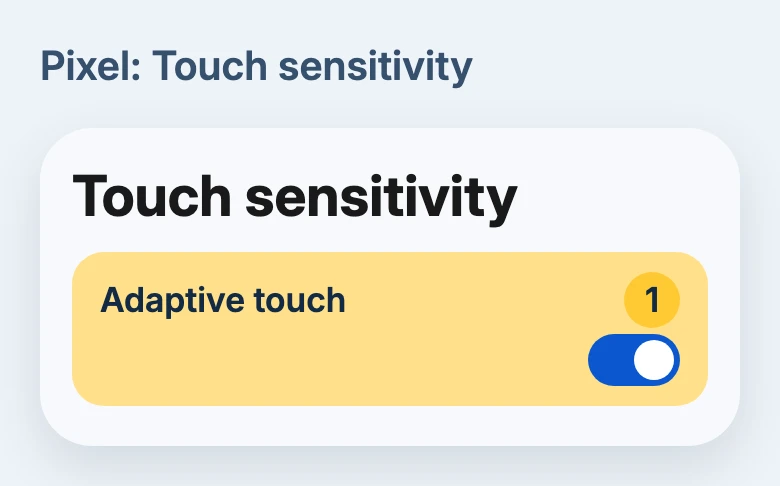
For Pixel 8a and earlier, the listed sensitivity option is Screen protector mode. Compare it on and off when applicable. If that control isn't there, continue with the general checks. Don't install an app to add it.
If Developer options were already enabled and the problem followed changes there, open Settings > System > Developer options and turn them off. That section only appears when developer settings have been enabled.
Keep a setting only if you can see that it improves the screen's response. Changing sensitivity while a cracked screen continues producing taps can hide the need for a hardware check.
4. Separate accessibility gestures from unwanted input
TalkBack reads selected items aloud, changes navigation gestures, and uses a double-tap to open the selected item. If that describes the problem, TalkBack may be working as intended.
On a Galaxy, open Settings > Accessibility > TalkBack and turn its switch off if it was enabled by mistake. While TalkBack is active, tap to select and double-tap to activate; scrolling uses two fingers.
Galaxy controls under Accessibility > Interaction and dexterity affect tap duration, touch-and-hold timing, and repeat touches. Undo an accidental change rather than copying settings meant for someone else's needs.
For zoom triggered by triple-tapping, check Accessibility > Vision enhancements > Magnification. Disable an accidental magnification shortcut. Zoom that follows a gesture is different from taps that happen without touching the screen.
5. Compare app behavior through safe mode
Save a picture showing your Home screen's layout. You'll need it to rebuild any widgets removed during safe mode.
In safe mode, your downloaded apps don't run. If taps stop there, restart out of that mode and remove one recently added or updated app. Test before removing another.
On a Galaxy, open the power menu with Side/Power + Volume down, or swipe down twice and tap the power icon. Touch and hold Power off, then tap Safe mode. Look for its label after startup.
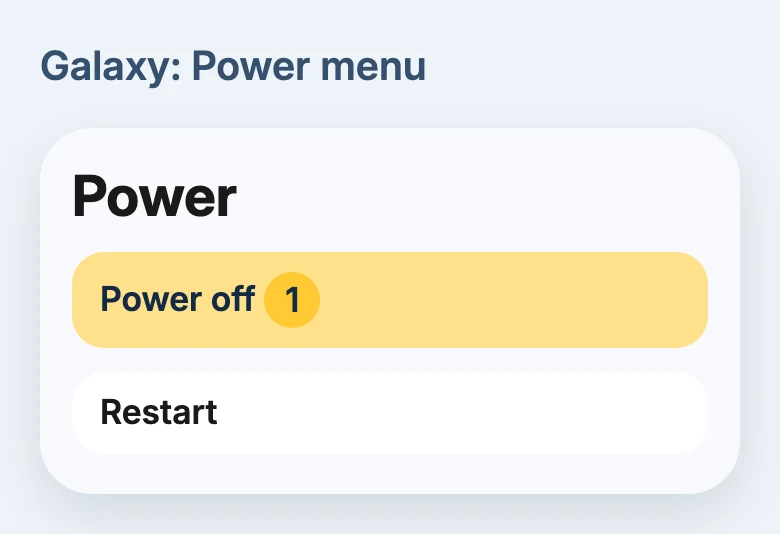
On Pixel 6 and later, including Fold, press Power + Volume up to open the power menu. Keep a finger on either Power off or Restart until the prompt appears, then select OK. Check for Safe mode on the screen.
For a Pixel that's off, press Power to start it, then hold Volume down when the startup animation begins. Once startup finishes, release Volume down and check for the safe-mode label. This also avoids needing the on-screen menu.
A normal restart brings downloaded apps back. Remove a suspect app, then try the phone before removing another. Continued random input in safe mode shifts attention to the touchscreen itself.
6. Test the affected area and arrange repair
Touch the top-left corner and drag slowly toward the bottom-right without lifting your finger. Take about ten seconds. If the notification shade releases at the same point on repeated attempts, note that area for the repair provider.
A Galaxy can also run Samsung Members > Support > Get started > Touch screen diagnostics when available. For the Pixel 9 models named earlier, open Display & touch > Touch diagnostics. Save the result for support.
Save a current backup before arranging repair or considering an erase. Use the guide to backing up an Android phone and check what has actually been saved, especially photos and app data you need.
If an undamaged phone still has the problem, a later option is to reset it to factory settings. Follow your manufacturer's model-specific reset procedure. Erasing deletes local data; it can't mend a damaged display.
For unwanted taps that survive accessory removal and safe mode, request a touchscreen inspection from the manufacturer. Describe what happens when the phone runs on battery, the affected area, and any recent impact or repair.
The Short Version
Unplug the charger, clean the display, and remove accessories first. Restart, compare the sensitivity settings your model supports, and test safe mode. Persistent random input or visible damage needs a touchscreen inspection.
Checked November 27, 2026.
 If you have any business, I can build it online