One UI 8.5 changed the battery icon design, but stretched status icons, duplicate notifications, freezing, and battery drain need separate checks. Restart for distorted icons or a sluggish phone, then check for a follow-up software update.
Samsung's support page recommends specific fixes for several status-bar changes. Those fixes won't solve every Galaxy problem. Start with the behavior you can see; a cosmetic change doesn't justify erasing the phone.
In this guide
1. Restart for lag, freezing, or stretched icons
Swipe from the top-right corner to open the Quick panel, tap the power control, and choose Restart. Confirm if asked. Check the affected screen again after the phone finishes starting.
For a frozen phone, press and keep holding Side plus Volume down. Hold them longer than seven seconds and release when it restarts. The restart guide covers both methods.
Restarting is the recommended first step for status icons distorted after a resolution change. Samsung also lists a patch as expected for this symptom, rather than promising a particular build fixes every phone.
A restart can also clear temporary trouble that slows the phone. If it still freezes, note whether the whole interface freezes or it starts with one app. Use that detail to choose between the app and phone checks that follow.
2. Check the follow-up update for your own model
Open Settings > Software update. The performance instructions use Check for updates for One UI 8.5 or later. Depending on carrier and device, the option can instead say Check for software updates or Download and install.
Apply your phone's offered update, including its restart. A build released for another Galaxy model, region, or carrier doesn't mean the same patch is available on yours that day.
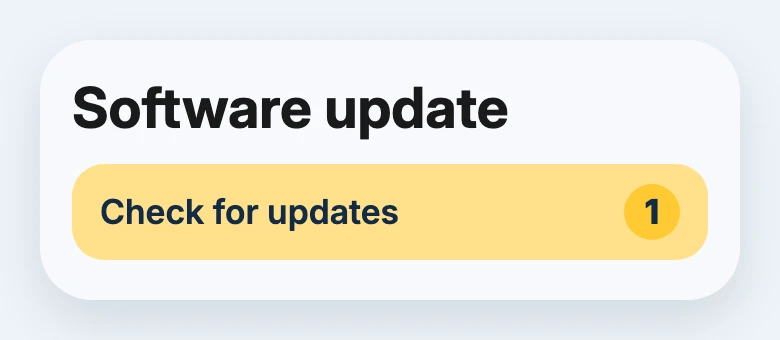
The One UI 8.5 update guide covers checking the release and an update that won't download. With 8.5 already installed, an up-to-date message isn't a reason for a phone reset.
If the update screen offers nothing, continue with the symptom-specific settings. Don't assume a random firmware download is the correct patch for your model just because its name contains 8.5.
3. Separate the new battery and signal design from a fault
A thinner or smaller battery icon can be an intentional One UI 8.5 design change. Open Settings > Notifications > Status bar and turn off Show battery background if you want the oval background removed.
The number remains. Show battery background replaced the old Show battery percentage control, so it doesn't act like the former percentage toggle. Check its effect before treating the remaining number as a fault.
Overlapping antenna symbols can also be expected when a physical SIM is used alongside an eSIM. Open the Quick panel: the icons should separate there. That overlap alone doesn't mean a SIM has lost service.
A missing clock or app icon that occurs only inside one app is different again. The app can control how it uses the status-bar area. Record the app and screen where the icons disappear, and describe the missing icons to its developer.
If the symbols remain distorted across apps after restarting, return to the software-update check and include the resolution change in your report. A design preference and an icon that is stretched aren't the same problem.
4. Turn off the feature behind duplicate notification icons
Duplicate status-bar icons can come from Prioritize notifications under Notification highlights. Open Settings > Notifications > Notification highlights, tap Prioritize notifications, then turn off the switch at the top.
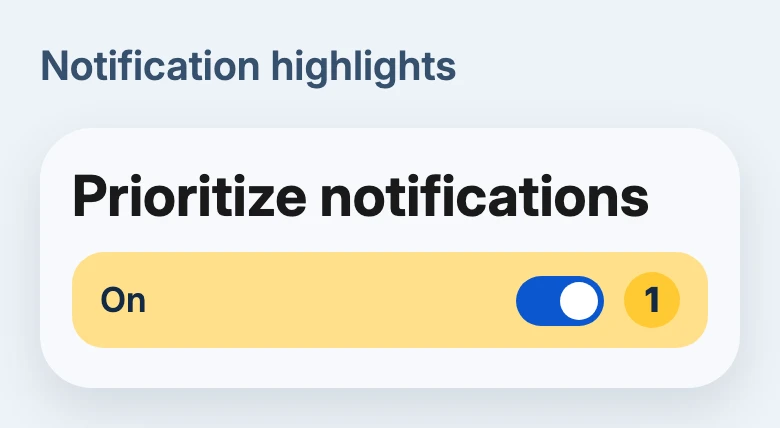
Check the status bar when a new notification arrives. Turning this off addresses duplicate icons caused by that feature. It doesn't repair a messaging app that receives nothing or a carrier connection that has stopped working.
Leave other notification controls alone during this comparison. Turning off all notifications would hide the symptom by removing the alerts you still need, and wouldn't show whether this feature caused it.
If duplicates continue with this control off, include a picture of both icons and the app name in the report. Those details help support tell duplicate icons apart from other notification problems.
5. Handle one crashing app or a generally slow phone
For one troublesome app, install its update first. In Google Play, tap your profile picture, Manage apps & device, then See details under Updates available. Choose Update beside the affected app.
The Play Store update steps cover this process. Try the failing action again in the updated app. An app update can improve compatibility without replacing the phone's system software.
If the whole phone is sluggish, open Settings > Device care > Memory > Clean now. This closes unused background apps to free memory. Compare the same task afterward instead of judging speed from an empty home screen.
You can also open Recent apps and tap Close all before repeating the task. If only a particular app brings back the slowdown, report that app and its version rather than describing every part of One UI as faulty.
6. Check battery use before restricting every app
For faster drain, open Settings > Battery, tap the battery graph, and review the apps using power. Look at the detailed usage for the app that stands out. Long use of an app and unexplained background drain need different responses.
An unstable mobile signal can also increase power use. Check battery drain somewhere with a stronger signal to learn whether it changes with your location.
For rarely used apps, Battery > Background usage limits offers Sleeping apps and Deep sleeping apps. Use the plus control to add the apps you rarely need, rather than putting every messaging or work app to sleep.
Sleeping apps may refresh or notify late; deep sleeping apps run only when opened manually. Keep apps you rely on for alerts out of those lists. Power saving in Battery can help you trade background activity for longer battery life.
Send a report for a fault that remains
Touch and hold the Samsung Members app icon, choose Error reports, and select the relevant category. Describe the exact action, Galaxy model, software version, and how widely the fault occurs: one app or the entire interface.
Select Send system log data if you want to include the device's stored system information, and attach a useful image if available. Submit the report through Members so support can connect your description with that device's logs.
The Short Version
Restart for freezing or distorted icons and install your available patch. Check the new status-bar controls for design changes, disable Prioritize notifications for duplicate icons, and review app updates and battery use for other faults.
Checked November 27, 2026.
 If you have any business, I can build it online