
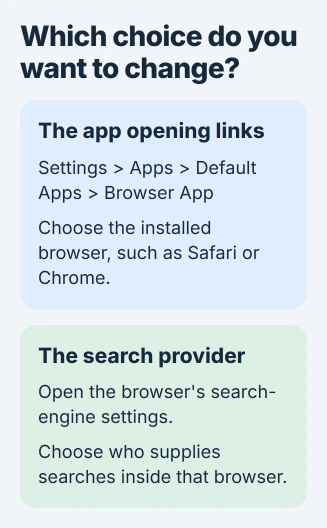
Set the default browser on iPhone under Settings > Apps > Default Apps > Browser App. This selects the app for opening web links; launching Chrome or Firefox from its icon does not change that preference.
The setting can be changed again whenever needed. Safari remains an option if the replacement browser does not suit the way you work.
Select a browser in Default Apps
Install the intended browser from the App Store and check that it opens. Then enter Settings, choose Apps, and tap Default Apps near the beginning of that list.
Open Browser App and select the browser. Apple documents this selection in its iPhone default-app guide. Complete any additional prompts the phone presents.
Status: Apple's iPhone Default Apps controls and Google's Chrome selection route reviewed November 3, 2026. The guide describes documented settings, without changing a phone.
Return to Browser App and confirm that the intended choice remains selected. To return to Apple's browser later, select Safari on that same screen.
If the Apps section itself is unfamiliar, the iPhone app-settings guide explains where individual app preferences were moved.
Follow Chrome's own route when starting there
Google supplies another entry point in its Chrome default-browser instructions. Start inside Chrome rather than searching through every iPhone setting.
- Open Chrome's More menu, then Settings.
- Select Default Browser and tap Go to Settings.
- Open Default Browser App, then choose Chrome.
Google says the default-browser feature requires iOS 14 or later. Its help page recommends updating Chrome when the option to change the default is missing. The current iPhone Default Apps layout is a separate route to the same choice.
Check the result with a web link
Open a normal webpage link from a different app and check which browser receives it. Typing an address into Chrome while Chrome is already open only tests Chrome's own navigation.
Some apps keep webpages inside their own window. Apple supports this in-app browsing, so one app staying open does not prove that the default selection failed.
Keep that choice separate from the search provider. The browser displays webpages; Google, Bing or another provider supplies its searches. Switching browsers does not necessarily select the search engine you want.
Apple's iPhone guide lists search-engine selection separately from Browser App. If search results are the only thing you want to change, use the browser's search settings instead of replacing the browser choice.
An iPhone selection also does not configure a Mac. Use the Mac default-browser menu for links opened on that computer.
When the intended browser is absent
Confirm the app is installed, then update it and check Default Apps again. Apple says to use current iOS for the Default Apps settings, and directs missing app-specific default options to the developer.
Report the browser name, app version and iOS version to that developer if the choice still does not appear. If the phone will not retain any selection, give Apple Support the failed setting and what happens after reopening it.
The Short Version
Choose the installed browser under Apps, Default Apps, Browser App, then check a web link opened elsewhere. Browser choice and search-engine choice are separate preferences; Safari can be selected again from the browser list.

Isaac Smith is the founder and editor of PC Glance, a website that covers computers, laptops, and technology. He is a tech enthusiast and a computer geek who loves to share his insights and help his readers make smart choices when buying tech gadgets or laptops. He is always curious and updated about the latest tech trends.