
No. Apple's Safari privacy campaign promotes tracking protection, but it doesn't tell all iPhone users to remove Chrome. You can still choose another browser in iPhone settings. A security advisory would be a different matter.
Choose the privacy features you want and the browser that suits your devices. Switching can make sense, but the campaign doesn't mean Chrome has infected your iPhone or someone has broken into your accounts.
What the privacy message actually supports
Apple's Safari page describes protection against cross-site tracking, when companies connect your activity across different sites. It also promotes Private Browsing and ways to limit known trackers.
Those are reasons to consider Safari. They don't identify an unsafe Chrome version, give you a deadline to remove it or tell you how to fix an infected phone.
To act on a security warning, you need to know which software is affected, which version fixes it and whether your device can get that update. A general privacy comparison doesn't give you those details.
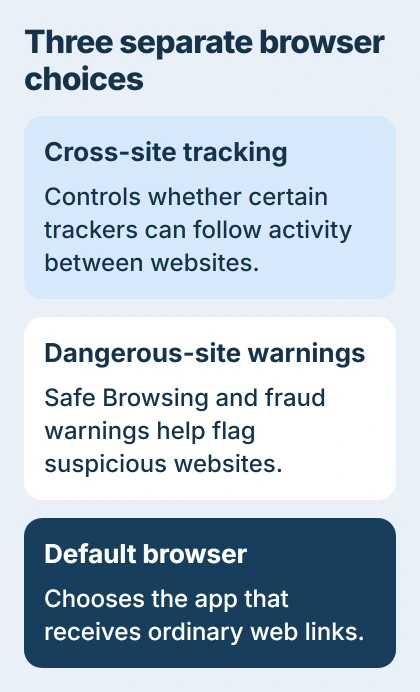
A browser's dangerous-site warnings are separate from its choices for data sharing, account sign-in and tracking. Check those controls separately. Security and privacy overlap, but they aren't the same setting.
Changing browsers doesn't change the service you sign in to. If you use the same search account in another browser, the service can still save activity according to that account's settings.
I'd choose based on the controls you'll actually use. Check that the privacy features work the way you want, then try your usual sites before deciding whether to switch.
Check Safari's controls before switching
Open Settings > Apps > Safari, then look in Privacy & Security. Review Prevent Cross-Site Tracking and Fraudulent Website Warning. These controls handle different problems, so don't treat one as a substitute for the other.
The Safari security settings explain the available options. Tracking prevention limits certain cross-site behavior; fraudulent-site warnings help identify suspected dangerous pages.
Review Hide IP Address if it appears. The choices can depend on your device's features and subscriptions. Read the options on your phone and choose the protection that fits your needs.
If a site stops working after a privacy change, adjust only that control and reload the site. Comparing each change separately helps you see how that protection affects the site and decide which setting to keep.
Private Browsing lets you keep a browsing session separate, but it doesn't make everything you do anonymous. A website still knows which account you sign in to and receives anything you send it.
If Safari can't connect through Private Relay, use the Safari Private Relay checks before switching browsers because a page won't load. That problem has its own connection settings.
Keep Chrome's safety protections enabled
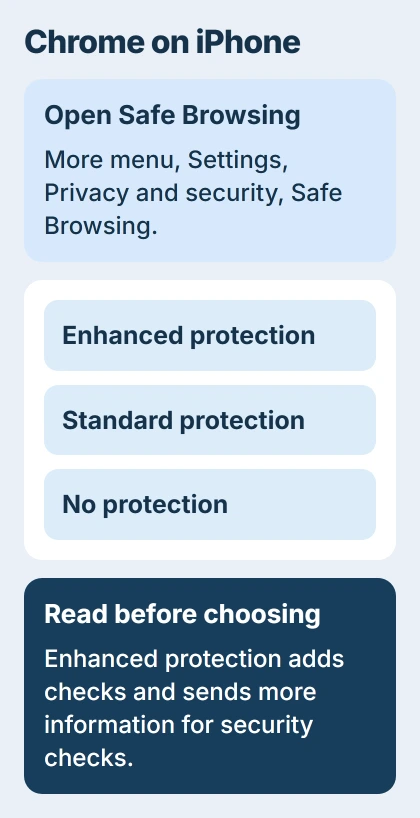
Chrome has its own dangerous-site protection. On iPhone, open Chrome, tap the More menu, then Settings > Privacy and security > Safe Browsing. Check which protection level is selected.
Standard protection is the default. Enhanced protection checks for potential new threats and sends more browsing information for security checks. No protection turns off those warnings, so it isn't a good way to protect your privacy.
Google explains those differences in its Safe Browsing levels. Read what data Enhanced protection shares before choosing it; the extra checks send more browsing information.
In Privacy and security, review Always use secure connections too. It switches supported visits to HTTPS, which encrypts the connection between your browser and the site, and warns before certain unencrypted visits.
Encryption protects the connection, but the business running the site could still be untrustworthy. Scams can use HTTPS too, so check the address and what information the page asks you to share.
If Chrome shows a dangerous-site warning, keep Safe Browsing on. Check the address, then open the service through its known app or address before entering your password.
Use the controls in the iPhone app. Steps for desktop extensions, Windows antivirus or Android permissions don't automatically apply to Chrome on your iPhone.
Change the default without rushing an app deletion
On a current iPhone, open Settings > Apps > Default Apps > Browser App. Choose Safari if you want ordinary web links to open there, or another installed, supported browser if you prefer it.
The default-app instructions include a browser choice. That choice is another reason to treat the privacy campaign separately from a supposed instruction to remove Chrome.
Open an ordinary website link from Mail or Messages and check where it opens. Some links open a matching app or a browser built into an app, so choosing Safari doesn't mean every link will open there.
The links opening in apps guide explains that separate behavior. Changing the default browser doesn't force every service to stop using its own app.
Keep both browsers while you check your usual sign-ins, saved passwords and important pages. Changing the default doesn't automatically copy your browser data or sign you in to the same sites in the new browser.
Before removing Chrome, check that you can still reach the information you need through your chosen browser or account. Choosing a default browser and deleting an app are separate steps. You only need the first to try Safari.
When a warning needs further action
A webpage claiming your iPhone is infected is different from a notice in the browser's own settings. Close the suspicious tab. Don't follow its instructions to download something, pay or call a number.
If a warning isn't clear, note its wording and where it appears. Contact the browser's support team for an app warning, or Apple Support for an iPhone system issue. Show them the exact screen so they can assess that warning.
The Short Version
Review the tracking and safety controls before choosing a browser. The Safari promotion isn't a blanket instruction to remove Chrome. Keep dangerous-site warnings enabled and use the default browser that fits your needs.
Checked November 5, 2026.

Isaac Smith is the founder and editor of PC Glance, a website that covers computers, laptops, and technology. He is a tech enthusiast and a computer geek who loves to share his insights and help his readers make smart choices when buying tech gadgets or laptops. He is always curious and updated about the latest tech trends.