
Changing the default browser on a Mac changes which app normally opens web links from other apps. On macOS Ventura 13 or later, choose System Settings > Desktop & Dock > Default web browser.
Install the browser first so it can appear in that menu.
Choose an installed browser in System Settings
Open the Apple menu > System Settings, then select Desktop & Dock in the sidebar. Scroll to Default web browser and select the installed browser that should open web links.
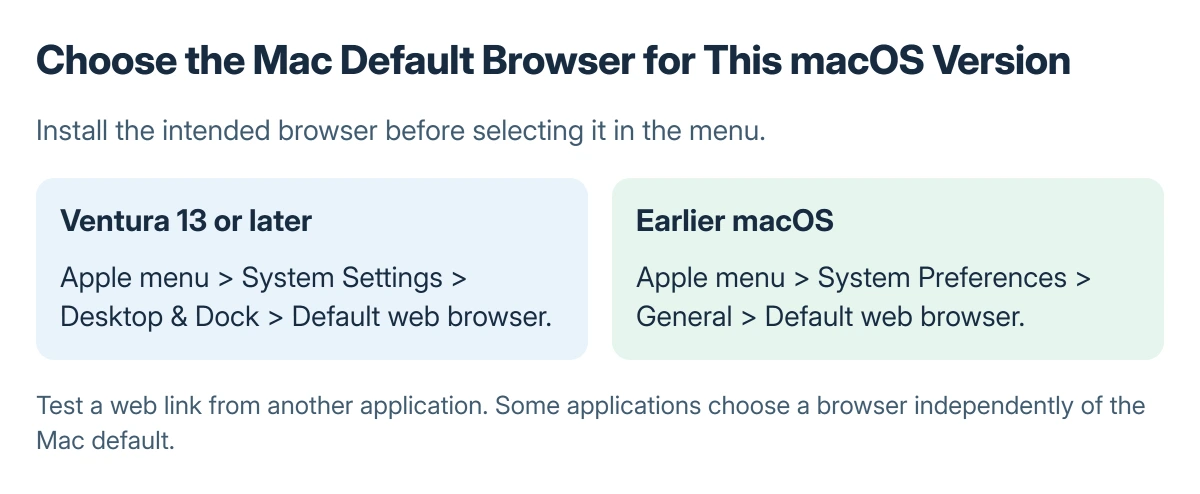
Status: Apple's documented default-browser routes for newer and earlier macOS. No browser setting was changed for this guide.
Apple documents this path for Ventura and later in its default browser instructions. Setting Safari back as the default uses the same menu; choose Safari from its list.
If the intended browser is absent, check that it is installed as a Mac application and can open normally. A bookmark to a website is not another browser application.
Use the browser vendor's installer and instructions if installation is incomplete.
Find the menu on an older Mac
On a macOS release earlier than Ventura, open Apple menu > System Preferences > General. Select the desired app from Default web browser there. Apple says the settings location differs on these earlier releases.
Do not search Desktop & Dock inside an old System Preferences window. Check the macOS version in About This Mac if the setting names do not match the guide.
Check a normal web link
Open an ordinary web link from a different application, such as a link in an email. Confirm which browser opens it. This checks the default app behavior more directly than typing a web address into a browser that is already open.
Apple states that some applications open webpages in a browser other than the chosen default. If only one app behaves differently, check that app's own link settings before repeatedly changing the Mac setting.
Changing the default browser does not change the browser's search provider. Use the Chrome search engine checks if the problem is which search site appears inside Chrome.
If Safari opens links but needs an update, follow the Safari update route for the installed macOS release. A default selection does not update the selected application.
When the setting will not stay selected
Confirm the selected app still opens normally and repeat the web-link check. On a managed Mac, ask the administrator whether a browser or link-opening policy applies. Give them the app that opens the link and the app that should open it.
The Short Version
Use Desktop & Dock on Ventura or later, or General in earlier System Preferences. Choose an installed browser and test a web link from another app, remembering that individual apps can override the default.

Isaac Smith is the founder and editor of PC Glance, a website that covers computers, laptops, and technology. He is a tech enthusiast and a computer geek who loves to share his insights and help his readers make smart choices when buying tech gadgets or laptops. He is always curious and updated about the latest tech trends.