
Downloading Chrome on a Mac starts at google.com/chrome. Open googlechrome.dmg, then drag Chrome into Applications. The download alone does not complete installation. Google's current Mac requirement is macOS Ventura 13 or later.
Check that requirement first on an older MacBook or iMac. Downloading the same installer again will not make an unsupported operating system compatible.
Check the macOS version before downloading
Open Apple menu > About This Mac and read the macOS name and version. Apple documents both details in its version-identification instructions, even when the window's appearance differs between releases.
Google states that Chrome needs Ventura 13 or later in its current Mac installation requirements. Monterey 12 and earlier fall outside that requirement.
Status: Google's Mac installer, Ventura requirement and update controls checked October 29, 2026. Apple's About This Mac route verified. No browser was installed or opened.
For an older system, use the compatibility links in Apple's version page to check which macOS releases the model can run. Choose a supported upgrade route before returning to the installer.
Copy Chrome out of the downloaded disk image
- In the browser already available on the Mac, open Google's Chrome download page and download the Mac installation file.
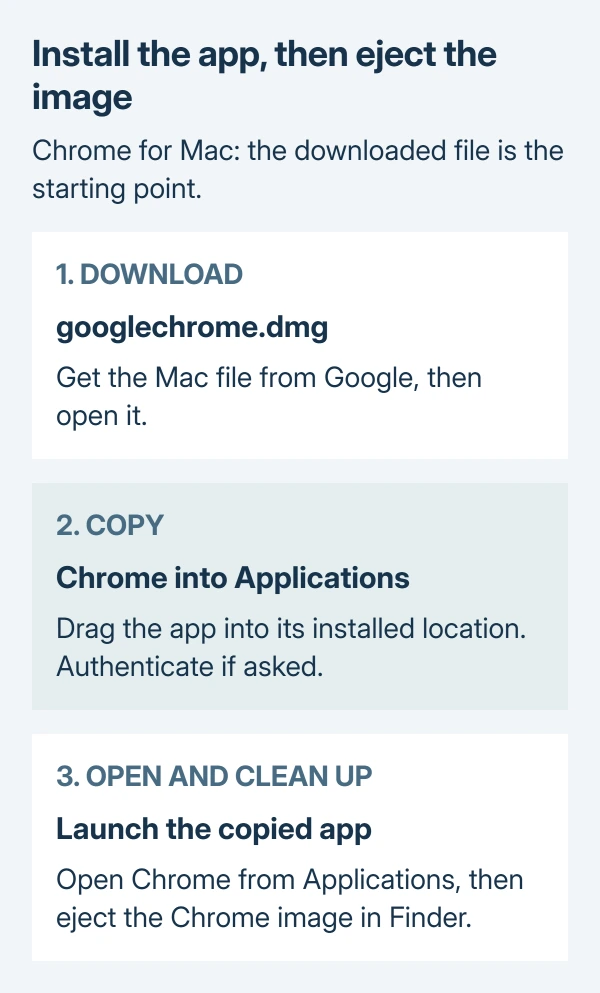
- Open googlechrome.dmg. A window containing the Chrome app appears.
- Drag the Chrome app into the Applications folder. Enter an administrator password if macOS requests it.
- Open Finder > Applications and launch Google Chrome from that installed copy.
- In Finder's sidebar, select Eject beside the mounted Chrome image when finished with the installer.
Google says to copy the app and eject the disk image as separate steps. The disk image holds the app to install; Applications is the destination for the copied app.
If an administrator password is unavailable, Google allows copying Chrome into a location where the user has full permissions, such as the Desktop. Ask the administrator to approve the location when the Mac belongs to a school or employer.
That alternative changes where the app lives. It does not authorize bypassing restrictions set by the organization that manages the computer.
Confirm Chrome opens, then check its update page
After the copied app opens, choose the three-dot More menu, then Help > About Google Chrome. Google's update instructions say this page checks for updates and displays the version.
Select Relaunch if an update needs it. Save unfinished work first; Google notes that Incognito windows do not reopen after the relaunch.
An installed browser does not have to become the default immediately. When that is the intended next step, use the Mac default-browser setting to choose which browser handles links.
If Chrome launches but hangs during browsing, the installation has reached a different stage. The Chrome freezing checks address that behavior.
When the installer will not finish
Google's installation troubleshooting starts with the internet connection, system requirements and a fresh download. Retry using the new file from Google if the original download fails.
For an installation error reporting insufficient space, remove or move files that are safe to clear, then download again. Do not erase the existing Chrome profile to create space without first preserving its needed local data.
Record the exact error if the new file also fails. Give Chrome Help the macOS version, whether the failure happens during download or copying, and whether an administrator password was requested.
For a managed Mac, send those details to its administrator. A rejected permission prompt cannot be fixed by repeatedly downloading the app.
The Short Version
Check that the Mac meets Google's current requirements, open googlechrome.dmg, and copy Chrome into Applications. Start the copied app, eject the installer image, then check About Google Chrome for an update.

Isaac Smith is the founder and editor of PC Glance, a website that covers computers, laptops, and technology. He is a tech enthusiast and a computer geek who loves to share his insights and help his readers make smart choices when buying tech gadgets or laptops. He is always curious and updated about the latest tech trends.