The message that Google Chrome can't be opened points to a Mac app launch problem, not a broken website. Force quit any leftover Chrome process first, then reinstall the application if it still won't launch.
Keep your browser profile, the folder that holds your browsing data, when you replace the app. That way, you won't throw away local bookmarks and passwords just to repair Chrome.
A warning that Chrome is damaged, an immediate crash and an icon that does nothing need slightly different checks. Read the complete message before changing macOS security settings or deleting files.
In this guide
1. Close the Chrome process that never opened a window
Press Option + Command + Esc to open Force Quit Applications. Select Google Chrome if it appears, then choose Force Quit. Open Chrome once from Finder's Applications folder and watch whether a window appears.
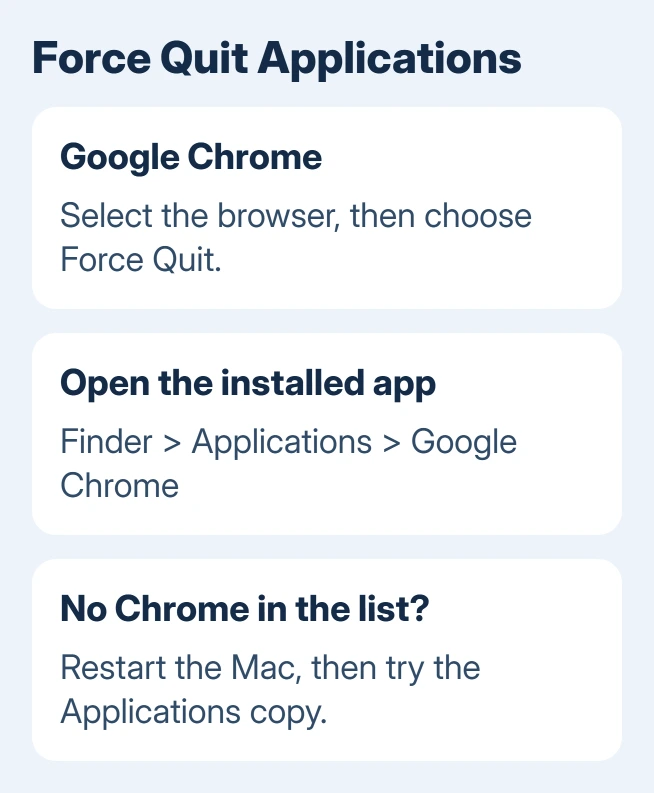
Google recommends checking for a browser process with no visible window in its Chrome launch steps. If Chrome is still running from an earlier session, clicking its Dock icon again might not open a window.
If Chrome opens now, close it normally with Command + Q, then open it again. That tells you whether Chrome was stuck just this once or gets stuck every time you open it.
If it keeps happening, continue to the app replacement steps.
If the list doesn't show Chrome, don't force quit unrelated apps at random. Restart the Mac from the Apple menu, then try the Applications copy again. Save work in other programs before restarting.
For help completing the installation, use the Chrome for Mac setup steps. A downloaded disk image and an installed Applications copy are different things.
2. Read the warning before trying to bypass it
Check whether macOS says the app can't be opened, is damaged, or can't be checked for malicious software. These messages mean different things. Take a picture of the full warning for support if it disappears quickly.
For an app that is damaged or incomplete, replace it with a fresh download. Don't use a Terminal command from an unrelated discussion to remove its security checks. A fresh official copy is the sensible next step.
If this began after a security product blocked Chrome, open that product's history and check for a Chrome entry. On a managed Mac, ask IT whether its policy prevents the browser from running.
Your IT team can approve the right app without turning protection off for the whole computer.
A prompt asking you to confirm the first launch of a downloaded app is different from a damage warning. Confirm that you want to open it only for the copy you downloaded from the official site.
If another warning follows, use its exact wording to choose the next step.
I'd replace the application before touching the profile. That replaces the browser software while keeping the folder with your personal browsing data.
3. Check macOS, then install a fresh Applications copy
Choose Apple menu > About This Mac and note the macOS version. The current Chrome installation requirements list macOS 13 Ventura or later. An older Mac needs a supported operating system before it can run the current browser.
Don't confuse that requirement with the version number of Chrome itself. Repeatedly downloading today's installer won't make an unsupported macOS release compatible.
Use System Settings > General > Software Update to see which macOS updates your Mac offers.
Once the browser opens again, finish Chrome's own update and check its About page after relaunching.
For an older release with System Preferences, open System Preferences > Software Update. If the Mac can't install a supported system, choose a browser that still supports it or plan the hardware change.
Avoid unofficial old Chrome downloads for everyday browsing.
To replace Chrome on a supported Mac:
- Quit Chrome, using Force Quit if necessary.
- Open Finder > Applications and move Google Chrome to the Trash.
- In Safari, download Chrome from the official download page.
- Open googlechrome.dmg and drag Chrome into Applications.
- Open the new copy from Applications before using the Dock shortcut.
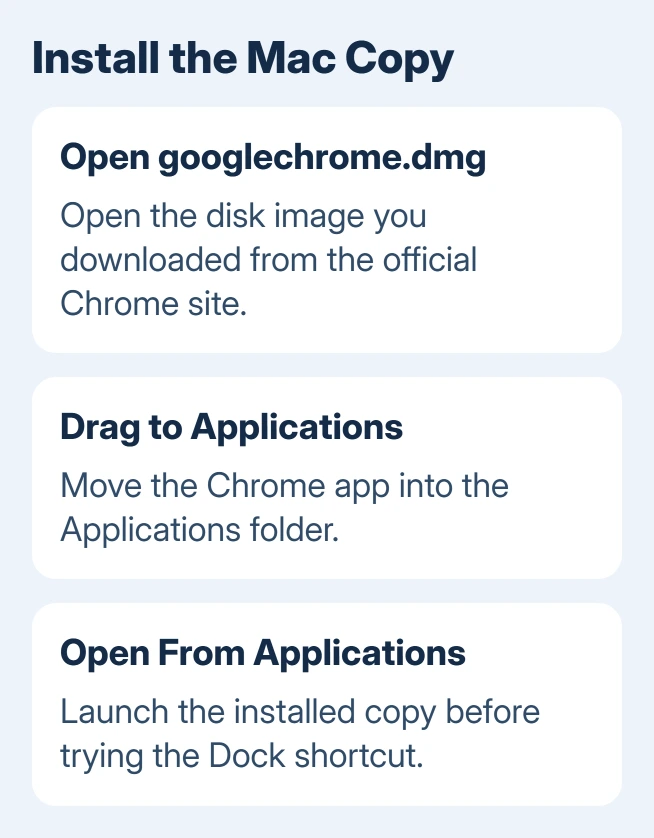
The official Chrome download page supplies the installer. Follow any processor choice it presents for your Mac. About This Mac shows a Chip entry on Apple silicon models and a Processor entry on Intel models.
Keep your profile folder during this first replacement. The Mac uninstall instructions list deleting profile information as a separate step that you can skip.
Replacing the app doesn't require you to erase your browser history and saved data too.
If the new Applications copy works but the old Dock shortcut doesn't, remove that shortcut from the Dock and add the working app again.
Check that Chrome opens a window with your usual profile. Seeing the downloaded disk image alone doesn't mean the new app has opened.
4. Protect local data before considering a profile removal
If Chrome still crashes after you replace the app, the next thing to check is its profile. The profile folder stores your personal settings and local data. The copy in Applications holds the browser software.
The Mac uninstall instructions identify ~/Library/Application Support/Google/Chrome as the profile location. Finder's Go > Go to Folder opens that path. The tilde means your own home folder.
Don't delete that folder just because reinstalling the app failed. Deleting the folder can lose data that never reached your Google Account. Back it up and check what you can recover before support walks you through removing it.
If Chrome opens long enough to use its menus, export important bookmarks and check which data is saved to your account first. If it never opens, tell support you need to keep the data stored on this Mac.
Reinstalling won't help much if it also removes the only copy of something you need.
For comparison, the Mac app launch guide explains how a similar warning affects Outlook. Its app-specific data folders don't apply to Chrome, so don't copy a deletion path between programs.
5. Send support the launch error and Mac details
Open a Chrome Help Community question through the Post to the help community link on the launch troubleshooting page. Include your macOS version, Mac chip or processor, complete error text and whether a fresh Applications copy opens.
Mention whether Force Quit listed Chrome and whether the failure began after migration, an update or a security block. If macOS shows a crash report, keep its details.
Leave passwords, browsing history and account addresses out of a public post.
On a managed Mac, give your IT team the error and explain what happened after you replaced the app. Ask them to check Chrome and the security rules without removing your local profile.
The Short Version
Force quit hidden Chrome processes, restart the Mac and replace the application from the official installer. Check the macOS requirement and open the Applications copy directly.
Back up local browser data before any profile deletion, then report a persistent launch failure with its exact message.
Checked November 15, 2026.