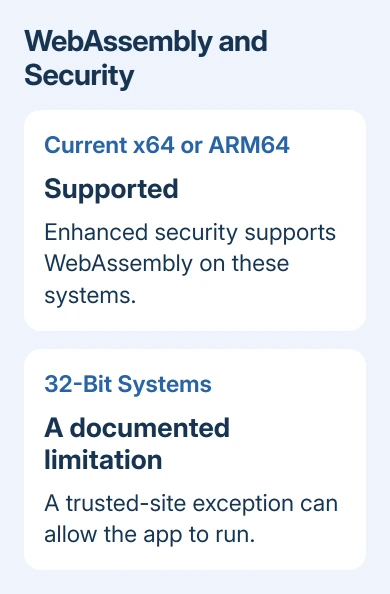
Edge's enhanced security can block WebAssembly on 32-bit systems. Try a trusted-site exception for that case. Current 64-bit and ARM64 Edge support WebAssembly with enhanced security, so update those installations first.
WebAssembly lets a website run compiled app code in the browser. A security setting can stop a site from using it even when Edge supports it. That difference matters when you're choosing a fix.
In this guide
1. Update Edge and check which browser is running
Open Settings and more > Help and feedback > About Microsoft Edge. Alternatively, enter edge://settings/help in the address bar. Let Edge check for updates, and use Restart when offered to finish installation.
Read the version information on that page, including 64-bit, 32-bit, or ARM64 where shown. Keep it with the error message. A fix written for a 32-bit browser doesn't necessarily explain a failure in an updated 64-bit installation.
The original report involved Edge 97.0.1072.69 in January 2022. The same site worked in the owner's beta installation. The site could run in Edge, but something differed between those installations.
Don't install that old version to reproduce the report. Current versions have changed: Microsoft's enhanced-security guidance lists WebAssembly support on x64 Windows, x64 macOS, x64 Linux, and ARM64.
The restriction still applies to 32-bit systems using enhanced security. On current x64 or ARM64 installations, check the affected page and its settings instead of assuming the old restriction still applies.
2. Turn off the extra protection for one trusted site
Open the affected site and look for Added security beside the address bar. If it appears, select it, open Enhance security for this site, and turn Use enhanced security for this site off.
Reload the site and retry the failed task. Check that the app loads or finishes the task that failed. A disappearing security indicator alone isn't enough.
An owner got WebAssembly working by changing enhanced security; others confirmed success too. One reported success with a site exception, and a later reply confirmed the same approach rather than switching the feature off everywhere.
Only exempt a website you trust. It removes that site's extra security layer; it shouldn't become a blanket change made for unfamiliar links or pages asking you to bypass protections.
If the site still fails, restore the extra protection. A setting change that doesn't improve the page isn't a reason to leave that exception in place. Continue with the site-preferences list and the managed-browser check.
The wording in Edge 97 was different: Enable security mitigations for a more secure browser experience. Look for the current controls described here instead of searching indefinitely for the old label.
3. Add or correct the site exception in Settings
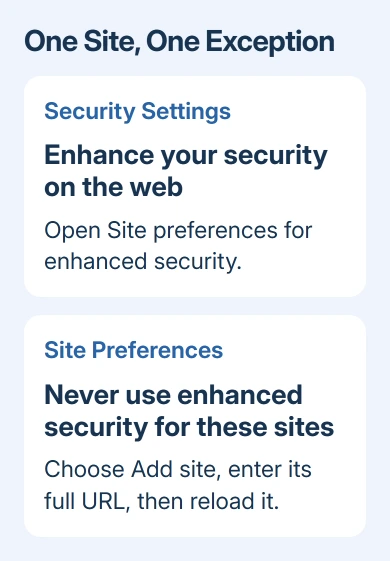
Open Settings and more > Settings > Privacy, search, and services > Security. Find Enhance your security on the web, then open Site preferences for enhanced security.
Under Never use enhanced security for these sites, select Add site. Enter the full URL for the site that fails, then select Add. Return to its tab, refresh, and test the same page again.
Check the address of the failing page before entering the exception. An app's sign-in screen and the app itself can have different addresses. An exception for the sign-in page alone may not cover the address where the app fails.
The exception list also offers More actions beside an entry. Use Edit to correct its URL or Remove to undo it. Remove the exception if it didn't help.
The first owner to post the workaround said an exception didn't help their installation. Later owners said it did. Try the exact page that failed to see whether the exception helps your installation.
I'd try the single-site setting before changing the protection for every website. You'll see whether it helps the app while keeping the extra protection on other sites.
4. Check organization settings when the control is locked
If the switch or exception list is disabled, check whether Edge displays that it's managed by your organization. Your employer or school may lock this control, leaving changes to an administrator.
Ask IT to check EnhanceSecurityMode and the site's exception policy. Include the full failing URL, Edge version, whether it is 32-bit, 64-bit, or ARM64, and whether the site works on another approved browser or computer.
Don't try to defeat a managed setting with registry edits. The administrator needs to decide whether the site is approved and whether an exception is appropriate for the browser your organization uses.
For a 32-bit installation, mention the WebAssembly restriction under enhanced security. IT can assess another approved browser installation if the device supports one, without changing protection across the organization.
When the security controls are available and the exception changes nothing, record that result too. It prevents support from repeating the same step and keeps attention on the page that still fails.
5. Report the exact page and security result
If one site fails in current Edge while other WebAssembly apps work, contact that site's support with the exact page address and error. Ask whether they support your Edge version and whether their app recently changed.
For a broader Edge problem, choose Settings and more > Help and feedback > Send feedback while the failing page is open. Describe the WebAssembly error and the security-setting result, with any private account details removed.
If Edge stops responding altogether, repair the browser startup problem first. These site settings need a working browser; they won't repair an application that immediately closes.
For a page that shows old content or a damaged layout without a WebAssembly error, use the Edge cache-only cleanup. That targets stored page files rather than this security setting.
The Short Version
Update Edge and record its architecture. Enhanced security supports WebAssembly on current x64 and ARM64 systems; the 32-bit restriction remains. Test a trusted-site exception, undo unsuccessful changes, and refer locked controls to IT.
Checked November 16, 2026.