

Microsoft Edge's cache can be cleared through its browsing-data settings. Choose Cached images and files, select the time range and confirm with Clear now. Leave other categories unchecked for a cache-only refresh.
This is useful for a page showing old images or a damaged layout. It does not guarantee that a website outage, account problem or browser crash will be repaired.
Open Edge's browsing-data controls
In Edge on a computer, open Settings and more with the three-dot menu. Choose Settings > Privacy, search, and services, then Clear browsing data.
Select Choose what to clear beside the option for clearing data now. Microsoft documents the route in its Edge browsing-data reference.
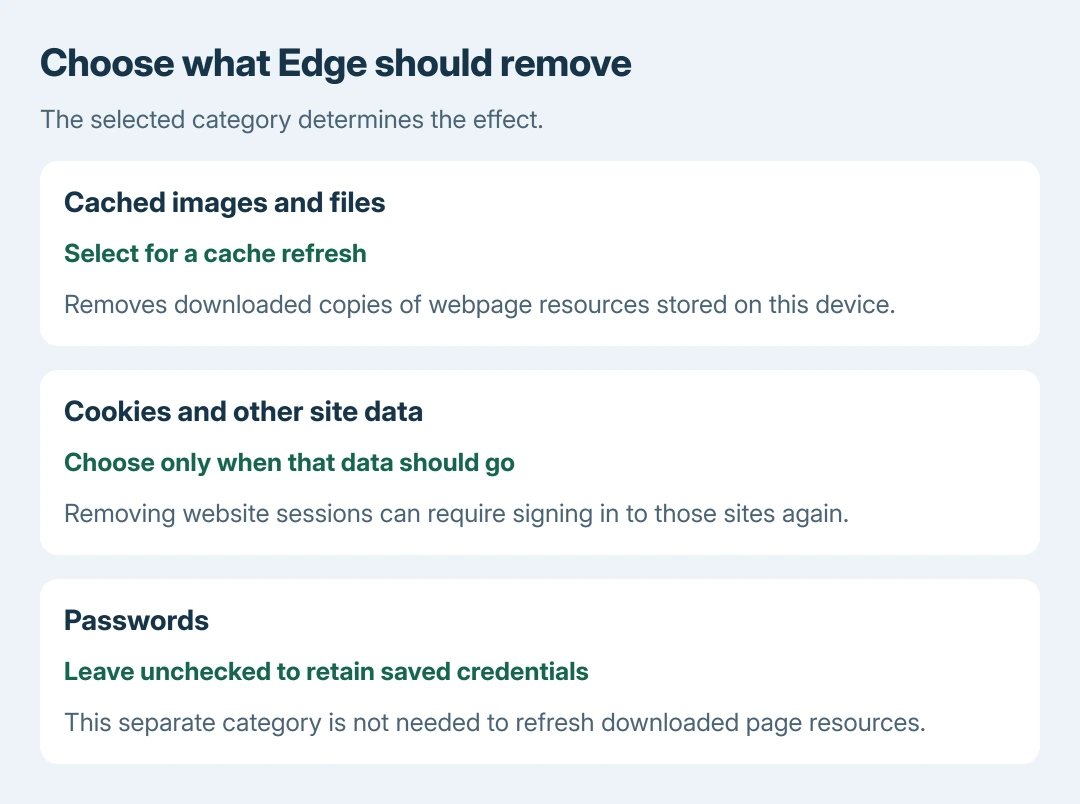
Status: Microsoft's Edge cleanup categories and current support-menu route checked October 28, 2026. No history, cookies or passwords were inspected or removed.
Check the selected Edge profile before proceeding. A browser used for work and another personal profile can have different website data; clear the profile that displays the faulty page.
Select the cache without adding unrelated deletions
Choose the time range. Use All time when the intention is to discard the complete available cache rather than only resources from recent browsing.
Select Cached images and files. Inspect the remaining checkboxes and clear their selections unless their deletion is also intended. Then choose Clear now and let Edge finish.
Reopen the affected page. Microsoft says cached files are local copies used to speed loading, so the first visit can take longer while fresh copies are downloaded.
The selection advice is ours: choose the data category by the symptom, rather than accepting every box already checked in the dialog. Removing more categories does not establish a more thorough repair.
Other PC temporary files use different controls. The Windows cache guide separates those stores; Edge's dialog does not clear all temporary data on the computer.
Does cache clearing remove saved passwords?
Not when only Cached images and files is selected. Microsoft's category table lists Passwords separately, and lists website cookies as another independent choice.
| Category | Consequence to consider |
|---|---|
| Cached images and files | Discards stored copies of page resources on this device. |
| Cookies and other site data | Removes website-maintained local data, which can include sign-in sessions. |
| Passwords | Removes selected saved credentials; this is not required for a cache refresh. |
The cookie cleanup guide explains why signing out of sites is a different cost. An account-login fault may need its site's data checked separately, rather than another cache-only pass.
Microsoft states that cache is stored on the device. If other synced categories are selected, their deletion can reach synced devices. Review those categories and sync settings before extending the cleanup.
Follow the result if the page is still broken
Try the address in another browser. If it fails there too, check the website or network before deleting more Edge data. Microsoft includes that comparison in its browser troubleshooting guidance.
If only Edge fails, open Settings and more > Help and feedback > About Microsoft Edge and finish any offered update. Restart when requested, then test the same address again.
For a continuing Edge-only fault, use Help and feedback > Send feedback with the address and browser version, or contact Microsoft Support. On a managed computer, an unavailable cleanup control should go to its administrator.
The Short Version
Choose cached images and files, set the time range, clear them and reload the page. Cookies and passwords are separate choices. The result determines whether to check Edge, the network or the website.

Isaac Smith is the founder and editor of PC Glance, a website that covers computers, laptops, and technology. He is a tech enthusiast and a computer geek who loves to share his insights and help his readers make smart choices when buying tech gadgets or laptops. He is always curious and updated about the latest tech trends.