Microsoft Edge separates the Home button, startup pages and new tabs. Set the Home button's address to change its destination; use the startup list to open a particular website when Edge launches.
Changing one doesn't automatically change the others. That explains why a saved home page can work perfectly while the browser still opens Microsoft Start or restores yesterday's tabs.
In this guide
Choose which page you want to change
Open Edge and think about the action that currently brings up the wrong page. Clicking the house-shaped Home button, launching the browser and opening a new tab are three different actions with separate controls.
For desktop Edge on Windows or Mac, open Settings and more > Settings and find Start, home, and new tabs. Some versions label this section Start, home, and new tab page. It contains the startup and Home choices.
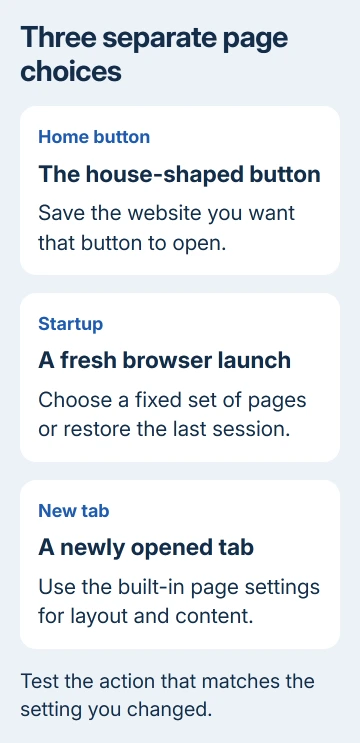
Microsoft explains these separate behaviors in its home-page instructions and startup guidance. If the menu wording differs, check whether you're changing Home or startup.
The desktop instructions apply to Edge on Windows 11, Windows 10 and macOS. Edge on a phone has a different layout. Don't look for the desktop startup-page list in the mobile browser's menus.
I'd set one destination first and test the exact action you changed. Once that works, configure the other actions if you want them to match. Otherwise, opening a new tab can make a working Home setting seem broken.
Set the address opened by the Home button
Stay in the Start, home, and new tabs settings and find Home button. Turn on Show home button on the toolbar if the house-shaped button isn't already visible beside the address bar.
Choose the custom-address option rather than New tab page. Enter the complete website address, including https://, then use the save control beside the address. For Google, for example, enter https://www.google.com/.
Open any other website in the same tab, then click the Home button. The tab should open your saved website. That checks the Home setting directly, so you don't need to close Edge to test it.
If the button returns to a new tab instead, go back to the two options and check that the custom address is selected. Typing an address without choosing that option can leave the button assigned to the new-tab page.
If the correct address appears but won't load, enter it directly in Edge's address bar. Problems with the website, connection or spelling can affect either route. Changing Home again won't repair an unreachable website.
The Home destination is one page. For several websites that should open together, use startup pages in the next section. The button doesn't become a group of tabs just because the browser has several startup addresses.
Choose what opens when Edge starts
In the same settings section, find When Edge starts or On startup. Choose Open these pages or Open custom sites, depending on the version. Select Add a new page, enter the address and save it.
Repeat that action for another website if you want several tabs on launch. Check the saved list before testing. Remove an old entry through the menu beside it so an unwanted page doesn't keep joining your new selection.
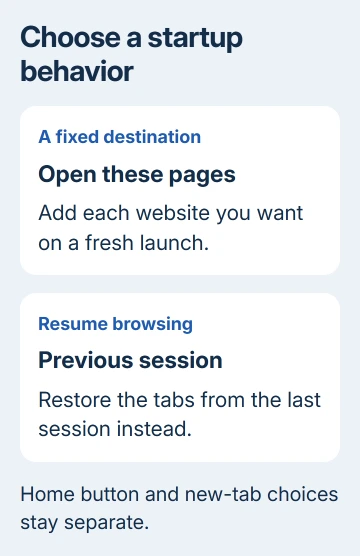
The startup settings guide also describes Use all open tabs. That copies the current set into the startup list. Open the exact websites you want saved before using it.
Close all Edge windows and reopen Edge normally. Check that the startup tabs you chose appear. Opening another tab in an already-running window tests new-tab behavior instead of the startup list.
If yesterday's pages return, check whether Open tabs from the previous session is selected. That setting restores a session instead of using a fixed list. Choose the custom-page setting when you want the same websites every time.
Also consider how Edge was launched. A shortcut for a particular website opens that destination. Open Edge with its ordinary app icon before deciding that the saved startup list failed.
For a specific example of that difference, the Prime Video shortcut guide explains how a website app and a normal browser launch can behave differently.
Customize the new-tab page separately
Press Ctrl+T on Windows or Command+T on Mac to open a new tab. Use the page's settings control to adjust the available layout and content choices. These controls affect the built-in new-tab experience.
Choose the news, background and quick-link options that fit your use. The exact set can vary with your version and region. Check the page after each change, since the layout choices aren't the same for every account.
If the quick links row has vanished from that page altogether, the missing quick links fixes start with the same gear.
Setting Google as Home or startup doesn't replace the built-in new-tab page. The Home button remains a quick route to that saved website whenever a new tab opens somewhere else.
Changing the address-bar search engine is another separate task. A Home address chooses a website; it doesn't choose the search provider for words typed into the address bar. Keep those decisions separate when checking the result.
For a quick-access website, adding it to Favorites is also useful. That lets you open the site directly without making it appear every time you start Edge or open a tab.
When Edge keeps changing the saved page
Return to the setting after a normal browser restart. Check whether the address itself changed, the selected option changed, or only the way Edge was launched changed. These differences help explain why the page keeps changing.
For a locked setting labeled as managed by your organization, ask the administrator which home or startup policy applies. A managed browser can prevent a local change from taking effect.
For a personal browser with an unexpected page, open Settings and more > Extensions > Manage extensions and check what's installed. Disable an unfamiliar page-changing extension, restart Edge and compare the saved options again.
Don't start by clearing all browsing data. That doesn't choose a new startup address. If the right website opens but shows old content, the Edge cache-clearing guide covers that separate symptom.
If Edge isn't managed but keeps replacing your choice, use Settings and more > Help and feedback > Send feedback. Include the Edge version, saved address and what you click to open the wrong page. Work-device issues go to IT first.
The Short Version
Choose a custom address for Home, a startup list for fresh launches and page settings for new-tab content. Test each action separately before treating the setting as broken.
Checked November 13, 2026.