Missing quick links on Edge's new tab page are often just switched off in the page's own settings, behind the gear in the top-right corner. Switch quick links back on there first.
When that control is gone or does nothing, resetting Edge's settings brought the row back for owner after owner. Clearing the cache worked for others. On a work PC, a grayed-out control is often IT's doing.
In this guide
Why the row vanishes
Quick links are the row of site tiles under the search box on a new tab. Edge fills them from sites you visit often and any you've added yourself, and the page keeps a separate show-or-hide setting for the whole row.
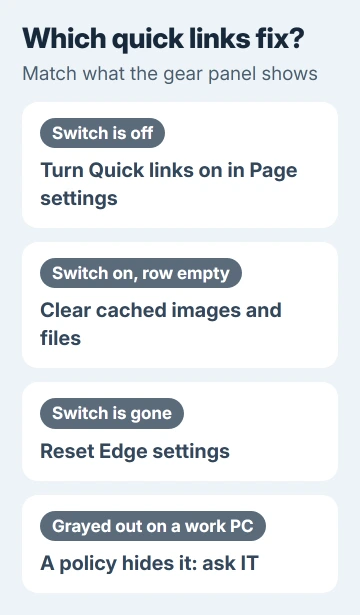
The row tends to vanish without warning. Owners described three versions of the problem: the row was simply off, the switch was on but the row stayed empty, or the switch itself had vanished. The fixes differ, so match yours first.
1. Turn quick links back on in the page settings
- Open a new tab with Ctrl+T.
- Click the gear (Page settings) in the page's top-right corner.
- Find the Quick links control and switch it on. If Edge gives you a choice of rows, pick 1 row or 2 rows.
The tiles should appear at once. In older versions the switch sat under a Custom layout, so if you don't see it straight away, look for that option in the same panel. Edge on a Mac uses the same gear.
One owner found the links missing every time Edge started and had to switch them off and on again to see them. That works as a stopgap; if it keeps happening, try the cache clear and then the reset.
2. Clear Edge's cache
When the control says quick links are on but the row stays empty, the new tab page may be loading from a damaged cache. One owner got their links back right after clearing the cache, and another fixed it by clearing their history.
- Press Ctrl+Shift+Delete to open Clear browsing data.
- Set Time range to All time.
- Tick Cached images and files. Leave Cookies and other site data unticked if you'd rather stay signed in to sites.
- Click Clear now, then open a new tab.
If the row is back, you're done. If it's still empty, the next step resets the new tab page itself, which a cache clear doesn't touch.
I'd always try this before a reset. It's quicker, and your extensions and startup choices stay exactly as they were.
3. Reset Edge's settings
No fix got more thanks from owners than this one. One had lost the switch entirely, tried a reset, and their links came straight back. A run of later replies said it worked for them too, one of them on a second device as well.
- Open Settings and more (the three dots) > Settings.
- Choose Reset settings, or type edge://settings/reset in the address bar.
- Click Restore settings to their default values, then Reset.
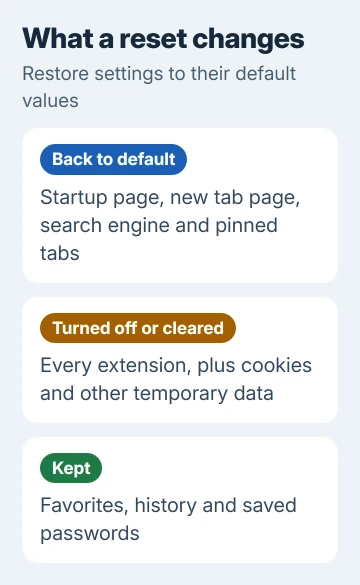
A reset puts your startup page, new tab page, search engine and pinned tabs back to their defaults. It also turns off every extension and clears temporary data such as cookies. Your favorites, history and saved passwords stay put.
That's part of why it works: any extension that took over or restyled the new tab page gets switched off too. Afterward, turn your extensions back on individually; if the links vanish again, the last one you turned on is the culprit.
Expect to sign back in to some sites, because clearing cookies signs you out of most of them. One owner only had to set their preferred startup tab again; set yours from the Edge home page settings if you'd changed it.
Put your own sites back in the row
A reset or a fresh profile can bring the row back filled with sites Edge picked from your history instead of the tiles you had. Edge builds the row from shortcuts you add and from your top sites, so you can steer it.
Click the + tile that closes the row, type a name and the site's address, and save it. To tidy the rest, point at a tile and use its three dots to rename or remove it.
Add your most-used sites first; a single row only holds a handful of tiles. If you need more, switch the control to two rows in the gear panel.
4. A quick links switch you can't click
On a PC your employer or school runs, a switch that won't respond or is missing from the panel usually comes from a policy, a setting IT pushes out. Open edge://policy and look for NewTabPageQuickLinksEnabled in the list.
When that policy is set to disabled, Edge hides quick links and turns off the quick links control in the new tab page settings. No setting on your side can override it, so ask IT whether they'll allow it for you.
A reset won't help in this case, so skip it. The Group Policy is called Allow quick links on the new tab page, which is handy to quote when you ask.
When nothing brings them back
Create a second profile (Settings > Profiles > Add profile) and open a new tab in it. If quick links show there, your original profile's data is the problem. Moving your favorites to the new profile is quicker than repairing the old one.
Missing in a new profile too? Update Edge from Settings > About Microsoft Edge, then press Alt+Shift+I on the new tab page and report the empty row to Microsoft, noting that a fresh profile shows the same gap.
The Short Version
Open a new tab, click the gear and switch Quick links back on. If the row stays empty, clear the cache; if the switch is gone, reset Edge's settings. A switch you can't click on a work PC is a policy only IT can change.
Checked November 19, 2026.