Allow the website you need in Edge's Pop-ups and redirects settings. This can let a blocked statement, print, or sign-in window open while keeping pop-ups blocked on other sites. The same page lets you turn blocking off completely.
Windows and Mac share the desktop controls. Android and iPhone each have a different mobile menu.
In this guide
Allow one website on Windows or Mac
Start in the Edge profile that contains the affected page. Choose the three-dot menu > Settings > Privacy, search, and services > Site permissions. In the Content section, select Pop-ups and redirects.
On an older Edge layout, Cookies and site permissions leads to the same category. You can also search Edge Settings for pop-ups if the menu arrangement differs from the current help page.
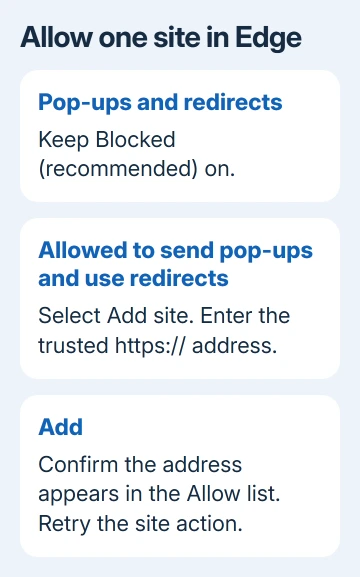
Find Allowed to send pop-ups and use redirects, then select Add site. Enter the site's web address, including https://, and choose Add. Check that the address now appears in the Allow list.
Use the trusted service's address. A bank's statement portal can differ from its public home page. If the service names a separate portal, match that address rather than guessing from a similar name.
Barclays is a good example, since its login runs on bank.barclays.co.uk; the Barclays login steps for Edge add both addresses and cover the other checks.
Keep Blocked (recommended) on for other sites. Microsoft's pop-up instructions describe this exception list; you don't need to allow pop-ups everywhere for one service.
I'd use an exception for a school portal or bank statement. It gives that service permission without leaving unrelated pages free to open windows during the rest of your browsing.
Turn off blocking everywhere when needed
To disable the blocker globally, stay on Pop-ups and redirects and turn Blocked (recommended) off. The switch controls blocking, so turning it off lets sites open pop-ups without needing an exception.
Revisit the website and click the button that should open the window. Check for a new tab as well as a separate window. Some services use a tab, so watching only for a floating window can make a successful result easy to miss.
This affects the browser profile where you changed it. If a link opens in another Edge profile, check that profile's setting too. Make the change in the browser window that actually contains the service.
Once you've completed a one-time task, turn blocking back on. If the service will need pop-ups regularly, leave an exception for its address instead. Don't keep changing the global switch every time you visit the same trusted site.
Check whether Edge actually blocked the window
Reopen the affected tab, refresh if needed, and retry the statement, print, payment, or sign-in button. Changing a setting doesn't recreate a window that was blocked earlier.
Edge shows a blocked-window indicator in the address bar when it blocks a pop-up. If it appears when you click the button, Edge has blocked a window. If you see an error on the website without that indicator, the cause might be different.
Check Edge's tab strip and any other open browser windows. A newly opened statement or print page is what you're looking for, even if it doesn't appear directly over the original tab.
If nothing changes, check whether the service opens a second trusted domain. Use its support instructions to identify required addresses. Adding unrelated sites won't help the intended window.
Change the setting in Edge for Android
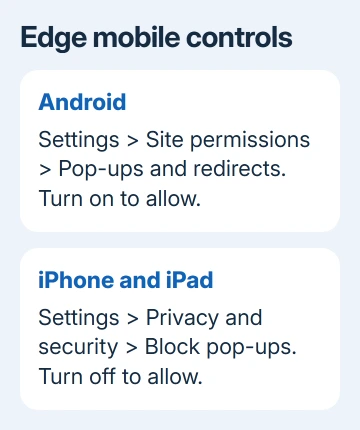
On Android, open Edge's menu > Settings > Site permissions > Pop-ups and redirects. Turn this switch on to allow windows, then retry the website's action.
Android uses site permissions, rather than the desktop's full Privacy, search, and services menu. Don't expect to find the desktop Allow list in the mobile app.
The Block ads option in Settings > Content blockers is separate. Turning off pop-up blocking doesn't change ad filtering. Check the feature connected with the problem you're seeing.
Allow windows in the iPhone or iPad app
In iPhone or iPad Edge, choose menu > Settings > Privacy and security. Disable Block pop-ups and select Done if present. Return to the original page and try the control that should open the extra window.
This changes Edge, not Safari's setting. If the link actually opens in Safari, use the iPhone Safari pop-up steps instead.
An iPhone or iPad doesn't use the desktop Edge menus, even when a website asks for its desktop layout. Use Edge's app settings even when you're viewing the desktop version of a website.
Turn Block pop-ups back on afterward if you only needed it off for one task. If the page needs a different browser to complete the task, follow its supported-browser instructions rather than changing unrelated privacy controls.
Separate pop-ups from notifications and page overlays
Website notifications arrive through the device's notification system, even away from the page. An overlay stays inside the page, such as a newsletter box. Neither is a blocked new browser window.
Edge's pop-up blocker doesn't remove every advertisement drawn inside a page. Disabling it also won't make an in-page button work if a website script or a content-blocking extension is causing the failure.
If one trusted site still fails, temporarily disable extensions that could block its window, then retry. Restore them after the check. Don't clear all browser data just to make one blocked window appear.
If a page is loading broken or outdated content, the Edge cache guide explains a more targeted cleanup. A pop-up exception and cached page files solve different problems.
Ask IT when the switch is controlled
If a switch is grayed out or marked as managed, your organization may control it through a browser policy. Give IT the exact website address and describe the action that fails. Ask for a pop-up exception for that service.
If the switch is editable and the allowed site still fails, send the website's support team the Edge version, device type, and address being opened. Include whether the blocked-window indicator appears and whether a new tab opens.
The Short Version
Allow the trusted site in Pop-ups and redirects first. For a full disable, turn Blocked off on desktop, change Android's site permission, or turn off Block pop-ups in iPhone Edge. Retry the original action afterward.
Checked November 13, 2026.