A Barclays login page that never loads in Edge, just a spinning circle on a blank screen while Firefox or Chrome sign in fine, usually comes down to an Edge extension blocking it. Ad and tracker blockers are the prime suspects.
One owner with exactly this problem turned off Ghostery and logged straight in. The quickest test is an InPrivate window, because Edge leaves your extensions out of it unless you've allowed them there.
A Log in button that does nothing, or an error code after your passcode, needs a different fix, and each one gets its own short section.
In this guide
Which login failure you're seeing
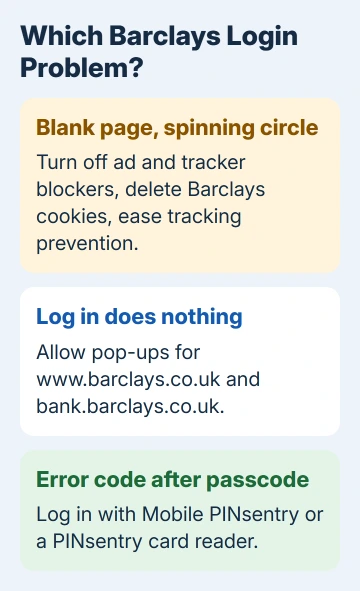
The screen tells you where to start:
- A blank page with a spinning circle. The page is stuck waiting for a piece of its own code that something in Edge has blocked: an extension, old Barclays cookies or strict tracking prevention. Steps 1 to 4 and step 6 cover it.
- Log in, or a link inside online banking, does nothing. Barclays opens many of its features in a new tab, and a pop-up blocker can stop that tab. Step 5 covers it.
- An error code after you type your passcode. The page itself loaded, so Edge isn't the problem. Step 7 covers it.
1. Try Barclays in an InPrivate window
Press Ctrl+Shift+N in Edge, go to barclays.co.uk and click Log in. An InPrivate window starts without your Barclays cookies, and your extensions stay off in it unless you've turned on Allow in InPrivate for one of them.
If the login form appears, the problem is in your normal Edge setup (an extension or a saved cookie), so carry on with step 2. If the circle keeps spinning even in InPrivate, you can rule both of those out and go straight to step 6.
2. Turn off ad and tracker blockers
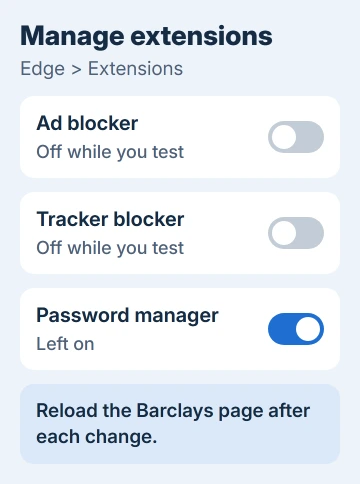
Click the Extensions button (the puzzle piece next to the address bar), then Manage extensions. Switch off every ad, tracker or script blocker in the list and reload the Barclays page.
For that owner it was Ghostery: "I disabled it and was then able to log in to Barclays." Any blocker that strips code out of web pages can do the same thing.
Once the login works, turn the blockers on again one by one and reload Barclays after each. When the spinning circle comes back, the extension you just turned on is the one breaking it.
You don't have to lose that extension altogether. Ad blockers usually let you pause them for one site from their own toolbar button, so allow barclays.co.uk there and keep the blocker running everywhere else.
3. Delete only Barclays' cookies
Old Barclays cookies can stall the login too. Open Settings and more (the three dots) > Settings > Privacy, search, and services > Cookies, then open the list of all saved cookies.
Type barclays in the search box. For each Barclays entry, click the down arrow beside it and choose Delete. That signs you out of Barclays only, not every site you use.
Barclays' own login help says to clear the whole cache and all cookies. I'd start with just the Barclays entries; it removes the same stale data without logging you out of your email and everything else.
Don't expect this step to beat an extension, though. With Ghostery still switched on, deleting Barclays' site data changed nothing at all.
4. Open the login from barclays.co.uk, not a favorite
Saving the login page itself as a favorite can stop its forms from loading properly. A favorite saved months ago may point to an outdated address that doesn't start the login the right way anymore.
Delete that favorite, type barclays.co.uk into the address bar and choose Log in from the home page. If you want a shortcut, save the barclays.co.uk home page instead.
5. Allow pop-ups from Barclays
When you click Log in, or a link inside online banking, and nothing at all happens, Edge's pop-up blocker is probably stopping a new tab from opening.
Open Settings > Privacy, search, and services > Site permissions > Pop-ups and redirects. In older versions of Edge it sits under Cookies and site permissions instead.
Next to Allow, click Add and enter https://www.barclays.co.uk, then add https://bank.barclays.co.uk the same way.
Reload Barclays and try the link again. Adding sites this way keeps the blocker on for everything else, and the full steps for a pop-up exception in Edge cover the older menu layout too.
6. Make Barclays a tracking prevention exception
Edge's Strict setting blocks most trackers across sites, and Microsoft's tracking prevention page warns that it can stop some sites working, right down to not letting you sign in.
Go to Settings > Privacy, search, and services > Tracking prevention. Either drop the level to Balanced, or click Exceptions > Add a site, type https://www.barclays.co.uk and click Add. Do the same for https://bank.barclays.co.uk.
An exception lets every tracker on those addresses through, so add only the Barclays ones. Then close the tab, open a new one and log in again.
7. Error code after your passcode: use PINsentry
If the form loads and only fails after you enter your passcode, the passcode login itself is failing, not the browser. Log in with Mobile PINsentry in the Barclays app, or with a PINsentry card reader, until the passcode works again.
When nothing gets you in
Make sure Edge itself is up to date first. Go to Settings and more > Help and feedback > About Microsoft Edge, and Edge checks for an update, installs it and asks you to restart.
Try the same login on another computer, or over your phone's own connection. If it fails everywhere, the trouble is at Barclays' end: phone the bank and tell them which screen or error code you get.
If only Edge fails after all seven steps, use another browser for banking for now and run through steps 2 and 6 again after Edge's next update. Changes to Barclays' pages or to an extension can turn the problem on and off.
The Short Version
A spinning Barclays login in Edge means something in Edge is blocking the page. Test in InPrivate, switch off ad and tracker blockers, then delete only the Barclays cookies.
Log in from barclays.co.uk rather than an old favorite, allow Barclays pop-ups, and give it a tracking prevention exception if you run Strict. An error code after your passcode means PINsentry instead.
Checked November 19, 2026.
 If you have any business, I can build it online