
Turning off the pop-up blocker on iPhone Safari uses Settings > Apps > Safari > Block Pop-ups. Switch Block Pop-ups off, return to the website and repeat the action that should open its document, payment or sign-in window.
That setting applies to Safari's pop-ups generally. If the page is open in Chrome, its own controls apply instead, including an option to allow a particular site's blocked window.
Allow the needed window in Safari
Start with the browser containing the website. Safari's setting will not change Chrome's permission, and a page opened inside another app may need that app's help or an option to open in Safari.
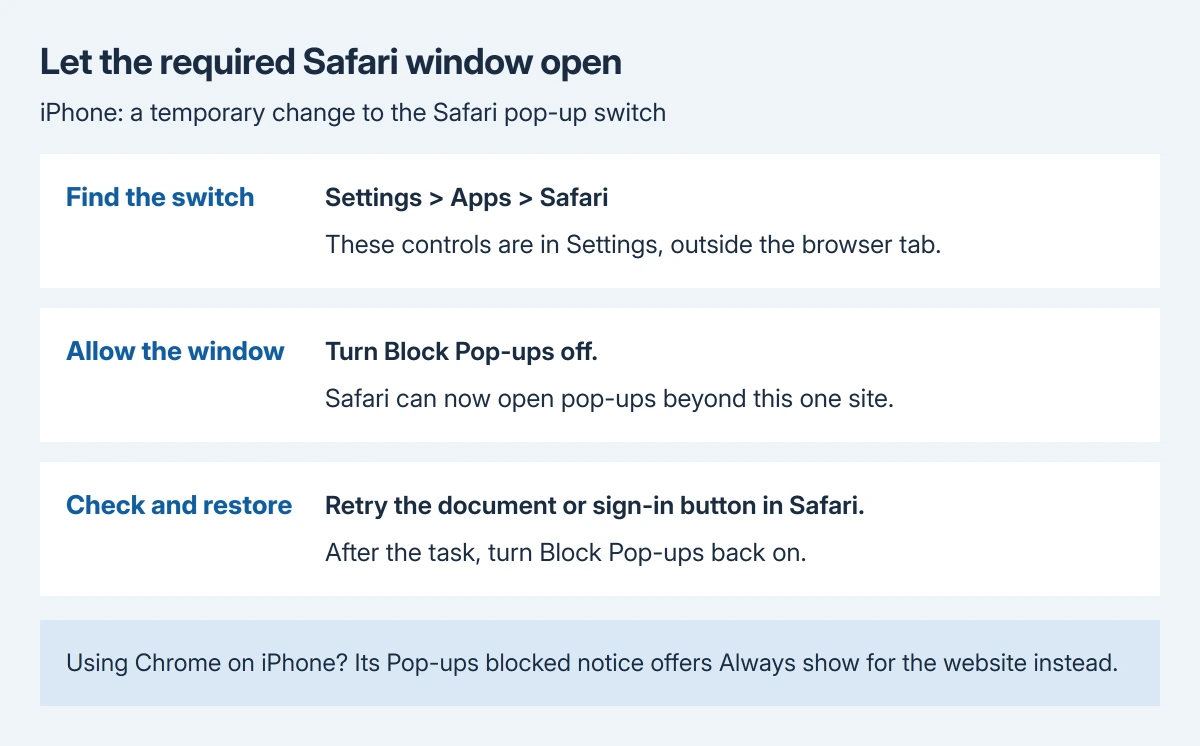
Apple documents the Safari switch in its pop-up guidance. The Apps > Safari route applies to the current iPhone Settings layout; it is outside the Safari browsing window.
Status: Safari's iPhone switch and Chrome's iOS site exception verified October 29, 2026 from Apple and Google instructions. No browser permission was changed.
- Open the iPhone's Settings app.
- Tap Apps, then Safari.
- Find Block Pop-ups and turn it off.
- Return to Safari and retry the button that should open another window or tab.
Confirm that the expected statement, receipt or form appears. If a new window opens but stays blank or reports an error, its opening permission has worked; the remaining failure concerns the page or service.
After a temporary task, restore Block Pop-ups through that Settings screen. Our recommendation is to limit the period of broader permission to the task that required it.
Apple's iPhone instructions provide a switch for Safari rather than the Mac's per-site permission list. On a computer, use the separate Safari website exception instead of looking for that list on iPhone.
Use Chrome's own iPhone control when that is the browser
In Chrome on iPhone, revisit the page where the window was blocked. At the bottom, tap Always show in the Pop-ups blocked notice to allow that site's pop-ups.
Google says some legitimate websites use these windows, and its iPhone pop-up instructions give that site-specific action.
To change Chrome's broader setting, open its More menu, then Settings > Content Settings > Block Pop-ups. Turn that control off only when the wider change is intended.
These are Chrome's iPhone controls. The address-bar exception on desktop Chrome uses a different layout, covered by the computer pop-up permission guide.
Keep a failed page separate from an unwanted pop-up
Allowing another window does not disable Safari content blockers or repair an expired website session. If the window now opens but its content fails, record that change when contacting the website's support team.
A form that repeatedly turns white needs the Safari blank-page checks. Keep the diagnosis tied to the visible result rather than repeatedly changing the pop-up switch.
For an unexpected virus warning, prize or forced download, leave the page instead of granting broader access. Apple says deceptive pop-ups can imitate trusted alerts and even provide fake close controls.
Use Safari's tab controls to close a suspicious page. Keep Fraudulent Website Warning enabled; a legitimate document window does not require disabling that separate safeguard.
If the switch cannot be changed on a managed phone, ask its administrator. For one legitimate site still failing after its window is permitted, give that site's support the browser, iOS version and exact button or error involved.
The Short Version
In Safari, turn off Block Pop-ups in Settings under Apps and Safari, then retry the required window. Restore blocking after a temporary task. In Chrome on iPhone, use Always show for the blocked site or Chrome's own Content Settings.

Isaac Smith is the founder and editor of PC Glance, a website that covers computers, laptops, and technology. He is a tech enthusiast and a computer geek who loves to share his insights and help his readers make smart choices when buying tech gadgets or laptops. He is always curious and updated about the latest tech trends.