

Turning off the pop-up blocker on a Mac starts in the browser's permissions. In Safari, open the affected website, then choose Safari > Settings > Websites > Pop-up Windows and set that site's menu to Allow.
Use a site exception when a bank statement, booking form or sign-in needs another window. Safari also offers a setting for other websites, but changing that default does not remove existing site-specific rules.
Allow the website that needs another window
Keep the affected page open in Safari. Choose Safari > Settings, click Websites, then select Pop-up Windows in the left column. Scroll down that column if the entry is out of view.
Apple documents this route in its Safari pop-up instructions. Find the intended website on the right and choose Allow from its menu.
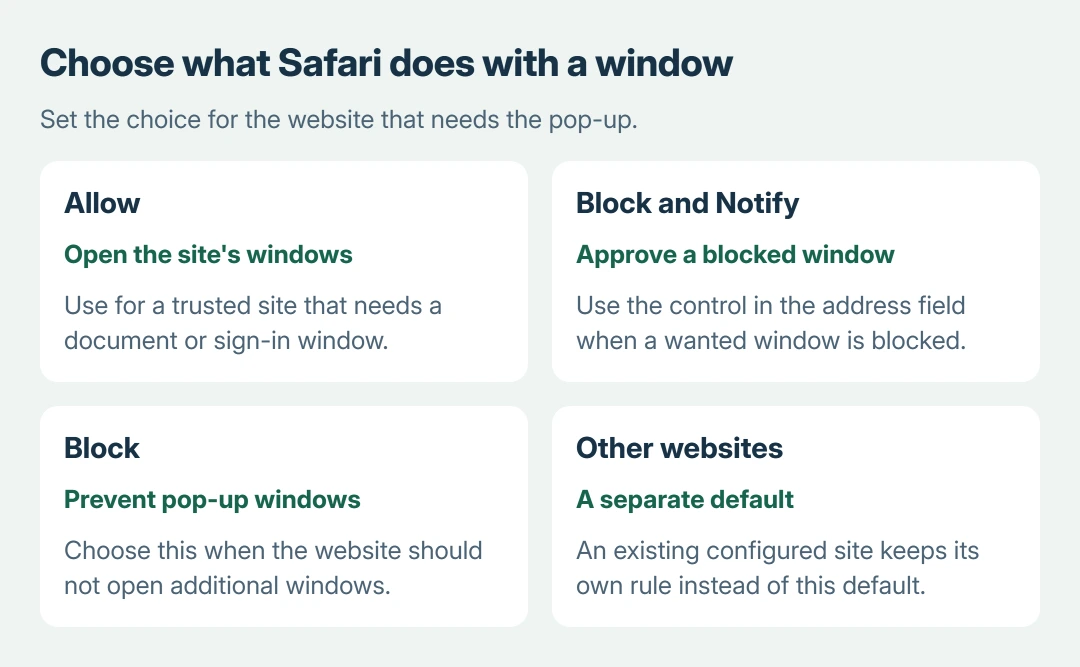
Status: Safari's Mac website permissions reviewed October 27, 2026. Per-site rules and the default for other websites work separately. No Safari settings were changed.
Go back to the document task and try it once more. Confirm that the expected statement or form appears. If a window opens but its content fails, the pop-up permission has already done its job.
These are Safari controls. For Chrome on the same Mac, use the Chrome site exception instead. Changing Safari cannot change Chrome's permission list.
Choose between allowing windows and approving them individually
Allow permits that site's pop-ups. Block prevents them. Block and Notify blocks the window initially while offering a control in Safari's Smart Search field to display it.
Apple says that last option lets a reader choose whether to show a blocked window. Keep it when occasional approval suits the task better than allowing every pop-up from that site.
Click the blocked-window control when it appears in the address field, then check the opened page. A website can have useful document windows and unwanted offers, so inspect what opened before entering account information.
After a temporary task, return to the same site's menu and restore its previous choice. Our recommendation is to keep the permission as narrow as the task requires.
Understand the setting for other websites
At the bottom of Websites > Pop-up Windows, When visiting other websites supplies the choice for sites without their own configured rule. Choose Allow there only when that broader behavior is intended.
A site already listed under Configured Websites retains its individual choice. That explains a common result: the default says Allow, yet a particular site is still blocked.
Apple states that its procedure for allowing all sites first removes existing configured entries. Select the relevant entries, click Remove, then choose the desired default. Removing an entry makes it follow that default.
For one troublesome website, changing only its menu is the shorter route. Check which address is actually opening the document if a payment or sign-in process moves to another domain.
Keep other Safari permissions separate
A page opening correctly but failing to display a form can have a different cause. Apple's website-settings guide lists content blockers, pop-up windows and other site controls separately.
Check the specific failure before changing another permission. Allowing a new window does not disable a content blocker or grant camera, microphone or notification access.
Use Safari's operating-system update route when the site requires a newer browser. If the window opens but that one service still fails, give its support team the address and action that failed.
For persistent unwanted windows, follow Apple's pop-up and adware guidance. Keep the fraudulent-site warning enabled in Safari's Security settings; a legitimate pop-up exception does not require switching it off.
The Short Version
Open Safari's Websites settings, choose Pop-up Windows and allow the required site. Use Block and Notify for individual approval. The default for other websites applies only where an existing site rule does not override it.

Isaac Smith is the founder and editor of PC Glance, a website that covers computers, laptops, and technology. He is a tech enthusiast and a computer geek who loves to share his insights and help his readers make smart choices when buying tech gadgets or laptops. He is always curious and updated about the latest tech trends.