
Allow a Chrome pop-up for the website that needs it, rather than changing every site's default. On a computer, open the blocked-pop-up icon in the address bar and choose the site-specific permission.
A legitimate sign-in, receipt or document window can use a pop-up. Website notifications and insecure downloads have different controls, so identify what Chrome actually blocked.
Allow the blocked window for this site
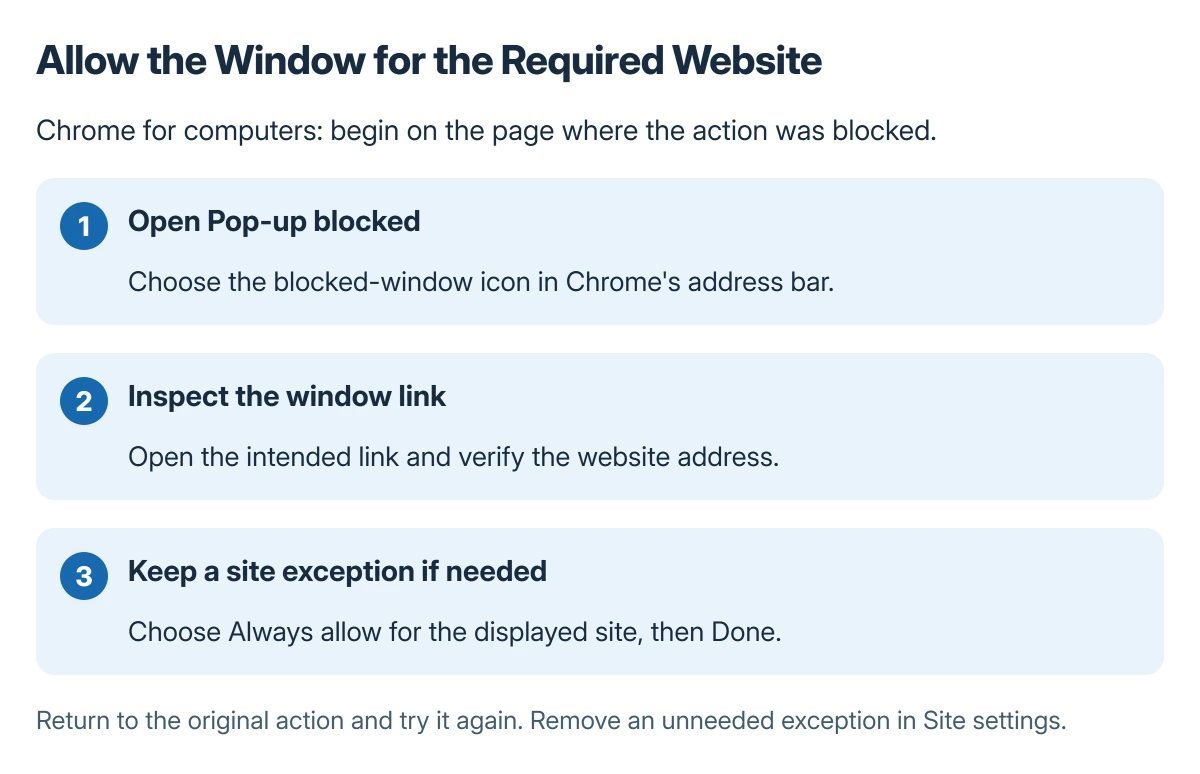
Open the page where the action failed. Look in the address bar for Pop-up blocked, click it, and select the link to the window needed.
Follow Google's steps for blocked pop-ups. To keep allowing that site's windows, choose Always allow pop-ups and redirects from the displayed site, then Done.
Status: Google's Chrome desktop pop-up controls reviewed 22 October 2026. Site exceptions, default behavior and notification permissions are separate controls; no browser settings were changed.
Check the displayed website address before saving the permission. Return to the original action and try it again, then inspect the window that opens.
Review or remove the site exception
Open Chrome's menu, choose Settings > Privacy and security > Site settings > Pop-ups and redirects. Look for the site under the list allowed to send pop-ups and use redirects.
Google says the site's menu offers Block to prevent those windows again. Use that when an exception is no longer needed or a site starts opening unwanted windows.
The default setting on this page applies more broadly. Keep a single-site requirement as a single-site exception instead of making a wider change without a reason.
When the message is actually a notification
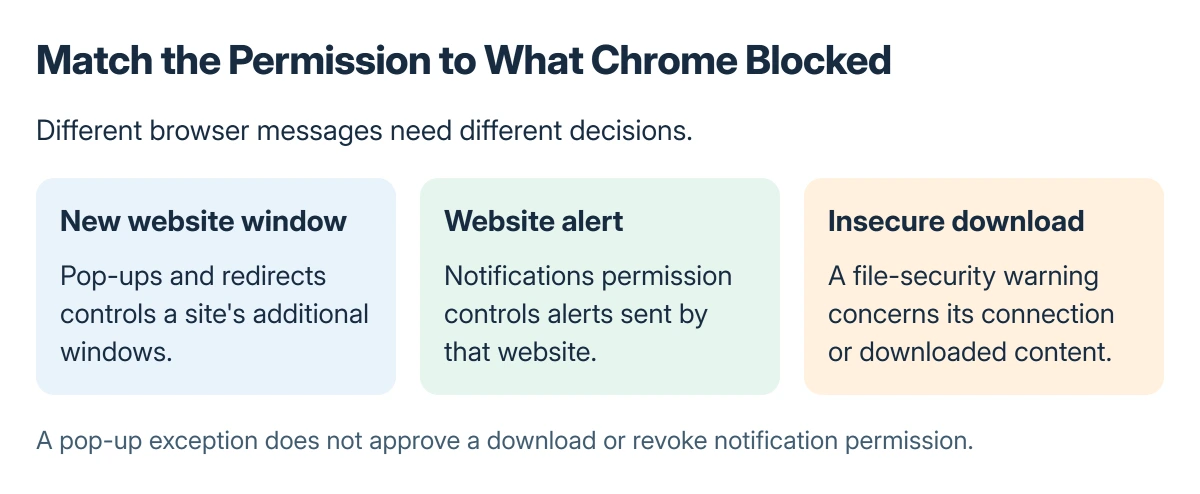
Google states that website communications can continue after pop-ups are disabled because notification permission was granted separately. Blocking pop-up windows does not revoke that permission.
Visit the site, click View site information, and inspect Notifications. Choose Block there when the unwanted communication is a website alert.
If Chrome warns that a file cannot be downloaded securely, use the insecure-download explanation. A pop-up exception does not establish that a download or its connection is safe.
If the allowed window still fails
Read the address again and check that the exception belongs to the site opening the window. Also distinguish a window that never appears from one that opens and then fails to load its content.
A page that turns white afterward needs the Chrome blank-page checks. Changing pop-up permissions repeatedly cannot diagnose that rendering problem.
When one website still cannot complete its process, report the exact action and Chrome message to its support team. On an organization-managed browser, ask the administrator about a locked permission.
The Short Version
Use the address bar's blocked-pop-up icon to inspect and allow the required site's window. Manage the exception in Site settings afterward. Notification alerts and insecure downloads need their own settings and checks.
Where to Next
Finish the intended sign-in or document task, then remove the exception if it was temporary. Check any newly opened page before entering information into it.

Isaac Smith is the founder and editor of PC Glance, a website that covers computers, laptops, and technology. He is a tech enthusiast and a computer geek who loves to share his insights and help his readers make smart choices when buying tech gadgets or laptops. He is always curious and updated about the latest tech trends.