Chrome links can ignore a left click when extensions interfere or site data is damaged. Try the same link in Incognito first. If it works there, disable extensions in your normal window before clearing anything.
A click that does nothing, a blocked pop-up, and a destination that opens with an error need different fixes. Watch whether Chrome changes the address, opens another tab, or shows a blocked-window symbol beside the address bar.
In this guide
1. Check whether the click or the destination is failing
Reload the page, then try a normal text link on another website. Close a menu or dialog covering the page first. A transparent page overlay can intercept clicks even when the link underneath is visible.
Right-click the failing link. Choose Open link in new tab from its menu. Alternatively, press Tab until the link has keyboard focus, then press Enter. This checks whether the link opens without a left click.
When navigation works but replaces the current page, use a new-tab click and check whether the destination opened in the background.
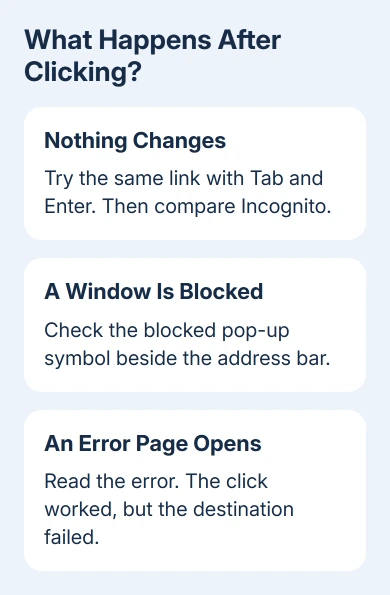
If the new tab opens the destination, the address itself works. Continue with extensions and site settings. If it opens an error page, note that message: a connection error needs its own fix. It happens after Chrome responds to the click.
Try clicking Chrome's menu and a button in another app. A mouse that also misses those controls needs its connection or button checked. On a laptop, compare the touchpad with the mouse before changing browser settings.
I'd make that comparison first. It keeps a worn mouse button from turning into an afternoon of browser resets. If only Chrome's webpage links fail, leave the mouse settings alone and continue.
On Android, links opening the wrong app use default-app associations rather than these desktop mouse checks.
2. Turn off extensions if Incognito works
Open Chrome's menu and choose New Incognito window. Visit the same public page and try its link. A site requiring an account may need a separate sign-in because this window doesn't use the normal window's login cookies.
If the link works, return to your regular window and enter chrome://extensions in the address bar. Switch off the installed extensions, reload the affected page, and try again. Opening that screen alone won't change the page.
When links work, enable each extension separately and reload after every change. If links stop working after you enable one, update it, change its site access, or remove it. Include ad blockers and script tools in that comparison.
Google recommends this extension comparison in its loading-error steps. Incognito also changes stored site data, so links working there doesn't mean an extension caused the problem.
Some extensions are allowed to run in Incognito. Check an extension's Details if it still appears there. If links fail with every extension switched off, continue to the affected site's permissions and data.
3. Allow the specific action the site needs
A payment, sign-in, or document button may open a separate window. When Chrome blocks that window, the button can seem unresponsive. Look for the blocked pop-up symbol beside the address bar after clicking.
Click that symbol, review the blocked destination, and allow pop-ups for the trusted site if the action requires them. Then retry the button. Leave other sites blocked; allowing every pop-up isn't needed to repair one checkout or login.
For a site whose buttons depend on scripts, open Settings > Privacy and security > Site settings > JavaScript. Check that the site isn't in the blocked list. Allow scripts for that trusted site and reload it.
Ordinary links don't require a blanket pop-up exception. If a regular link opens but a site's action button doesn't, the site's scripts or its attempt to open a separate window could be the problem. Chrome can still open ordinary links.
If the page opens unwanted tabs instead, use the separate Chrome pop-up controls. Keep that symptom separate from a required window Chrome has blocked.
4. Remove the affected site's saved data
Use this step when other sites work, extensions are off, and the affected page still ignores links. Enter chrome://settings/content/all, search for the site's domain, and use the delete control to remove its saved data.
Deleting this data ends that site's sign-in session and can clear unsaved local work or its cart. Finish anything important first. Reopen the site, sign in if needed, and try the same link from a freshly loaded page.
If the site now works, its old cookies or local storage were involved. Leave the browser's other history and passwords alone. If it still fails, compare another browser using the same page address.
A failure in two browsers is a reason to report the specific link to the site. Include its page address and whether typing the link's address directly opens it. The site's owner can fix a broken button or incorrect link target.
For pages that open but show an error, follow the message rather than repeating click tests. The Chrome Aw, Snap guide deals with crashed pages, which are a different stage of the failure.
5. Update Chrome, then reset settings if needed
Open Chrome menu > Help > About Google Chrome. Let an available update finish, then use Relaunch when offered. Save work in open tabs first. Test the affected page again after Chrome restarts.
If links fail across several sites in Chrome while another browser works, open Settings > Reset settings and select Restore settings to their original defaults. Read the confirmation and select Reset settings.
The reset keeps bookmarks and passwords, but resets startup pages and permissions, clears temporary site data, and disables extensions. Test a normal link before restoring settings or enabling extensions again.
If a work or school policy blocks a change, send IT the URL, Chrome version, and results with extensions off. Otherwise, use Help > Report an issue with those details and whether pressing Enter on a selected link works.
The Short Version
Try keyboard activation and Incognito. Check extensions, site permissions, and the affected site's data. Update or reset Chrome when several sites fail in this browser alone.
Checked November 12, 2026.