A normal left click usually opens a link in the current tab. To keep that page open, use Ctrl+click in Windows and Linux, or Command+click in macOS. Right-clicking the link and choosing Open link in new tab also works.
If that command fails, or a site tries to create a separate window and Chrome blocks it, the fix changes. Choose the fix for what you see: a click opening the same tab, a new tab hidden in the background, or a blocked pop-up.
In this guide
1. Use a click that asks for another tab
On Windows and Linux, hold Ctrl and click a standard text link once. On a Mac, hold Command instead. Keep Ctrl or Command pressed during the click, then release it.
Google's tab instructions list these shortcuts. They open an ordinary link in another tab without requiring a browser reset or an extension that changes every website.
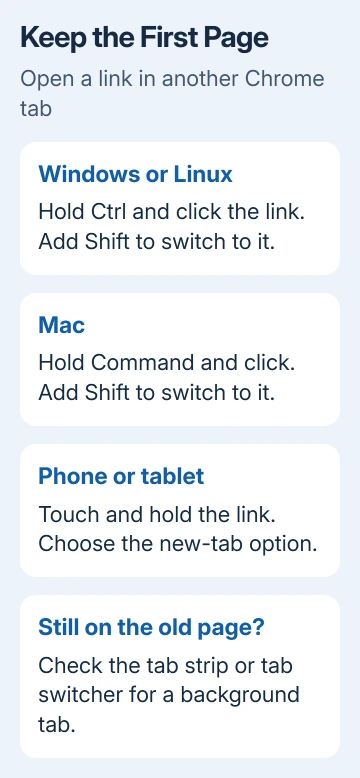
Look along the tab strip after clicking. The new page can open in the background while the original page remains visible. Select the new tab to confirm that it contains the destination you expected.
To open the destination and switch to it immediately, use Ctrl+Shift+click for Windows and Linux; on a Mac, use Command+Shift+click. The extra Shift key changes which tab becomes active.
A middle click with a mouse wheel is another useful option for a normal link. Press the wheel as a button rather than scrolling it. If your mouse software has reassigned that button, use the keyboard method instead.
If these actions work, Chrome can open new tabs normally. A plain click continuing in the current tab isn't a fault by itself. Website authors choose how their ordinary links behave.
2. Does the link menu work when the shortcut fails?
Right-click a text link and select Open link in new tab. On a Mac trackpad, use your configured secondary click, such as a two-finger click, to display the same menu.
When the menu succeeds and a shortcut fails, check the key or mouse button you're using. On Mac, Control-click opens a context menu; Command-click is the Mac shortcut that requests another tab.
Try another Ctrl key on a Windows keyboard, or another mouse for the middle-click action. If the menu command works, use it to open links while checking that button or shortcut. Keep your saved browser data during this button check.
If the menu only offers page commands rather than link commands, the thing clicked may be a button or scripted control rather than an ordinary link. Try a clearly linked word elsewhere on the page.
Some websites handle clicks with their own scripts. A standard link may work while a particular in-page button doesn't. When reporting the problem, explain which button fails and which links still work.
For links that won't open by any method, use the separate Chrome links not opening checks. That guide covers failed navigation, while these steps help you choose which tab opens a link.
3. Check the tab switcher on a phone
On Android, touch and hold a normal link, then select Open in new tab or Open in new tab in group, depending on the menu offered. Tap the tab counter to find the page you just opened.
On iPhone or iPad, press the link until its menu appears, then select Open in New Tab. Open Chrome's tab switcher afterward if the original page remains on screen. A background tab can be easy to miss on a small display.
If the tab belongs to a group, look inside that group rather than only at the first screen of the tab switcher. A link can have opened successfully without appearing as a separate ungrouped card.
Test with a text link rather than a video player or app-launch button. A player can respond to a long press with its own controls. An app link may open another installed app instead of creating a browser tab.
If you specifically want the browser version, open a new tab and enter the site's address there. When Android keeps sending supported web links to an app, check the app defaults rather than Chrome's desktop keyboard shortcuts.
4. Allow a pop-up only when the site needs one
A payment, sign-in or document button may create a separate browser window. That's different from asking Chrome to open an existing text link in another tab. Look for Pop-up blocked in the desktop address bar.
Select the blocked-pop-up indicator and inspect the destination link. If it's the page you requested, open it. For a site you trust and use regularly, choose the option allowing that site's pop-ups, then select Done.
The pop-up settings are under Settings > Privacy and security > Site settings > Pop-ups and redirects on desktop Chrome. Allow pop-ups for that site rather than for every website.
After saving the exception, revisit the page and press the same button. The requested window or tab should open. If unrelated ads appear instead, remove that site's permission.
The Chrome pop-up permission guide covers the phone controls too. Those permissions won't make every normal left click create another tab, because Chrome handles ordinary links and automatic pop-ups differently.
5. Repair a browser failure that affects ordinary links
If Open link in new tab fails on several unrelated sites, update Chrome. On a computer, open More > Help > About Google Chrome, complete the update, and relaunch when offered.
On a phone, update Chrome through its app store. Reopen the same ordinary link and repeat the long-press menu command. Repeating that same action lets you judge whether updating fixed the tab failure.
In desktop Chrome, open More > Extensions > Manage extensions. Disable an extension affecting tabs, clicks or pop-ups. Retest that link. If disabling the extension restores tabs, check for its updates before enabling it again.
When the trouble affects just one site, report its URL and the specific control to the site's support team. Include whether the link's context menu works. The site may need to fix its button's code even when ordinary links work in Chrome.
For failures across sites after an update and extension check, report the problem through Chrome's Help > Report an issue. Include the operating system, Chrome version, and whether new tabs appear but stay blank or never appear at all.
The Short Version
Use Ctrl-click, Command-click or the link menu, then look for a background tab. Handle a blocked site pop-up through its own permission. Check updates or extensions when ordinary links fail across sites.
Checked November 13, 2026.