An Android link that opens the wrong app, jumps to the Play Store, or does nothing may be assigned to the wrong app. Set a working default browser first, then check Open supported links for the app that should handle that address.
When a browser opens and shows an error, Android has already passed the link to it. Check that destination separately. If the address works when pasted into Chrome but fails when tapped in another app, focus on that app's link handling.
In this guide
1. Try the full address in a browser
Press and hold the failed link and choose Copy link or Copy link address, when the app offers it. Open your browser, paste the address into its address bar, and load it. Keep the complete address rather than just the visible link text.
If the page loads, the address and browser work in that comparison. Return to the original app for the default and supported-link checks. If the browser reports a missing page, ask the sender for a corrected link.
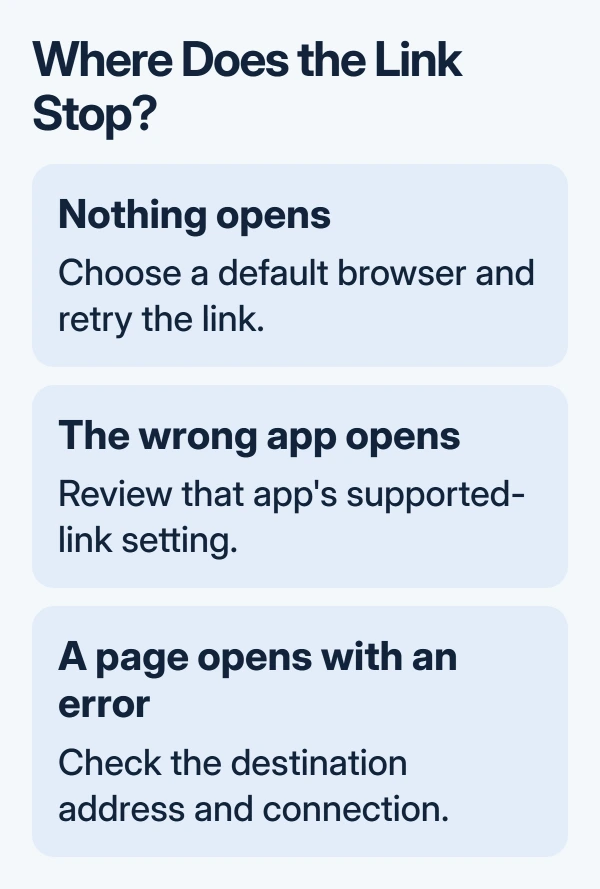
Try one ordinary web address from a second app too. This tells you whether every app is struggling to launch the browser or just the original message or email app. Change settings for the app that fails first.
A telephone link, email link, or local file needs the appropriate calling, email, or file app. Those aren't ordinary web addresses. Check what the link is trying to open before changing your browser settings.
If the link looks unexpected, confirm it with the sender before signing in. A working browser doesn't make an unfamiliar login request trustworthy. For a normal link you recognize, continue with the app defaults.
2. Choose an installed default browser
On a Pixel, open Settings > Apps > Default apps > Browser app and choose the browser you want. On Galaxy, the route is Settings > Apps > Choose default apps > Browser app. Pick an installed, enabled browser.
Google explains how to choose Chrome for Android links using these default-app controls. Choosing a search engine inside a browser doesn't choose which browser other apps launch.
Open that browser and finish its first-run prompts. Return to the original app and tap the same link. Check that the intended page opens in the selected browser rather than stopping at an unanswered app-selection prompt.
If a browser is missing from the choices, check whether it is disabled in Settings > Apps. Enable that browser if it should handle web addresses. On a managed phone, an administrator may control which apps are available.
I'd make this choice before clearing any app data. It's a small change that tells the phone where to open web links, so you know which browser the next test will use.
3. Check the app's supported-link setting
For a link meant to open an installed app, open that app's Android information page. On Pixel, use Settings > Apps > See all apps > the app > Open by default. Review Open supported links.
On Galaxy, look under Settings > Apps > the app > Set as default. Enable Open supported links when you want its supported web addresses to open in that app. Some versions also list the addresses the app can handle.
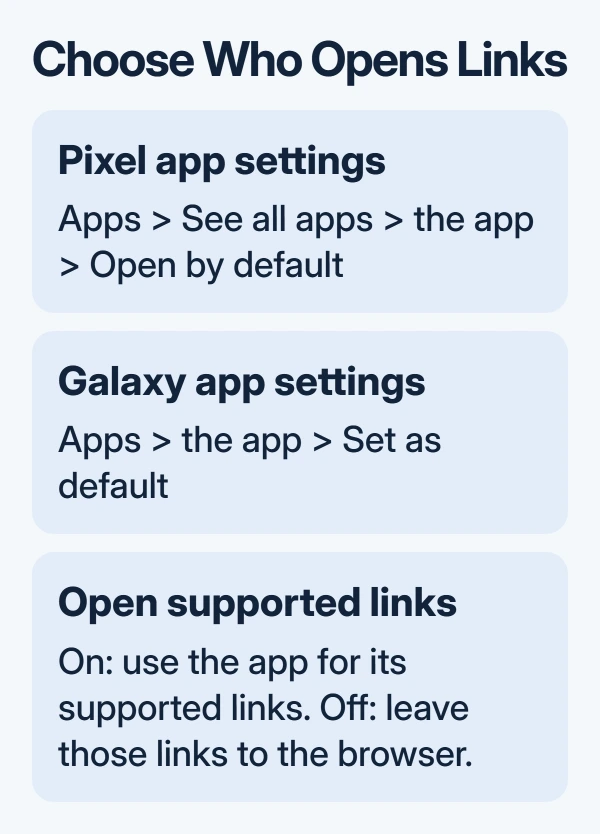
If you want the website in your browser instead, disable that switch for the app currently intercepting it. Return to the message and tap the address again. This changes the handling of supported web links, not the browser's home page.
Labels depend on Android and the manufacturer. Google's Pixel default-app instructions also show Open by default > Clear default preferences. Use the control your phone offers.
For an older Android version that offers Clear defaults, use it on the app currently taking over the action. At the next prompt, select the intended app. Just once lets you check the result before making it the permanent choice.
Don't expect an app to accept every address from a service. The app controls which links it supports. If one link still opens a website while another opens the app, keep both examples for that app's support team.
4. Use the source app's external-browser option
Some messaging, social, and email apps show web pages inside their own window. If that window stays blank, open its menu and look for Open in browser or Open in Chrome. The wording depends on the app you're using.
When no external-browser option appears, use the copy-and-paste route from the first section to keep working. If the page loads in your browser, the app's built-in viewer needs attention rather than the phone's internet connection.
Update the source app and the destination app through Play Store > profile picture > Manage apps & device. Install available updates, then relaunch the affected app and retry that address.
If the failure is inside Chrome on a computer instead, the Chrome links guide covers mouse clicks, extensions, and blocked windows. Android's supported-link switch doesn't change desktop Chrome behavior.
If a link loops to the Play Store, check supported links and confirm the destination app is installed in the same phone profile. Report the exact address if it still loops; reinstalling random browsers isn't a targeted repair.
5. Repair a crashing app without wiping the phone
When tapping a link opens an app that immediately closes, treat that as an app failure. Restart the phone, then try opening the destination app directly. If it also closes without a link, repair that app before changing link settings again.
On Pixel, open Settings > Apps > the app > Storage & cache > Clear cache. On Galaxy, use Storage. Cache is temporary; Clear storage or Clear data can remove local app data.
Try the app again before clearing its storage or data. The app troubleshooting steps explain the difference between temporary cache and app data. If the phone is slow across many apps, use the Android performance checks.
When a link still won't reach the intended app
Open the copied link in your browser when that works. Contact the developer through App support in the app's Play Store listing. Send the app version, phone model, Android version, full link, and result when pasted into a browser.
For work-profile links or locked settings, give your administrator the same information. Tell them whether the link fails in your personal profile, work profile, or both. They can check the app and profile policy without a factory reset.
The Short Version
Paste the address into a browser to separate a broken page from app routing. Choose a default browser, check Open supported links, and update or repair the app that fails. Use an external browser while reporting an app-specific problem.
Checked November 13, 2026.