A MEGA page stuck loading can be using stale browser data or losing its connection. Clear Chrome's cached files first, then compare a private window. If it fails on several devices, try another connection before resetting Chrome.
An endless spinner, an incomplete account after sign-in and an unavailable shared file need different attention. Use the account reload when your files don't all appear. Browser-data changes can't restore a shared file that was removed.
In this guide
1. Clear cached files before reopening MEGA
MEGA's loading guidance starts with closing tabs, opening a fresh window and clearing cached data before returning to the site. The cache holds local web-app files; replacing an outdated copy can let the page load again.
Save work in other tabs and let important transfers finish before closing them. Open a new Chrome window, go to Settings > Privacy and security > Delete browsing data, and choose All time for the time range.
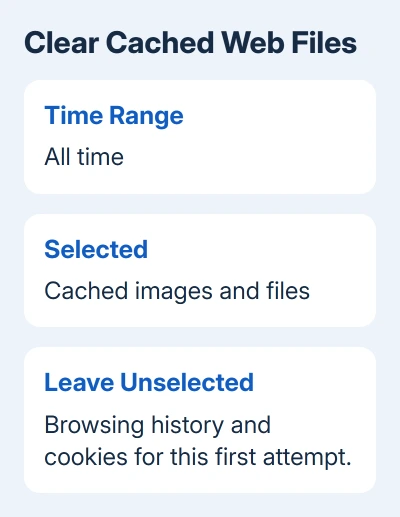
Select Cached images and files. For this first attempt, leave browsing history and cookies unselected. Click Delete data, then open MEGA again and check whether the loading screen reaches the sign-in page or your files.
That clears cached web files across Chrome, but it doesn't delete the files stored in your MEGA cloud account. Cookies and site storage are a separate choice. Leave those alone to keep your existing sign-ins during this first attempt.
If the site still spins, continue with a private window. I'd do that comparison before clearing all browsing data, because it helps decide whether the problem is in your regular Chrome profile.
2. Compare a private window and your extensions
On Windows or Linux, press Ctrl + Shift + N. On a Mac, press Command + Shift + N. Open MEGA in that Incognito window and try the same page or shared link.
Incognito keeps this visit separate from your regular browsing session. Extensions normally stay off unless you've allowed them there. If MEGA loads there, check your regular profile's add-ons and saved data before changing the connection.
Open chrome://extensions in a normal window. Switch off extensions that block scripts, filter content or change downloads, then retry MEGA. Restore a single extension, test the page and repeat until you identify any troublesome add-on.
If one extension causes the problem, check its per-site options for MEGA. Allowing the needed site activity there is more targeted than leaving all your extensions disabled. Keep only the change that consistently helps.
A browser that freezes even on unrelated pages needs the Chrome freezing checks. Keep a failure affecting just MEGA separate from a browser that stops responding everywhere.
3. Remove MEGA's site data when the profile is affected
Use this step when the private window works but your regular window still fails after you've checked extensions. Have your MEGA sign-in details and two-factor authentication method ready before removing its stored session.
Enter chrome://settings/content/all in Chrome's address bar to open the site-data list. Search for mega.nz and delete its stored data. Check mega.io too if you've used it and an entry appears.
Google's site-data removal instructions explain deleting data for a particular site. Some Chrome versions place the site-data list under the broader cookies or site-data heading; search Settings for site data if the route differs.
Return to MEGA in a new tab and sign in. The page now needs to reload account information into the browser, so give it time to load rather than repeatedly opening more tabs for the same account.
Removing site data ends that sign-in session and clears local web-app storage, without deleting cloud files. If folders are missing after the account opens, tell support that loading succeeds but the contents look wrong.
4. Reload an account that opens with incomplete contents
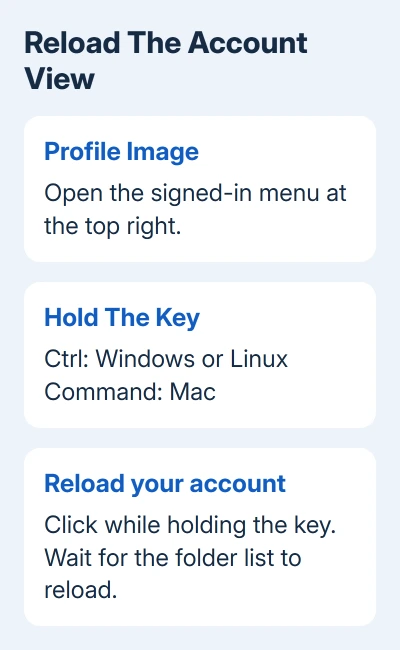
When the page opens but files don't display correctly, use the signed-in account's reload control. Click your profile image at the top right to open its menu.
Hold Ctrl on Windows or Linux, or Command on a Mac, while clicking Reload your account. This clears MEGA's cached account data and downloads fresh information from the servers. Let it finish before comparing the folder list.
Large accounts can take longer to prepare their file and folder information. The number of entries matters, rather than simply the gigabytes stored. If a huge account keeps loading slowly after the browser checks, ask support to look at it.
Keep cloud files in place while diagnosing a display problem. A folder that appears missing in Chrome can still be present through another app. Reloading the view doesn't require deleting and recreating the folder.
5. Compare the connection when private browsing fails too
Try the same MEGA page in another up-to-date browser. Compare a second device using your usual Wi-Fi if you have one available. If it fails in several browsers and devices, the problem reaches beyond one Chrome profile.
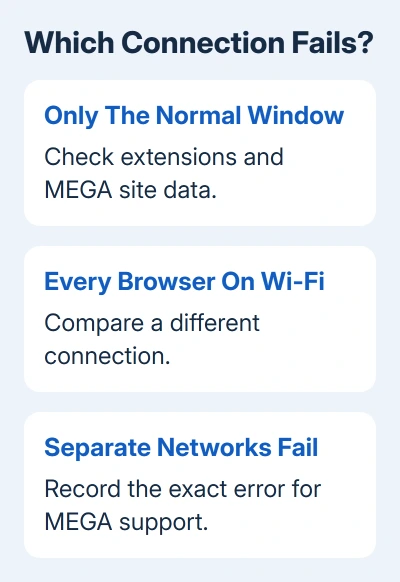
Compare with a different connection, such as your phone's hotspot, if your data plan allows it. If MEGA loads there but not through your usual router, ask about a network filter, provider restriction or connection problem.
The vendor's page-loading advice includes checking a proxy or VPN. Disconnect a personally configured VPN for the comparison, then reconnect it afterward if you need it.
For antivirus web filtering or a managed network, ask your administrator whether MEGA is being blocked by the filter. Use a permitted site exception when appropriate rather than leaving security software switched off while you browse.
When MEGA fails across separate networks, keep the exact error and time of failure. Deleting Chrome data repeatedly can't fix a problem at MEGA's end, an account restriction or a shared file that its owner removed.
6. Finish the browser update and report what remains
Open Chrome's menu and select Help > About Google Chrome. Let the update check finish. Save work and click Relaunch if offered, then retry the affected page in the updated browser.
If Chrome reports it is up to date and MEGA still fails, write down whether the regular window, Incognito window and other browser behaved differently. Include the exact loading text rather than just saying the website is broken.
Send that information to support@mega.io with your operating system, Chrome version and whether another network works. For an account problem, write from the account's registered email address. Never send your password or recovery key.
If a different service also fails only in Chrome, the X loading checks show the same useful distinction between browser data and connection trouble. Describe both affected sites in your support report.
The Short Version
Clear cached files, compare Incognito and check extensions. Remove MEGA's site data for a profile failure, or reload incomplete account contents. For trouble across browsers, compare connections and send support your results.
Checked November 13, 2026.