Yes, Anthropic offers an official Claude extension for the Chrome browser. It's called Claude in Chrome and works with a paid Claude account on a computer. Follow the setup page's store link to install it, then open the side panel.
The extension can read pages and take actions in them. Choose the official listing and check its permissions carefully, since this gives it more access than a chat box beside a website.
In this guide
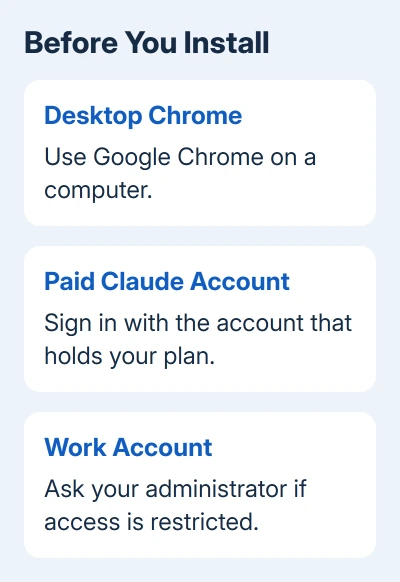
Check the account and browser before installing
Use desktop Google Chrome. The extension isn't supported on mobile devices or other browsers built on Chromium, so installing a similarly named add-on in Edge isn't the supported route.
Anthropic's setup page lists Pro, Max, Ultra, Team and Enterprise as supported paid plans. A free account isn't eligible. For a work account, your organization's settings can also control whether the extension is available.
The browser extension and Claude Desktop are separate pieces. Ordinary work in the Chrome side panel doesn't require the desktop app to stay open. Tasks that use local files or let another app control Chrome can need that connection.
That distinction helps if you're deciding what to install. Start with the extension for a task on a web page. Add the desktop connection when the job needs files or tools outside that browser session.
Install the official listing and open the panel
Open the Claude Chrome Web Store listing in desktop Chrome. Its developer is Anthropic and its website links to claude.com. The extension ID in that address is fcoeoabgfenejglbffodgkkbkcdhcgfn.
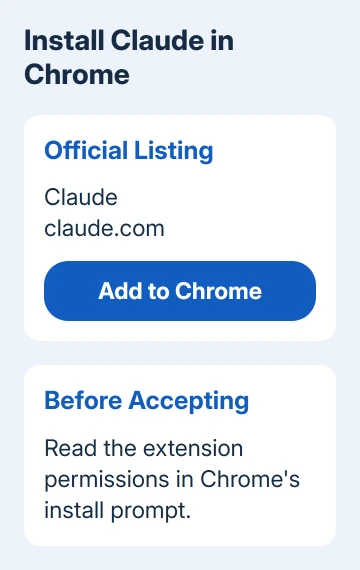
The store can show Add to Desktop when viewed on a phone. That isn't an installation route for mobile Chrome. Return to Chrome on your computer to install and use the extension.
- Click Add to Chrome and review the installation prompt.
- Accept the requested extension permissions if you're comfortable with them.
- Sign in with the Claude account that has your paid plan.
- Click Chrome's puzzle-piece Extensions button, then pin Claude.
- Click the Claude toolbar icon to open the side panel.
The panel should remain beside the page while you browse. Begin with a simple request to summarize the page you're viewing. Check that the response refers to that page before asking it to change anything.
I'd use a familiar, non-sensitive page for that first task. It's an easy way to learn what the extension can see, where its prompts appear and how it behaves before giving it a longer job.
Decide what Claude can do on a website
This extension can click controls, type into forms and navigate pages. It isn't limited to explaining text that you paste into a chat. A task can use the accounts you're already signed into in Chrome.
The permissions let it do those things: the side panel shows the conversation, page access lets it read content, and browser-control permissions let it interact with the page. Read the prompt as permission to act in your browser.
The current Cowork side panel starts in Automatically approve mode. Actions go through safety checks, and some still need your approval. Choose your preferred permission mode before starting a task; the panel remembers that choice.
Keep payment, account-security and publishing decisions under your supervision. A web page can contain misleading instructions, so read what Claude plans to submit before an action changes something you care about.
For work across several pages, the extension can use a Claude tab group. Add the pages relevant to the job there. Keeping unrelated tabs out gives you a clearer view of which information belongs to the task.
When the icon or installation button is missing
An installed extension doesn't always have a pinned toolbar icon. Open the puzzle-piece menu first. If Claude appears there, pin it and click its name rather than reinstalling another copy from a search result.
Open chrome://extensions if it isn't listed in that menu. Find Claude and check whether it's enabled. Google's extension management instructions cover enabling, removing and managing installed extensions.
If Chrome refuses to enable it, the extension won't turn on checks tell apart disabled add-ons and policy restrictions. A browser managed by work or school can require an administrator's approval.
A blocked store is a different obstacle from a missing toolbar icon. Follow the Chrome Web Store blocked message for that case. Downloading an extension file from an unrelated site won't remove that restriction.
If installation succeeds but the account isn't eligible, look at which account the Claude panel shows. Being signed into one account on a website doesn't mean the extension is using the paid account you intended.
Understand the side panel you're seeing
The current setup page describes both the Cowork side panel and a classic experience. The Cowork rollout can vary by plan and organization, so two paid accounts can show different panels without either installation being broken.
On Enterprise, the Cowork side panel needs the organization to enable both Claude in Chrome and Cowork in the cloud. Ask your administrator about those two settings if coworkers have a different experience.
Recording workflows requires the classic side panel. The newer panel's three-dot menu includes Switch back to classic. Choose that when following workflow-recording steps, since the Cowork panel doesn't offer recording.
If setup still doesn't work, use the help option in the Claude Help Center. Include the extension version, desktop Chrome version, plan, exact error and whether the problem happens during installation, sign-in or a website action.
The Short Version
Use desktop Chrome, the official store listing and a paid Claude account. Pin the extension, check its permission mode and start with a simple page task. Ask your administrator about work-account restrictions.
Checked November 13, 2026.