
You click a download link on a site you trust and Chrome refuses. The download bar says the file can't be downloaded securely. The page itself shows a padlock, so the warning makes no sense.
I would change one setting for that one site, and leave Chrome's protection on everywhere else. The owner who asked fixed it that way.
On Super User, this question was posted in April 2023 and has 64,786 views. The asker wrote that the accepted answer "saved me".
Why a secure page gives an insecure download
The asker hit it on their university's site: "When I download .pdf files from a specific website by using Google Chrome, I get the error message file can't be downloaded securely."
Google says why on its download errors page. "Even if the page that you were on when the download started was secure, the download might have been provided insecurely."
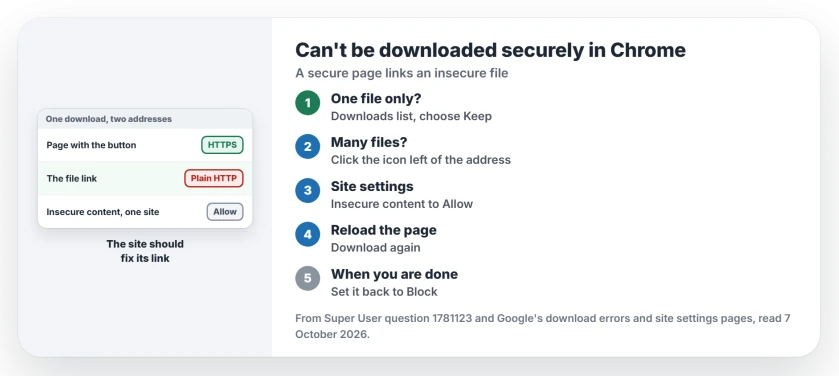
Status: checked 7 October 2026. Chrome blocked PDFs from a site with a padlock. Setting Insecure content to Allow for that one site let the downloads through.
So the page uses HTTPS, but the file link points to plain HTTP. Chrome blocks that mix on purpose. That part is deliberate.
The proper fix belongs to the site
The accepted answer starts there: "The party to fix the issue is the website owner/developer, not you." If it is your school or employer, tell their IT team which page does it.
Until they fix it, you have two ways through. One suits a single file. The other suits many.
1. One file: keep it anyway
Open the downloads list in Chrome, find the blocked file and choose Keep. Chrome then saves it. Done.
That is fine once. The asker needed more: "the keep option is a bit boring because I need to download hundreds of files."
If the downloads list does not open with its shortcut, our Ctrl+J page covers that separate fault.
2. Many files: allow insecure content for that site
On the site you download from, click the icon left of the address. A later commenter noted that "in modern Chrome you click the Tune icon at the left of the URL."
Open Site settings. The accepted answer's step: "Scroll down to Insecure content and change it to Allow". Then go back and reload the page.
Google's site settings page describes the default: "By default, secure sites block insecure content." The Allow choice applies only to the site you set it on.
A sign-in or receipt window has a different permission: allow that site's Chrome pop-up when a new window is the blocked action.
Now try the download again. The asker first said nothing changed, because they set it on the wrong page. Once they set it on the page with the download button, it worked.
3. Or try the same link with https
One reader had a cleaner idea. They put https:// in front of the file's link, pasted it into the address bar. They wrote: "This way I was able to resolve the download of file, without a security compromise."
It only works when the server also answers on HTTPS. Many do. Then nothing in Chrome needs changing.
The reverse fault exists too: Chrome turning an http address you typed into https, then failing. That one has three causes, one of them a setting Chrome 154 switches on.
What I would not do
Some answers suggest turning off Safe Browsing or using a Chrome flag. The asker tried both. Neither fixed it.
A commenter put the risk plainly: "It's not really safe to turn off browser security when doing a batch download." Keep the change to one site you know.
Ours: once your downloads are done, set Insecure content back to Block. If the files land somewhere odd, our Downloads folder page helps when that folder stalls.
Does Edge show the same warning?
Edge is built on Chromium, so it blocks the same mix. A commenter noted that in Edge you open Permissions for this site instead of Site settings.
A download that starts and then dies partway in Edge is another fault, which the download network page covers.
The Short Version
- The page is HTTPS but the file link is HTTP, so Chrome blocks it.
- The real fix is the site's; tell its owner.
- One file: choose Keep in the downloads list.
- Many files: set Insecure content to Allow for that one site, then reload.
- Or open the file link with https in front.
- Set it back to Block when you are done.
Where to Next
Open Site settings for that one site, set Insecure content to Allow, and reload before you try again.
Which site was it, and did Keep or the setting do it? Leave a comment.

Isaac Smith is the founder and editor of PC Glance, a website that covers computers, laptops, and technology. He is a tech enthusiast and a computer geek who loves to share his insights and help his readers make smart choices when buying tech gadgets or laptops. He is always curious and updated about the latest tech trends.