
"Couldn't download - network issue" is how Microsoft Edge reports a download whose connection dropped partway through. Chrome shows the same failure as Network error. Often Resume picks it up again.
When every file fails, often at the same point, the cause is on the PC itself. The usual suspects are the Wi-Fi adapter, security software holding the file, or an extension. One test separates them quickly.
Which file, which browser
Edge words it "Network issue" and adds that there is a problem with the network. Chrome calls the same stop "Network error". Both mean the connection to the server broke before the file finished, not that the file was blocked.
Status: Google's Chrome download and connection pages checked 23 October 2026, with Edge's and Chrome's own error wording and Microsoft Q&A threads. Nothing on a network was changed.
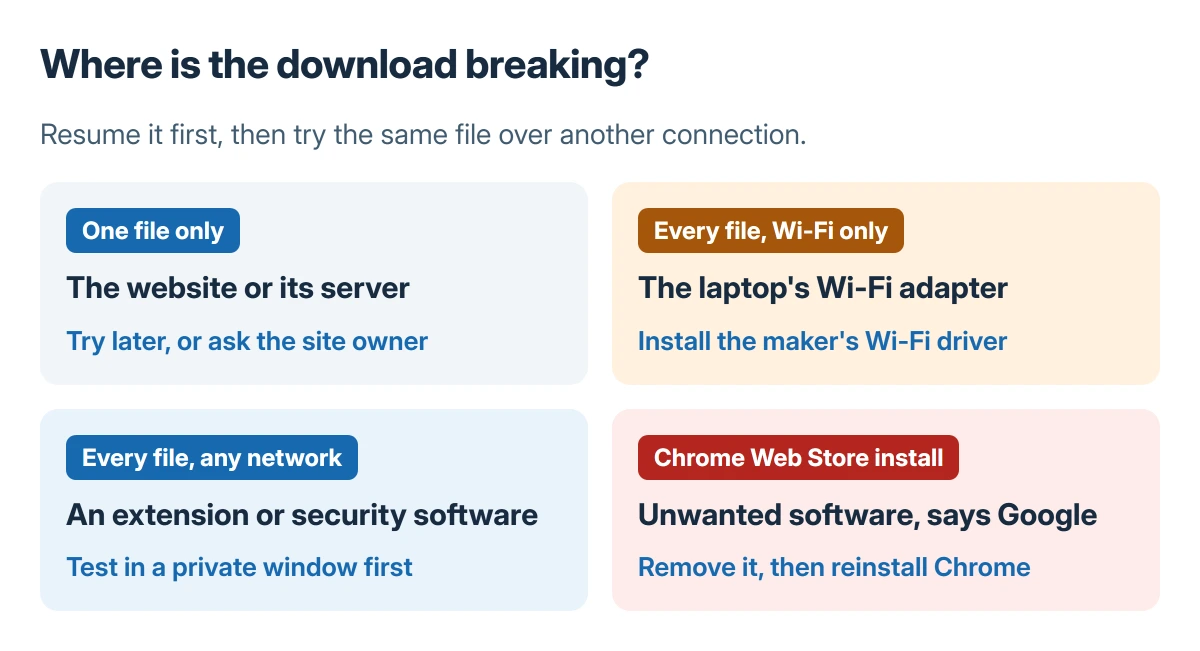
Notice whether one file fails or every file does. A single file that will not finish usually sits on a busy or broken server, and Google's advice for that case is to try later or contact the website owner.
Resume it first
Google says Chrome resumes interrupted downloads by itself, and a paused one can be resumed by hand from the downloads list. In Edge, press Ctrl+J and choose Resume or Retry beside the file.
A download that resumes and finishes was a short drop in the connection. Nothing needs fixing unless it keeps happening.
Try the same file on another connection
This is the test that splits the causes. Plug in an Ethernet cable, or join your phone's hotspot, and download the same file again.
One owner on Microsoft Q&A had every download stop after a few megabytes in Chrome and Edge. In their words, they "used a wired connection instead of WiFi, and everything worked". The fault was the Wi-Fi side of that PC, not the internet.
Another owner on Windows 11 found large files stopped at about 100 MB on the laptop, while an iMac on the same network downloaded the same file fine. That pattern also points at the laptop's wireless adapter.
If the other connection works, install the Wi-Fi driver from the laptop maker's support page. Our guide to getting a network driver without internet covers doing that from another PC or a USB stick.
A network reset may only help for a moment
Many answers on this error suggest a network reset and a string of netsh commands. One owner tried exactly that and reported it worked "for a few seconds" before the error came back on a YouTube video.
A reset clears settings, so it is reasonable to try once. When the error returns within minutes, stop resetting and test another connection, because the adapter or its driver is the likelier cause.
Rule out extensions and security software
Open an InPrivate window in Edge (Ctrl+Shift+N) or an Incognito window in Chrome and download the file there. Google states that if Incognito fixes it, disable all extensions, then re-enable them singly to find the culprit.
Google also lists firewall and antivirus software among the causes of connection errors. A "Virus scan failed" message is different: the scanner itself blocked the file.
Turning off a third-party antivirus did not help one owner, so test it rather than assume.
A different message altogether, about a download that can't be downloaded securely, has its own fix in our guide to the Chrome secure download warning.
NETWORK_FAILED in the Chrome Web Store
Installing an extension or theme can fail with NETWORK_FAILED. Google says unwanted software on the computer could be blocking the install. Remove the unwanted software first, then try the install again.
If it still fails, Google's next step is reinstalling Chrome. Its Fix file download errors page lists the other messages, from Disk full to Forbidden.
When nothing works
A PC that fails on every connection, in a private window, with extensions off, is down to its own network stack or security software. Install pending Windows updates and the maker's latest Wi-Fi driver.
If one specific file still fails everywhere, the server is the problem. Contact the site, or look for the file on a mirror the developer lists.
The Short Version
Press Resume first. Then download the same file over Ethernet or a phone hotspot: if that works, update the maker's Wi-Fi driver. Test in a private window, check security software, and treat one failing file as the site's problem.
Where to Next
Whether the stop happens at the same size every time, on Wi-Fi only, or on one site only tells me most of the answer. Leave that pattern as a comment, naming the PC brand, and I will reply with the fix that fits it.

Isaac Smith is the founder and editor of PC Glance, a website that covers computers, laptops, and technology. He is a tech enthusiast and a computer geek who loves to share his insights and help his readers make smart choices when buying tech gadgets or laptops. He is always curious and updated about the latest tech trends.