Microsoft Edge's offline installer is on its official business download page. Save the Windows MSI on a connected computer, transfer it to the destination PC and run it there. This package contains the browser installation files.
Choose the package for the destination computer's processor type. A 64-bit Intel or AMD PC needs a different download from a Windows laptop with an ARM processor, even though both can run Windows 11.
In this guide
Check the destination PC before downloading
On the computer that needs Edge, open Start > Settings > System > About. Read System type under Device specifications. Write down whether the processor is x64-based or ARM-based, along with the Windows version.
The Windows device-information controls show the installed system and processor details. Check the destination, rather than the computer you're borrowing to download the file.
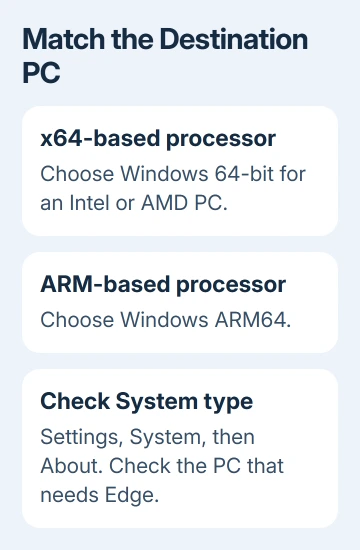
For a typical Intel or AMD Windows PC, select Windows 64-bit. For an ARM-based Windows PC, select Windows ARM64. A 32-bit Windows installation needs the 32-bit package where the download page offers one.
Here, architecture means the type of software your processor runs. It doesn't mean the installer's file size. Guessing from the brand can lead to the wrong file: one manufacturer can sell both x64 and ARM laptops.
If you're checking whether the computer supports Windows 11 as well, keep that separate from the browser download. Installing Edge doesn't upgrade Windows, change its license or replace missing operating-system security updates.
Get the Windows installer from the business page
Open the official Edge business downloads on a computer with internet access. The business page offers packages for installing Edge across computers. These packages don't require a separate browser purchase.
The page has current downloads and a section headed Looking for an older version of Edge?. That section includes selectors for Channel / Version, Build and Platform, followed by Download.
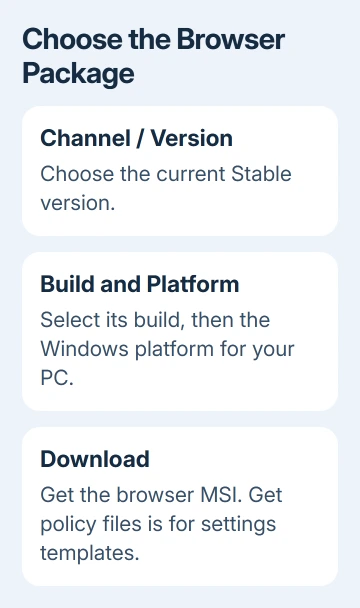
Select the current Stable version, its offered build and the destination's Windows platform. Choose Download for the browser. Get policy files supplies administrative settings templates, not the browser package.
Read and accept the license terms if the page asks, then let the file finish downloading. Check that the saved Windows package ends in .msi. A file that is still downloading isn't ready to copy to the disconnected PC.
Microsoft's deployment instructions say the enterprise installation files are Windows Installer packages. Run the downloaded package directly; an organization's software deployment console isn't required.
I'd choose a fresh Stable package rather than keep reusing an installer stored on an old USB drive. That starts the offline computer with a more recent browser before it can connect and check for updates.
Transfer the completed MSI and install it
Copy the completed MSI to a USB drive or approved transfer location. Move it into the Downloads folder on the PC that needs Edge. Keep the filename intact so the package remains recognizable if installation reports an error.
Close existing Edge windows after saving anything unfinished. Open the MSI from the local folder and follow the installer prompts. Check any administrator approval prompt to confirm it's for the Microsoft package you chose.
If you don't have administrator permission on a work computer, give IT the downloaded package and the reason you need an offline installation. An MSI doesn't bypass the organization's software-installation rules.
After installation, search Start for Microsoft Edge and open it. The browser window should appear even when the PC has no internet connection. An online page failing to load while disconnected doesn't mean installation failed.
Once connected again, open Settings and more > Help and feedback > About Microsoft Edge. Let any update finish and restart if prompted. Future updates need access to a download source. The MSI you copied won't keep Edge updated on its own.
Keep Stable, preview channels and WebView2 separate
Choose Stable for ordinary browsing. Beta, Dev and Canary offer changes before they reach Stable for testing. Their presence on the page doesn't make a preview build a better choice for a basic reinstall.
The Edge channel reference also explains Extended Stable for organizations using a slower feature-release cycle. Let IT choose that channel if they manage software on your computer.
The download page separately links WebView2 Runtime. That's a component used to display web content inside other applications. Installing it isn't the same as installing the Edge browser that opens websites from Start.
Likewise, the policy-file download supplies templates administrators use to manage settings. Neither a template archive nor the WebView2 installer is the Windows browser MSI this task needs.
If your problem is a browser that already opens but won't download files, use the Edge download-failure checks. A download interruption and a missing browser installation need different repairs.
When Windows rejects the installer
Compare the package's platform with System type again if Windows reports that it can't run the file. Download the correct architecture instead of renaming its extension. Renaming doesn't convert an ARM64 package into an x64 one.
If the MSI is incomplete or Windows reports an invalid package, download it again on the connected computer and copy the finished file again. Keep the exact error wording if a second complete download fails too.
Check the supported operating systems before trying an old Windows machine. An offline package doesn't make a current Edge release compatible with an unsupported operating system.
For a newer Edge version already installed, don't force an older MSI over it to remove an unrelated browser fault. Use the repair for the behavior you see, or ask IT about its approved version and deployment policy.
For a continuing installation failure, report the Windows version, System type, MSI filename and error to IT or Microsoft Support. If the installed browser freezes, use the Edge not-responding checks.
The Short Version
Check the destination's System type, download the matching Stable Windows MSI from the Edge business page and transfer the completed file. Run it with the required permission, then check Edge's version and updates when you're back online.
Checked November 13, 2026.