Chrome history can look empty in the wrong profile or a filtered view. Open the full History page and clear its search field first. Missing visits from another device need an account check and the History and tabs setting.
Some visits won't be there to recover. Chrome's history covers the last 90 days and excludes Incognito visits, internal Chrome pages and deleted entries. Check whether the list is incomplete or Chrome never saved those visits.
In this guide
1. Open the complete History page
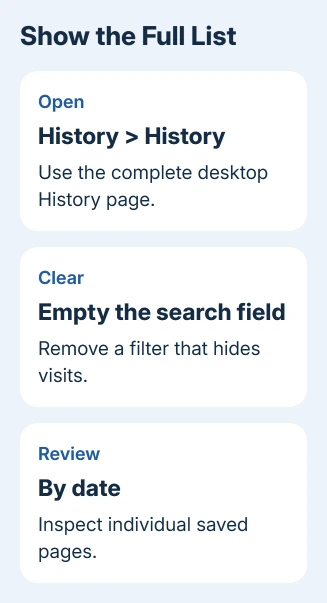
On Windows, Mac or Chromebook, open the three-dot menu and choose History > History. Entering chrome://history in the address bar also opens the full page. The small recent-history menu isn't the complete list.
Remove any words in the search field so you can see unfiltered visits. On desktop versions offering By date and By group, choose By date to inspect individual visits rather than grouped browsing sessions.
Try a shorter search using one memorable word in the title or website name. A long search with a mistaken word can hide an entry that is still saved. If the page appears now, open it and bookmark it if you'll need it later.
On desktop, another route is to type @history in the address bar, press Tab or Space, and enter a keyword. This asks Chrome to search its recorded visits instead of sending the phrase straight to a search engine.
For the iPhone-specific routes across both browsers, use the iPhone browsing history guide. A visit made in Safari won't become a local Chrome visit just because both apps are on the same phone.
2. Check the browser profile and browsing mode
Select the profile icon in desktop Chrome and open the profile you used for those visits. Each profile has its own information. A new profile can have an empty history while the older profile still has the pages you remember.
If the window says Guest, close that window and open your usual profile. Guest browsing activity is removed when the guest session ends, so the regular profile won't contain a record of those guest visits.
Incognito also doesn't add visited pages to the ordinary history list. Switch to a regular window for visits you want Chrome to remember from now on. Leaving Incognito won't create entries for the private pages you already closed.
Use a normal webpage for a fresh check. Open a site in a regular window, let it load, then look in History. chrome://settings is a poor test because Chrome's own internal pages aren't recorded there.
If the new webpage appears, this profile is saving history. Focus on the missing period, the original device or the browsing mode used at the time. If it doesn't appear, continue checking why this device isn't saving new visits.
3. Find the local list on Android or iPhone
On Android, open Chrome, tap the three-dot menu and choose History. With a bottom address bar, an upward swipe from the bar can reveal History. Look for a recent visit made on that phone in a regular tab.
On iPhone or iPad, open Chrome's three-dot More menu and tap History. Confirm that the missing page was opened in Chrome, rather than Safari or a web view inside another app.
If today's phone visits appear but the laptop's don't, check sharing between devices. Turning on shared history won't recover a private visit that Chrome never saved.
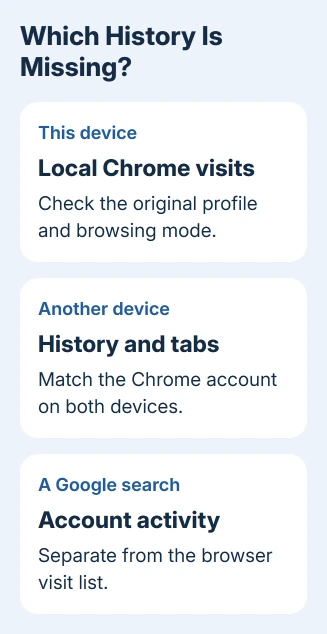
If the list is empty on just one device, open History on the original device too. A local visit can still be present there even when the second device has no copy. Keep that device available while checking its account settings.
4. Turn on history sharing for the correct account
Signing in to Chrome can share bookmarks and other information between devices. Sharing history is a separate choice. On current desktop Chrome, open Settings > You and Google, select your account name and turn on History and tabs.
Google's account information instructions list that switch separately. Check that the account address matches the one on the device whose visits you want to see.
Older versions put these choices in Sync and Google services > Manage what you sync. Check its history option. If a familiar label has moved, look for the history option in your version's account settings.
On a phone, select your account in Chrome Settings and check its history or sync choices. Complete any pending sign-in before comparing devices. Make sure you're enabling sharing for the intended account.
Then open a new page in a regular tab on the original device and look for that visit on the other one. If it arrives, sharing works now. Older visits may still be missing because they were erased or never saved.
5. Recognize visits Chrome can't put back
Chrome's history documentation gives the 90-day window. If the page was visited further back, use a saved bookmark, an email link or the site's own account records to find it again.
Deleted entries are also excluded. When history sharing was enabled, deleting browsing history can also erase the shared records on your other devices. Don't use Delete browsing data as a repair for a list you're trying to recover.
Google search activity is separate from browser history. A search can remain in your account even when Chrome lacks the page opened afterward. A visit saved on your device can also be missing from your account activity.
Our Chrome search history guide explains where each kind of history is kept. Checking one and finding nothing doesn't tell you that the other list was erased, and changing account activity settings isn't a browser-history restore button.
6. Get help when new regular visits won't appear
On a managed Chromebook, an administrator can turn off browsing history. Ask school or work IT whether that setting applies before resetting the device. Note whether every regular webpage is missing or only visits from another device.
If a personal desktop profile won't record a new visit, create another through Profile > Add Chrome profile. Keep the original. Compare the two to see whether new visits are missing in just one profile or both.
If the second profile records visits, report the difference to the Chrome Help Community. Include your operating system, Chrome version, browsing mode and whether the new visit appeared. Keep private history out of your post.
The Short Version
Open full History and remove its filter. Check the original profile, then History and tabs for other-device visits. A view or account change can't restore Incognito visits, deleted entries or pages outside the 90-day window.
Checked November 13, 2026.