Safari often slows when extensions or saved site data interfere with loading. On a Mac, disable extensions first; on an iPhone, compare cellular with Wi-Fi before clearing data.
A single sluggish site needs different treatment from every tab freezing. Check which pattern you have so a website problem doesn't lead to deleting all your browsing history.
In this guide
1. Separate one slow website from a slow browser
Open a second familiar website in Safari, then compare the original page using a second browser or device. Compare the same page rather than a small text page with a video-heavy homepage.
If only one site is slow, start by checking extensions and that site's stored data. If several browsers are slow on the same connection, check the network before changing Safari's settings.
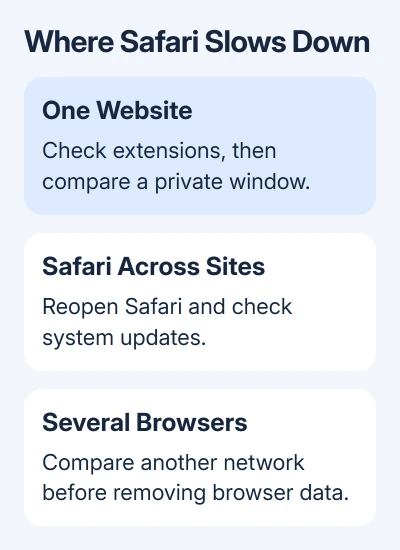
On a Mac, press Command+R to reload the page. If loading has stalled, use View > Reload Page. If reloading brings back the missing content, the loading problem may have been temporary.
Quit Safari with Safari > Quit Safari and reopen it if the app remains sluggish. If it's completely unresponsive, use Option+Command+Esc, select Safari, and choose Force Quit. Unsaved forms or edits can be lost.
Reopen just the page needed for the comparison. If Safari now responds normally, add your other tabs back gradually. If it slows immediately, continue with extensions and the page's stored information.
2. Turn off Mac extensions, then bring them back separately
Open Safari > Settings > Extensions. On older versions, the menu is called Preferences instead of Settings. Deselect each extension, then reload the page in the normal Safari window.
This includes ad blockers, shopping tools and other extensions that can read or change websites. Turning an extension off is enough for this check; uninstalling everything at the start makes it harder to restore your usual setup.
If loading improves, re-enable one extension and reload again. Repeat until the slowdown returns. Disable that extension and look for its latest update. Send its developer the address of the page that slows down.
Apple recommends this extension check before removing website data in its Safari troubleshooting steps. I'd try it first on a Mac because your website sessions stay signed in.
Check the extension list even if a private window works. Extension permissions in private browsing can differ from normal browsing, so compare the same page in a normal window after changing the switches.
If Safari is still slow with extensions disabled, move to the affected site's stored data.
When every app on the Mac feels delayed, use the wider Mac slowdown checks instead of treating Safari as the only problem.
3. Test a private window before removing Mac website data
Choose File > New Private Window, or press Shift+Command+N, and open the slow page. A private window opens a separate session without using your normal window's cookies, the small files websites save to remember visits.
If the page works there, return to Safari > Settings > Privacy > Manage Website Data. Find the affected website, select it, choose Remove, then Done. Return to a normal browsing window and reload that website.
Clearing those saved files may end your signed-in session. Have its sign-in details available before confirming the removal, especially for a site that normally keeps you signed in for months.
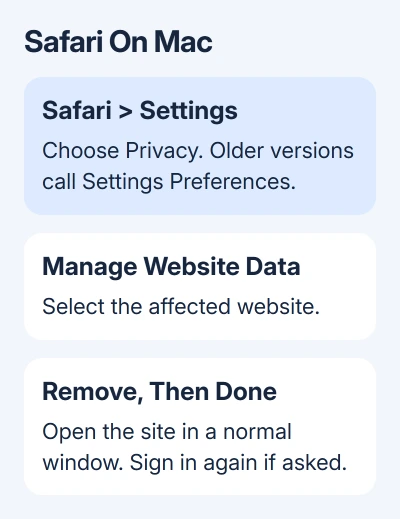
Check how quickly the page loads, rather than how much data was deleted. If a normal window now loads promptly, the old site data may have been causing the delay.
If the private window was equally slow, clearing every site's data isn't a useful next guess.
Removing one site's data is different from clearing your whole history. Keep it limited to the affected website unless the problem covers several sites and the relevant support instructions call for a broader reset.
4. Use the iPhone or iPad checks for mobile Safari
On the phone, switch from Wi-Fi to cellular and reload that page. On an iPad without cellular, use another Wi-Fi network. If the page works on the second connection, check the original network or its VPN before clearing browser information.
Close and reopen Safari, then restart the device if the problem continues. For Face ID iPhones, keep Side and either volume button held until the power-off slider appears.
For a Home-button model, hold Side or Top instead.
Drag the slider and allow the phone to shut off, then hold Side or Top until startup begins. For iPads that lack a Home button, hold Top with either volume key to get the slider. An iPad with Home needs Top alone.
On iOS or iPadOS 18 and later, open Settings > Apps > Safari. Earlier releases list Safari on the main Settings page. Check Extensions there and turn off added extensions before comparing the same page again.
For continuing mobile Safari trouble, use Clear History and Website Data in those Safari settings. Read the choices before confirming: this removes browsing information and can require signing into websites again.
If the delay happens only when opening the first page following a long idle period, the first-page loading guide covers that particular reported pattern.
That first-page delay differs from slow browsing that continues across every page.
5. Check updates, Private Relay and the connection
Safari updates come with system updates. On a current Mac, open System Settings > General > Software Update. On older Macs, use System Preferences > Software Update. Install updates available for that Mac and restart when prompted.
On iPhone or iPad, use Settings > General > Software Update. After installation finishes, retest before changing another setting, so the update's effect is clear.
For a Mac website affected by iCloud Private Relay, choose View > Reload and Show IP Address. That command appears when Private Relay is active for the network; it isn't a control that every Safari installation displays.
If your network rules allow it, pause any running VPN and check whether loading changes. A work VPN can be needed for company sites, so have IT check those pages before changing its settings.
When multiple devices are slow on the same connection, take that comparison to the internet provider.
When only one site remains slow, tell its support team the page address, device and Safari version, plus whether private browsing and extensions changed the result.
For a browser that still freezes across unrelated sites after these checks, contact Apple Support with those results and your system version.
In Safari 26 or later, a reloaded page also offers Page Menu > Report a Website Issue for compatibility reports.
The Short Version
Compare one site with another before clearing anything. On a Mac, disable extensions and test a private window, then delete that website's data if the private window loads promptly.
On iPhone, compare networks, check extensions and update the system.
Checked November 13, 2026.