
Chrome's Delete browsing data command removes recorded page visits. Searches saved to a Google Account need a separate deletion in My Activity. Clearing only the browser can leave those Google searches visible when signed in.
Start with the record you want removed: a page visit in Chrome, or a search stored by Google. These steps apply to the desktop browser on Windows and macOS.
Remove the browser visits you no longer want
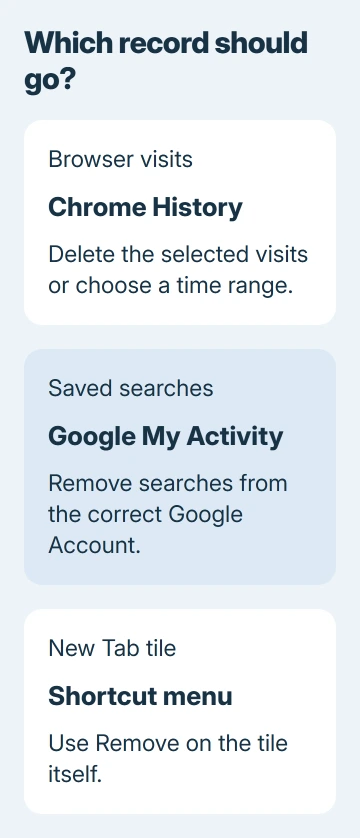
Open Chrome's three-dot More menu and choose Delete browsing data. Select a time range, check Browsing history, and leave other data categories unselected if the task is only to erase visits. Select Delete data to confirm.
Choose All time only when every available history entry should go. Before confirming, save any address you still need somewhere outside History; deletion is not a way to hide a record temporarily.
Status: Google's desktop Chrome and Search deletion instructions checked November 3, 2026. Google is updating some account activity settings. No browsing records were opened or erased.
Google says Chrome history deletion also reaches devices where that history is synced to the same account. Do not expect a synced phone to preserve the entries erased on the computer.
For just one website, use More > History > History instead. Search the list, check the unwanted entries, select Delete, then confirm Remove. This avoids erasing unrelated visits from the same day.
If you need to inspect the phone's list first, the iPhone browser-history guide covers its separate Safari and Chrome controls.
Delete searches saved to your Google Account
Open myactivity.google.com/product/search and check the account shown. Locate an unwanted search and use its delete control, or open Delete to select a custom date range or Delete all time for the Search record.
Review the scope before confirming. The Search-specific activity page keeps this task focused on searches, while the general My Activity page can include other Google products.
Google states that erased Search history cannot be recovered. Its Search history instructions also warn that account controls are being updated, so some labels can differ during the change.
After deletion, refresh that activity list and check the selected date range. If the entry remains, confirm the account before repeating the action. A second signed-in account can hold a different search record.
Keep cookies, saved logins and downloads separate
The data categories have different effects, as documented by Google. Clearing browser history does not perform the separate deletion of Google Account activity or saved passwords.
Cookies hold site information; removing them can disrupt signed-in sessions. Cached files are reusable page resources. Neither category needs to be selected merely to remove a recorded visit.
Deleting Download history removes Chrome's download list, not the files on the computer. Check the chosen boxes again if the dialog remembers selections from an earlier cleanup.
For a login that is failing to save, use the Chrome password-saving checks instead of expanding the history deletion to unrelated data.
An old suggestion or shortcut still appears
A tile on the New Tab page has its own control: point to it, select its More menu and choose Remove. A remaining tile does not establish whether History still contains that visit.
Similarly, a predicted search need not be a saved personal search. Look for the exact entry in History and Search activity before deleting more data. A suggestion alone is a poor reason to erase unrelated categories.
If an entry remains in the correct account after a confirmed deletion, use Google's Help Community with the affected screen and Chrome version. Describe the problem without publishing sensitive searches.
The Short Version
Delete recorded visits in Chrome and saved Google searches in Search activity. Choose the date range carefully, remember synced history is affected elsewhere, and keep unrelated data categories unselected.

Isaac Smith is the founder and editor of PC Glance, a website that covers computers, laptops, and technology. He is a tech enthusiast and a computer geek who loves to share his insights and help his readers make smart choices when buying tech gadgets or laptops. He is always curious and updated about the latest tech trends.