Clear browser history from the browser you actually use, rather than from Android's app-storage screen. In Chrome, open the three-dot menu, tap Delete browsing data, choose the time range, and check which data is selected before confirming.
Samsung Browser and Firefox have their own history controls. Clearing one browser doesn't clear the others, and deleting visited pages is separate from removing search activity stored in your Google Account.
In this guide
Clear Chrome history for the right time range
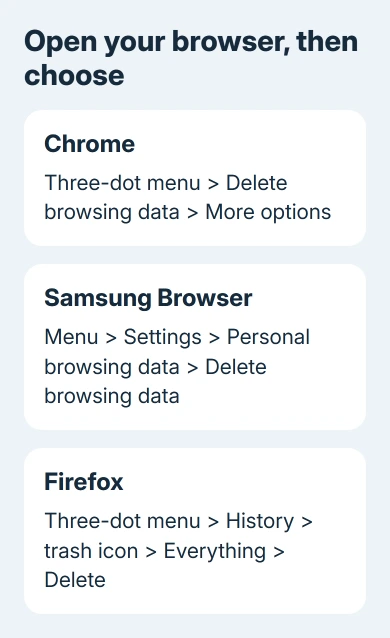
Open Chrome on the Android device. Tap the three-dot browser menu, then Delete browsing data. Check the time range before deleting: the current quick-delete screen starts with the last 15 minutes.
Choose All time if you want the complete browsing record removed. Choose a shorter period if you only want recent visits gone. Deleting the default 15 minutes won't remove a page visited yesterday.
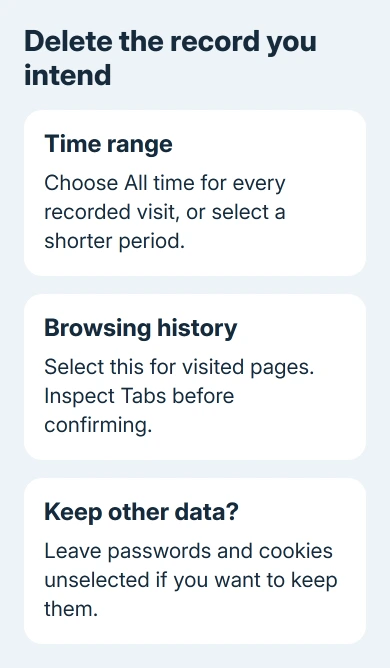
Tap More options to inspect individual data types. Select Browsing history, then clear any other selections you want to keep. Read each choice so you don't remove other data along with your history.
Review Tabs as well. Chrome's current quick-delete flow can include open tabs, so use More options if you want to preserve your browsing session. Select only the categories you intend to remove, then tap Delete data.
Google's Android browsing-data instructions describe this distinction between the quick screen and its detailed choices. The exact appearance can change as Chrome updates.
Afterward, open the three-dot menu and History. Check a page from the period you removed. Visits outside your selected range will still be listed. Change the range if you meant to remove those too.
Delete a single Chrome visit without wiping everything
Open Chrome > three-dot menu > History. Find the visit you want to remove. Use the search control when the list is long, then tap the remove control beside that entry.
For several entries, touch and hold one, select the others, and use the delete control. This is more precise than clearing a whole day when you only need a few particular visits removed.
Check for other entries from the same website if you visited several pages there. Removing one result doesn't necessarily remove every page from that site. Search the site's name again to see what remains.
I'd choose individual deletion for a few mistaken or private visits. It leaves unrelated history available when you later need to find a page you didn't bookmark.
The same website can still appear as a bookmark or a suggestion from another source. If a suggestion still appears, check the History list itself before trying to delete it again.
Remove history in Samsung Browser or Samsung Internet
Open the Samsung browser app. Tap its menu, then Settings > Personal browsing data > Delete browsing data. Current support instructions call the app Samsung Browser; many phones still show the Samsung Internet name.
The menu icon can differ with the installed version. Look for More options, shown as three dots in the current instructions, or the three-line menu in older layouts. Continue through Settings rather than Android's Settings app.
Select Browsing history. Review Cookies and site data, Cached images and files, Passwords, and Autofill data separately. Leave the boxes unchecked for anything you want to keep.
Tap Delete data, then Delete to confirm. Return to the browser's History view and check the result. Chrome's history remains separate, even when both browsers use the same Google search engine.
These Samsung browsing-data controls apply inside the browser. You don't need to clear the app's storage in Android; that removes more than your browsing history.
Clear Firefox history from its History menu
In Firefox for Android, tap the three-dot menu and open History. Tap the trash icon, choose Everything in the time-range panel, then tap Delete to remove the complete history.
For other data types, use Settings > Privacy and security > Delete browsing data. Mark the categories you want removed and confirm the deletion. Don't select passwords simply because you're clearing visited pages.
Firefox also has Delete browsing data on quit in that privacy section. Turn it on and choose which data to clear each time. Use Quit in Firefox's menu to clear that data; returning to the Home Screen doesn't trigger it.
If the deletion controls don't respond, close and restart Firefox, then retry them. Update Firefox through your usual app store if its menus look very different from the current help instructions.
Keep logins, downloads, and account searches separate
Browsing history is the record of visited addresses. Cookies store site information that can keep you signed in, while saved passwords are a separate category. Clearing history alone doesn't require deleting those other records.
Deleting cookies can end your website sessions. Check that choice before confirming to preserve your current sessions. Cached images and files are temporary copies of page content, separate from the list of pages you've visited.
A file already downloaded to the phone is separate from a history entry. Find unwanted files in the browser's Downloads view or your file manager and remove the files themselves when that's your aim.
Google Account search records also need separate deletion controls. The distinction is the same when clearing Chrome search history on a computer: deleting local visits doesn't delete account activity.
For queries stored with the account, clear Google search activity on Android through the Google app instead.
Deleting Chrome account-saved information can remove that data on other signed-in devices too. Read the account shown in Chrome before clearing synced history, especially on a phone shared with someone else.
If the browser closes before you can reach the menu, use the Android app-crash checks first. A crashing app needs attention before you can reliably review its deletion choices.
When a school or employer manages the phone, ask its administrator about unavailable controls. On a personal phone, use the browser's Help menu to report a missing or unresponsive deletion control.
The Short Version
Use the browser's history or browsing-data menu, select a time range, and review the categories. Each browser keeps its own list. Treat account searches, downloaded files, and saved passwords separately.
Checked November 12, 2026.