Chrome's Virus scan failed error involves the security check on a download. Start by opening your antivirus history to see whether it blocked that particular file or whether downloads are failing without a threat report.
The message can appear even when the download reaches its full size. It isn't the same as Network failed or Disk full, and turning off browser protection can skip a useful warning about a harmful file.
In this guide
1. Read the complete download error
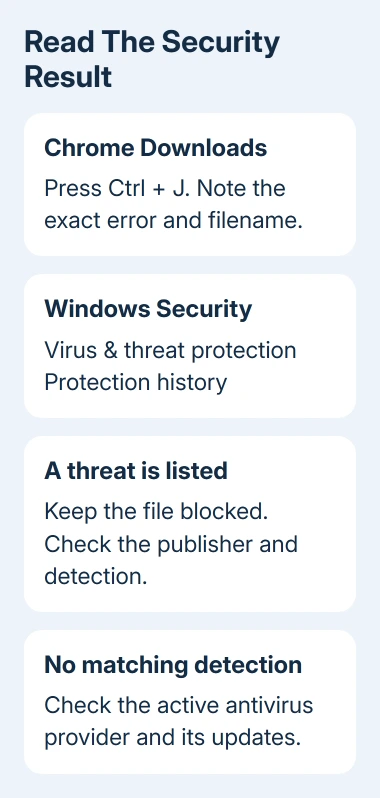
Press Ctrl + J in Chrome to open Downloads. Find the failed item and read its error text. Note the filename, the website it came from and whether Chrome says Virus scan failed or Virus detected.
Those messages are related, but neither gives you the full antivirus report.
Google says your scanning software might have blocked the file. Its download-error instructions also mention Windows Attachment Manager.
If the message instead says Network failed, use the download connection checks.
Changing antivirus settings won't address every failed download just because the progress bar stopped in the same place.
A red warning that a file is dangerous is another case. The Chrome blocked-download guide explains those browser warnings.
Match the text before following a different recovery route.
2. Open the scanner's history for the same time
On Windows 11, open Start, type Windows Security, and open it. Choose Virus & threat protection > Protection history. On Windows 10, open the same Protection history page in Windows Security.
Find an entry at the time of the download. Expand it to see the affected item, detection name and action. Windows may require administrator permission to show threat details.
Protection history keeps its events for two weeks. Check while the failure is recent, and remove any history filter that could hide the event. A filter can leave the list looking empty even when the scanner blocked something.
If you use another antivirus product, open its history, quarantine or notifications instead. Windows Security can show the active provider under Settings > Manage providers.
Look for a filename or path that matches the failed download. A report about an unrelated file from yesterday doesn't explain today's failure. Keep the detection name so you can check what was blocked. Don't clear the entry yet.
3. Handle a detected threat before retrying
If the scanner names a threat in the downloaded file, leave it blocked or quarantined while you verify the source. Download software from its developer's official site instead of a repackaged installer or an advertisement.
Don't add the Downloads folder as an antivirus exclusion to get past this error. That would affect future files too. Allowing one download shouldn't weaken checks on everything else you save.
If you believe an official file was flagged incorrectly, report the detection to the software developer and the antivirus provider. Include the download address, filename and detection name so they can check that exact file.
Restoring or allowing a file won't repair a scanning service that isn't working. Seeing that option doesn't mean the file is safe.
Keep working with a blocked file only after the publisher or security provider resolves the report.
4. Update protection when scans fail without a detection
If no threat report matches the download, check that the active security product is up to date and running normally. For Microsoft Defender, open Virus & threat protection > Protection updates > Check for updates.
Some Windows Security versions label that area Virus & threat protection updates. Follow the protection-update link inside the app rather than changing Chrome flags or editing the registry.
Restart Windows after installing a security-product update if it asks you to. Then retry one small file from a trusted publisher. Start a new download so you're checking whether the scanner works now, rather than rereading an old error.
I'd check the security product before reinstalling Chrome. If scanning also fails outside Chrome, reinstalling the browser leaves you with the same Windows security problem.
For a third-party scanner that reports its own error, follow that vendor's update or repair procedure. Record the product name and exact error first. Installing a second antivirus isn't a substitute for repairing the active one.
5. Check whether the failure follows Chrome or Windows
Try the same trusted download in another installed browser, such as Edge. This is a comparison, not a way to bypass a threat detection. Stop if that browser or the scanner also warns about the file.
If Chrome and Edge both fail, focus on Windows security software, attachment handling or a policy applied to the computer. Clearing Chrome's browsing history is unlikely to help when both browsers fail.
If only Chrome fails, open three-dot menu > Help > About Google Chrome. Wait for the browser update check, then select Relaunch if it appears. Close unsaved browser work before relaunching.
Open three-dot menu > Extensions > Manage extensions and check for a security or download extension. On a personal browser, switch that extension off, retry a trusted file, then enable it again.
Ask IT about an extension or security policy managed by your workplace. Give the administrator the exact error and the matching antivirus event if one exists. Don't try to remove managed protections to complete a download.
6. Avoid the registry workaround and send a useful report
Some advice changes Windows attachment-scanning settings to make downloads succeed. That changes how the security check works without fixing the reason it failed. Leave those settings alone and repair the component that reports the error.
If downloads still fail in multiple browsers, contact the active antivirus provider or your organization's IT team. Ask them to check download scanning and Windows attachment handling, with the time and filename from a fresh failure.
For a Chrome-only failure after updating and checking extensions, use Help > Report an issue. Include the download URL, Chrome version, Windows version and the fact that the same trusted file downloads in another browser.
The Short Version
Match the stopped download to the active antivirus provider's history. Keep detected threats blocked.
Update or repair failing security software, compare another browser, and avoid registry changes or broad exclusions that skip the check.
Checked November 12, 2026.