
Chrome lets you download a file blocked as dangerous when its warning offers that option. Open Downloads, read the warning, and check the file and its publisher before choosing to download it.
Turning off Safe Browsing removes protection against harmful sites, downloads and extensions. It won't override every rule on a managed computer either. I'd try the individual file's option before changing the whole browser.
Read the warning before changing a setting
Open Chrome's three-dot menu and choose Downloads, or enter chrome://downloads in the address bar. Find the failed file and read its full warning. Keep the filename and website in view so you're checking the right entry.
Google explains the four warning categories: dangerous, suspicious, unverified and insecure. Those labels describe different problems, so a fix for one label may leave another unchanged.
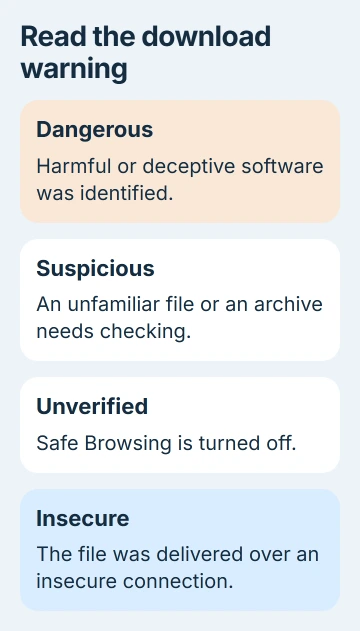
Dangerous means the file was identified as harmful or deceptive software. Suspicious can mean an unfamiliar file or an archive that needs further checking. Neither label is a normal request to choose a folder.
Unverified can appear when Safe Browsing is off. Insecure refers to the connection used to download the file. For that last message, follow the insecure-download checks; it doesn't mean the file was identified as malware.
Continue a specific download when the option is offered
Check the publisher's actual website and the exact file you meant to get. An unexpected installer attached to a message needs a different level of care from a document you requested through your organization's own service.
Return to the file's entry in Downloads. Open its extra actions or warning details if needed. Current Chrome includes controls labeled Download dangerous file and Download suspicious file, depending on the warning.
If you decide to keep the file, choose its download option and confirm your choice. This allows that download without marking the website's future files safe or turning off protection across the browser.
Older Chrome versions can use Keep wording. Use the action attached to the file you're checking; the buttons can differ between warnings. Some blocks don't offer a way to continue.
If Chrome shows no download option, check whether the browser is managed, as described later in this guide. Starting the same download again just creates more blocked entries without changing why Chrome refused it.
When the Downloads shortcut itself fails, use the menu route or the Ctrl+J repair guide. A shortcut problem and a download block are separate faults.
Use the offered file check for a suspicious archive
Some suspicious files can be checked before you decide what to do. With Enhanced protection, Chrome can send a suspicious file to Safe Browsing for further checking when that option is offered.
For a password-protected archive, the check may also need the password that opens your ZIP, 7z or RAR file. This is the archive's password, rather than your Google Account password.
With Standard protection, Chrome can check supported encrypted archives on your device. Read the prompt to see how it handles your file. For confidential work files, ask your organization before agreeing to an online scan.
Choose Check for malware when it appears. The check can allow the file or block it as dangerous. If it takes too long, Chrome may let you cancel or download the suspicious file without a completed check.
Wait for the result before continuing; an unfinished check hasn't cleared the file. If it detects malware, cancel the download and ask the publisher for a replacement rather than opening the flagged copy.
Where the Safe Browsing switch is located
Open Settings > Privacy and security > Security. Under Safe Browsing, Chrome offers Enhanced protection, Standard protection, and No protection (not recommended).
The protection-level controls explain what each option covers. Standard protection still blocks known dangerous downloads, so switching from Enhanced to Standard won't allow every file.
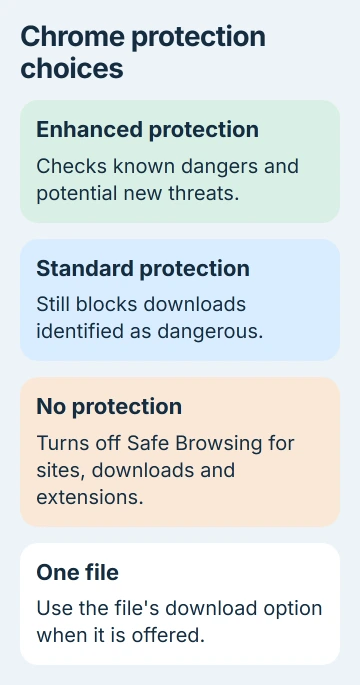
To turn off Safe Browsing, select No protection and confirm the change when Chrome asks. This also affects protection against unsafe websites and extensions, rather than just the file you were trying to download.
If you've already changed it for troubleshooting, return here and select Standard protection or Enhanced protection when finished. Other security software and organization policies can still block a file while Safe Browsing is off.
There isn't a general Safe Browsing exception list for marking one website's future downloads as safe. When Chrome offers a download option for one file, that lets you keep protection on for everything else.
Check management when the control is missing
Look for Managed by your organization in Chrome's menu. Open chrome://policy and look for download restrictions. This page shows the applied rules; opening it doesn't remove them.
The DownloadRestrictions policy lets administrators block certain types of downloads or all downloads. It can also stop you from bypassing a warning.
For a school or work computer, give IT the filename, source address and exact message. They can review the file and policy. Changing your own Safe Browsing setting can't override a rule set by IT.
On your own computer, record which policy appears and which software manages the browser before removing anything. A missing button alone isn't a reason to delete Chrome's profile or clear your saved passwords.
Handle a false warning or a different download error
If a legitimate publisher's current file is flagged, ask them for a reviewed download or an explanation. The warning page links publishers to steps for correcting malware or unwanted-software warnings.
Errors such as Disk full, Insufficient permissions or Network failed need the download-error steps. Turning off Safe Browsing doesn't create storage space or repair a broken connection.
For an unexplained block, give Chrome support the warning text and any applied management policies. Keep using an official alternative, such as the service's web app, while the publisher checks its file.
The Short Version
Read the warning in Downloads, check the source, and use the individual file's download option when available. File checks, Safe Browsing levels and organization restrictions do different jobs. Restore protection if you've disabled it.
Checked November 5, 2026.

Isaac Smith is the founder and editor of PC Glance, a website that covers computers, laptops, and technology. He is a tech enthusiast and a computer geek who loves to share his insights and help his readers make smart choices when buying tech gadgets or laptops. He is always curious and updated about the latest tech trends.