
Lock a note on your iPhone by opening it, tapping More, then choosing Lock. After setup, tap the lock icon to hide the contents. Adding a lock can leave the note open until you close it.
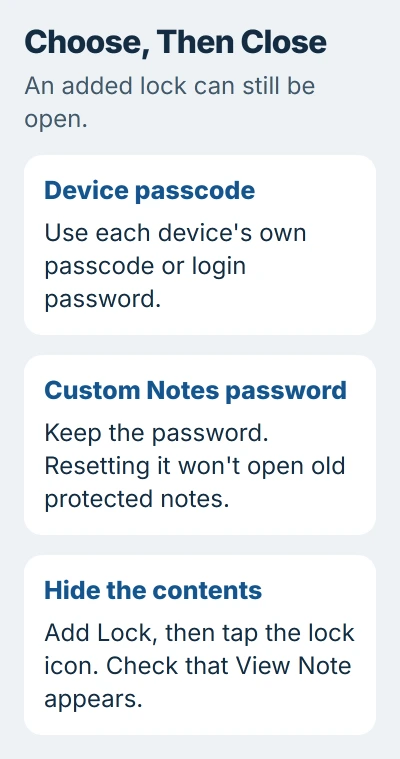
Choose between your device passcode and a separate Notes password before storing anything important. The passcode is easier to manage across your own devices, while forgetting a custom password can leave you unable to open older notes.
Check the account and note before adding a lock
In Notes, return to Folders and check where the note is stored. Locking is available for eligible notes in iCloud or On My iPhone. A note saved in Gmail or Yahoo doesn't support the same lock feature.
For a missing note, check its account and folder before creating a replacement. If an account isn't shown, its notes can look missing even though they haven't been deleted.
Open the note and check its contents. Tags, some attachments and shared editing can stop you from locking it. Try a plain text note while learning the controls; it avoids those restrictions.
Use a general title that doesn't reveal the private information inside. The iPhone lock guide explains that a locked note's title remains visible in the notes list.
The lock protects what's inside the note, but the note itself still appears in the list. Think of its title as a visible folder name before adding sensitive details inside.
Choose how you'll unlock notes later
Open Settings > Apps > Notes > Password. Choose the account you want if several appear, then select Use Device Passcode or a custom password. On older iOS versions, Notes settings may appear directly in Settings.
When you choose the device passcode, use your iPhone's code to open the note. On another compatible device using your Apple Account, enter that device's own passcode or login password, rather than the first iPhone's code.
Passcode-protected notes require iOS 16, iPadOS 16, macOS 13, or later. An older device can't open them with this method, even when it uses your account. Check the software on any device you still need for those notes.
The Notes security information covers both passcode and separate-password locks. The passcode option needs iCloud Keychain, so follow that setup prompt if it appears.
A custom Notes password is separate from your Apple Account password and the code that unlocks your screen. Keep track of it, and choose a useful hint that doesn't reveal the private information inside.
I'd choose the device passcode unless you need a separate Notes password. It avoids adding another password to remember. Think about who already knows your device passcode when choosing.
If offered, turn on Face ID or Touch ID for quicker access. Keep the passcode or Notes password available too, so you have a way back in without relying only on your face or fingerprint.
Add protection and actually close the note
Return to the note, tap More (the three-dot button), then tap Lock. Follow the prompt to confirm it's you or finish the first-time setup. A lock icon appears near the top of the note.
Tap that icon to hide the contents immediately. This last action matters when you're about to hand over the phone. A note can have a lock but stay open while you're viewing it.
Apple's locking procedure includes that last tap to close the note. Let the phone sleep, reopen Notes, and check that it asks you to unlock the note before showing its contents.
You should see View Note instead of the private text. Tap View Note and unlock it with the method you chose when you want to read or edit it again.
Close the lock after reading if you want the contents hidden right away. Moving between notes during an unlocked session can leave protected notes open for several minutes. That's useful for editing, but easy to overlook.
Deal with a missing Lock option
Check the note's account first. Locking isn't available with a Managed Apple Account or notes in a third-party mail account. Resetting the phone won't change those account limits.
For a note shared with other people, stop sharing only if they should lose access. The Notes sharing guide covers that choice. A note that's still shared for editing can't be locked.
Tags, PDFs, audio, video and Keynote, Pages or Numbers files can prevent locking. Check for a remaining attachment after removing a tag. Quick Notes can't be locked either, so use a regular note for that content.
Save important content before changing the note. Keep attachments in an app that handles them and create a separate text note for the information you want to protect. Don't delete your only copy of a file to make Lock appear.
If Lock is missing from a new plain text note in a supported personal account, install any offered iOS update. If it's still missing, ask Apple Support about the account and include your iOS version and account type.
Remove protection or change the method deliberately
To remove a lock, open the note, tap View Note, and unlock it. Choose More > Remove. This removes the protection, rather than just opening the note. The lock is also removed on your Apple Account's other devices.
To switch an existing custom-password setup to the device passcode, return to Notes' Password settings. Choose Use Device Passcode and follow the prompt to confirm it's you. Keep access to the old password until the switch is finished.
If you're only correcting a sentence, you don't need to remove protection first. Open the protected note, make the edit, then close its lock. Removing and adding the lock again only adds work.
Understand what resetting a forgotten password changes
Resetting your Notes password lets you lock notes from then on. It won't open older notes locked with a password you've forgotten. Before resetting, check the hint and any existing Face ID or Touch ID access.
The password instructions cover an ordinary password change as well as a reset when you've forgotten it. If you can open an older note with its original password, use the offered option to update it to your current password.
Without the old password or another working way to unlock the note, Apple Support can't recover its encrypted contents. Keep it while you check saved passwords. Erasing the phone won't reveal the text.
The Short Version
Choose an eligible note and lock method, add Lock, then tap the icon to close it. Keep its title general. Check account, sharing and attachments if Lock is missing. Resetting a password won't open older protected notes.
Checked November 5, 2026.

Isaac Smith is the founder and editor of PC Glance, a website that covers computers, laptops, and technology. He is a tech enthusiast and a computer geek who loves to share his insights and help his readers make smart choices when buying tech gadgets or laptops. He is always curious and updated about the latest tech trends.