
Safari can refuse website sign-ins when its Block All Cookies switch is enabled. On the iPhone, open Settings > Apps > Safari > Advanced, turn that switch off and try the website again.
Check which browser opened the page before changing Safari. Cookies are already enabled in Chrome on iPhone, so its sign-in problems need a different check.
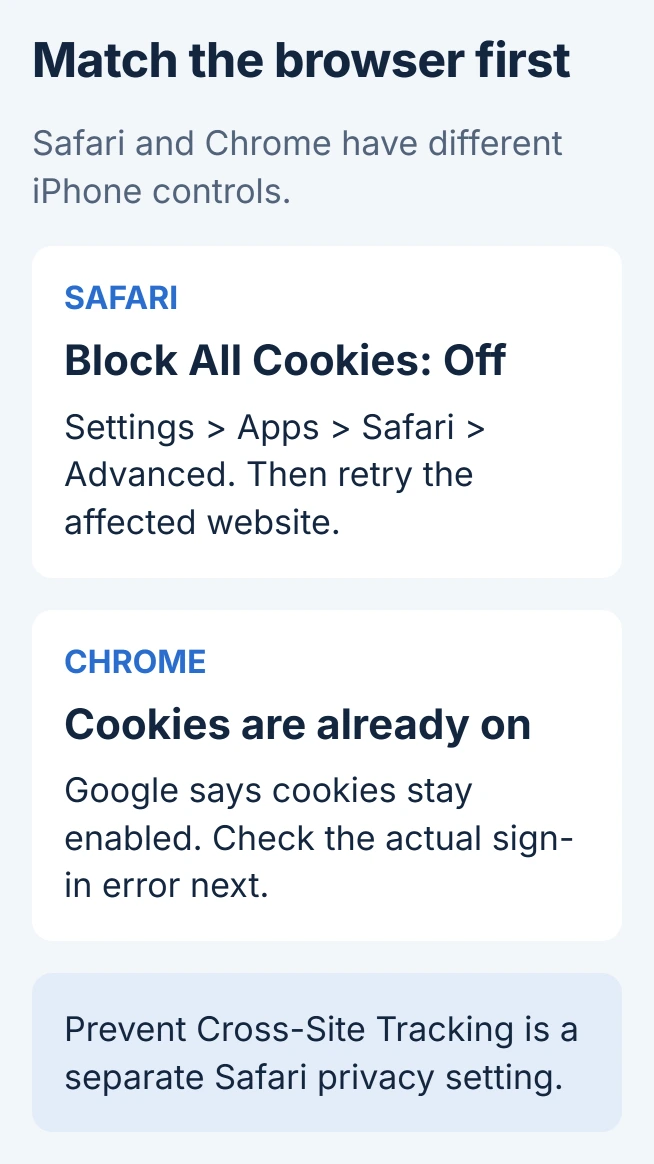
Turn off Safari's cookie-blocking switch
Start in the iPhone's Settings app, outside the website. Apple documents the Safari cookie control under Apps, then Safari, then Advanced.
Set Block All Cookies to off. The negative wording matters: enabling that switch blocks cookies, while disabling it permits them. A website's separate consent banner may still ask which cookies it can use.
Status: Safari's cookie path and Chrome's iPhone behavior checked October 29, 2026 against Apple and Google support. No browsing data or phone setting was changed.
Return to Safari, reload the affected page and retry the original task. Check whether the sign-in completes or the cookies-required message disappears. The switch changing position alone does not confirm the website now works.
Apple says blocking cookies can prevent logins even with correct credentials. Its cookie-blocking guidance also warns that turning blocking on removes existing cookies and website data.
Turning the switch off again permits new cookies, but previously removed sessions remain gone. Sign in again when the site requires it.
Leave cross-site tracking as a separate decision
Prevent Cross-Site Tracking is a different Safari setting. Apple states that Safari limits third-party cookies and data by default, while this control permits cross-site tracking when turned off.
Leave that protection enabled for the first attempt. A site storing its own login and an embedded service tracking activity across sites are different cases.
If a particular service still reports blocked third-party cookies, ask its support team which requirement is failing before changing broader privacy settings. Apple's Safari privacy guide describes that separate control.
Cookie permission also does not open a blocked window. Use the iPhone pop-up controls when a button is supposed to launch another tab or window.
Chrome on iPhone already allows cookies
Google's iPhone cookie instructions say Chrome turns cookies on automatically and keeps them on. There is no matching enable step to copy from desktop Chrome's settings.
For a Google sign-in reporting cookies disabled, Google recommends retrying after the setting change, then trying a new browser window if needed.
For Safari, its page specifically advises waiting five minutes before reopening the app.
Check that the page is actually open in Safari or Chrome. For a sign-in panel embedded in another app, consult that app's support instructions; changing an unrelated browser cannot control that panel.
The site still says cookies are disabled
An installed content blocker can also affect Safari pages. Apple documents those extensions in Settings > Apps > Safari > Extensions. Review the blocker involved and use its developer's troubleshooting instructions.
If stored site data is damaged, the iPhone Safari cleanup options explain what clearing it removes. Keep cleanup separate from enabling cookies, because removing data can sign you out.
For one site still failing, report its exact error, the browser and the iOS version to that site's support team. For a setting that is locked on a managed iPhone, contact the administrator who controls the device.
The Short Version
In Safari, turn Block All Cookies off under Advanced and retry the affected site. Chrome on iPhone already keeps cookies enabled. Treat cross-site tracking, pop-ups and damaged stored data as separate checks.

Isaac Smith is the founder and editor of PC Glance, a website that covers computers, laptops, and technology. He is a tech enthusiast and a computer geek who loves to share his insights and help his readers make smart choices when buying tech gadgets or laptops. He is always curious and updated about the latest tech trends.