Clearing cache on an iPhone depends on which app needs attention. For a Safari page that will not load properly, clear its website data in Settings. For a full phone, check iPhone Storage first to find what is taking up space.
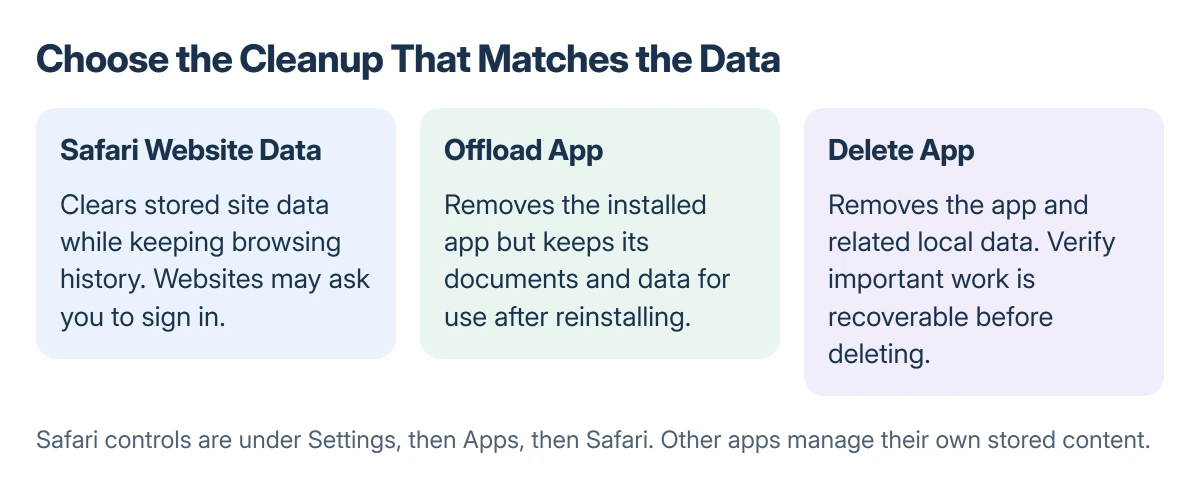
Other apps manage their own cached files. Offload App frees the space used by the app while preserving its documents and data, so it is not a full data reset.
In this guide
Clear Safari's website data while keeping history
Open Settings > Apps > Safari. Choose Advanced, then Website Data. Tap Remove All Website Data, then confirm with Remove Now.
Apple documents this option on its Safari data page. It removes stored website data while keeping browsing history, making it the more targeted cleanup for a troublesome page.
Status: iPhone Safari and storage controls checked 22 October 2026 against Apple's current help. No phone was cleared or measured for this guide.
Clearing website data can sign you out of sites. Make sure you can sign back in before removing stored login information.
Revisit the affected page in Safari. If it loads normally, leave the other apps alone; clearing their data will not help confirm what fixed this page.
Clear Safari history as well
For a broader Safari cleanup, return to Settings > Apps > Safari and choose Clear History and Website Data. Select the period to remove, then tap Clear History.
Apple says AutoFill information is kept. The selected browsing history and website data are removed, so use this option when both need clearing.
If the button is gray, there may be no data to remove. Screen Time web-content restrictions can also make it unavailable, according to Apple.
For a page that stays blank afterward, follow the Safari white-page checks. A content blocker or another setting can cause that symptom without a cache fault.
Does Offload App clear an app's data?
Open Settings > General > iPhone Storage and let the app list appear. Tap the app you suspect, then inspect its storage details and the actions offered.
Apple states that Offload App removes the app itself but keeps its documents and data. When the app is reinstalled, that saved information can come back into use.
Offloading suits an app you want to keep using without losing its content. It frees the space occupied by the installed app, rather than resetting everything the app has stored.
Some apps provide their own download or cache management screen. Use the app maker's instructions for that control; Safari's cleanup does not reach another app's saved files.
Delete App also removes related data. Before using it, check that drafts, downloads and other local work can be recovered. Having an account for the app does not guarantee those files are backed up.
When the goal is free storage
Read the app sizes on the iPhone Storage screen before deciding which cleanup matters. Apple's recommendations there can point toward downloaded content or apps using much more room than Safari.
Apps recreate cached files when they need them again. Apple also says the iPhone can remove cached media to free space, so a cleared cache may fill again during normal use.
If iCloud shows free space while this screen is full, check the difference between iCloud and iPhone storage. Buying a larger cloud plan does not enlarge the phone's internal storage.
Leave Block All Cookies out of routine cleanup. Apple warns that it can break logins and website features because it stops sites storing new cookies, rather than simply removing old data.
For a site asking permission to store cookies, allow them in the correct iPhone browser before considering another cleanup.
If clearing data changes nothing
Note the app and the exact symptom if cleanup has not helped. A site that stays blank, an app that crashes and a phone with no free storage each need a different next step.
Contact the app developer for a fault confined to their app. For a persistently incorrect storage reading, give Apple Support the iPhone model, iOS version and the category or app occupying the space.
The Short Version
Safari's Website Data screen clears site storage while keeping history. The broader history control removes both. Offloading another app preserves its data; deletion has wider consequences.
Check the storage list when freeing space is the actual goal.
Where to Next
Reopen the affected page or app after the one relevant cleanup. If the symptom persists, pursue that specific fault before erasing more stored content.