Microsoft Edge's add-on store installs extensions through Get, followed by Add extension in the permission prompt. Open the store inside Edge on your computer so the add-on reaches the intended browser.
An extension missing from Microsoft's catalog may also be available through the Chrome Web Store. That route needs Edge's permission to use another store; it doesn't require installing Chrome.
In this guide
Open the store from the Edge window you use
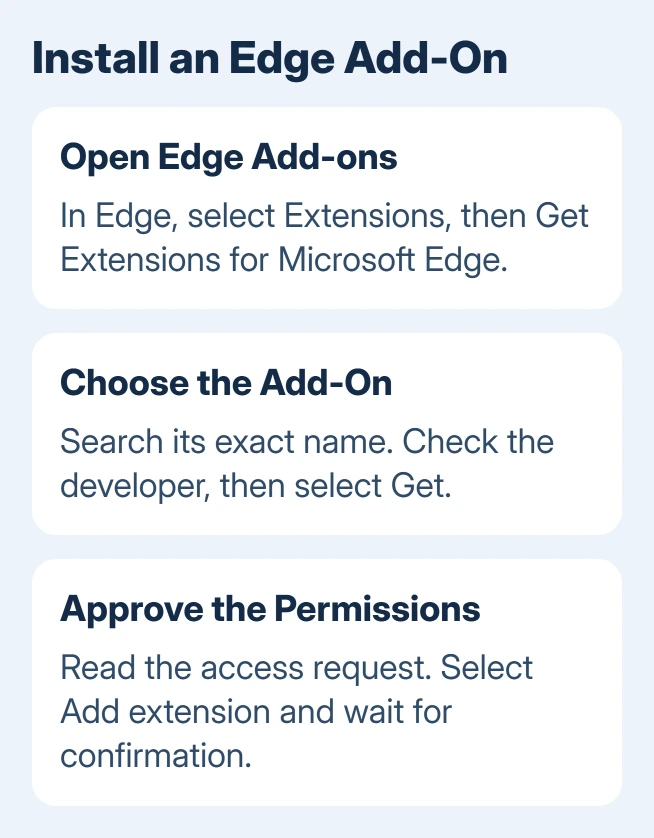
Select Extensions beside Edge's address bar, then Get Extensions for Microsoft Edge. If that button isn't visible, open Settings and more, the three-dot menu, and choose Extensions first.
The Microsoft Edge Add-ons store also opens directly. This is the browser's extension catalog, separate from the Microsoft Store app used to download Windows applications.
These steps are for Edge on a computer. Use your usual Edge window throughout, so you don't install the add-on in one browser and then look for its button in another.
Search for the add-on's exact name. If its developer provides a store link on its own website, I'd start there. It makes it easier to reach the intended product when several results have similar names.
Install one add-on and check the confirmation
Open the result's details page and check its description and developer information. A matching name alone isn't enough to decide whether it's the tool you meant to add. Read what it does before accepting its access request.
- Select Get on the add-on's listing.
- Read the permissions in Edge's installation prompt.
- Select Add extension when you're ready to approve them.
- Wait for Edge's message confirming that the extension was added.
Wait for that confirmation before looking for the add-on's button. Opening the product page or selecting Get hasn't finished the installation while the permission prompt is still waiting for your answer.
Microsoft says to review the requested permissions before approving Add extension. Signing into the product's account comes afterward if the tool requires it.
A password manager can need its own sign-in before its main features work. Follow that developer's setup instructions after installation. Edge confirming the add-on was added doesn't mean you've connected its account.
Find the installed extension before downloading it again
Select Extensions > Manage extensions, or enter edge://extensions in the address bar. Look for the installed add-on and its switch. Enable a disabled tool here when you still want it running.
Choose Details to see the extension's information and access settings. You'll be checking the copy that's already installed instead of returning to its download page whenever a button is missing.
To tidy the toolbar without removing anything, the guide to hiding extension icons covers the eye icon and the cases where Hide is grayed out.
The extension FAQ recommends checking the enabled state first when a newly installed tool doesn't appear in the Extensions menu. Restart Edge if it's enabled but still missing.
For an add-on that appears but doesn't work, check the developer's compatibility and update information. Also finish any browser update under Settings and more > Help and feedback > About Microsoft Edge, then restart when requested.
If the entire browser freezes rather than one extension failing, use the Edge recovery checks. A stuck browser needs attention before you can finish a tool's permissions or sign-in.
Give the add-on access to the sites it needs
An installed extension can be enabled without having permission to work automatically on every website. Open Extensions, select the add-on's More actions menu, then point to This can read and change site data.
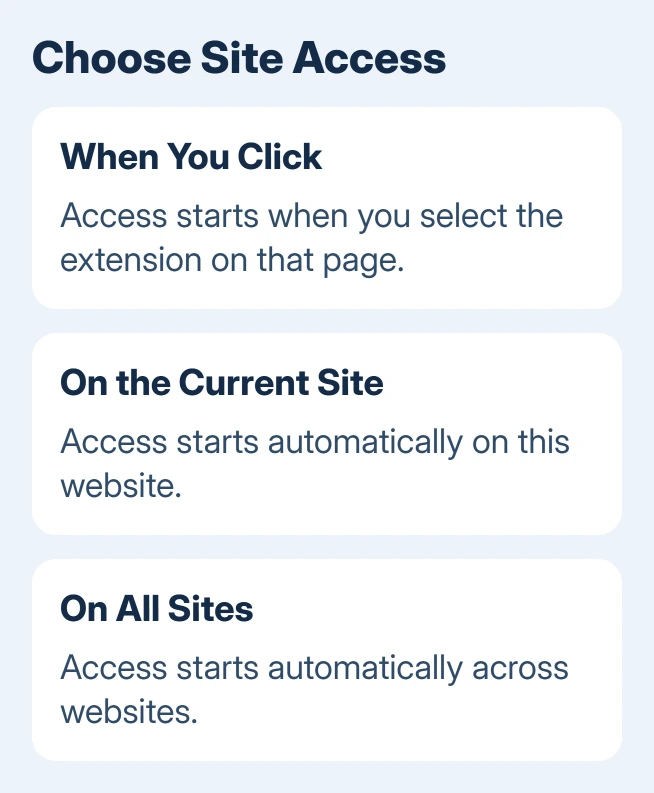
Choose the access that fits the job:
- When you click the extension gives it access to the current site when you select it. After closing that tab or window, select it again when needed.
- On [current site] lets it work automatically on that website.
- On all sites lets it read and change data across websites.
For a tool you use on one website, give it access to that site first. Open the page and try the feature you need, such as translating the page or opening the tool's controls, before giving it access to every site.
Under Manage extensions > Details, inspect Allow in InPrivate separately if you want the extension in private windows. Allow access to file URLs is another separate setting for local files; it isn't needed just to use ordinary websites.
The site-access controls let you adjust these permissions later. Give the tool access for the task you need, then check that task again before changing unrelated browser settings.
Use the Chrome Web Store when the add-on is missing
Open the Chrome Web Store in Microsoft Edge and find the extension's product details page. Edge supports extensions from that store too, so a missing Edge listing doesn't always end the search.
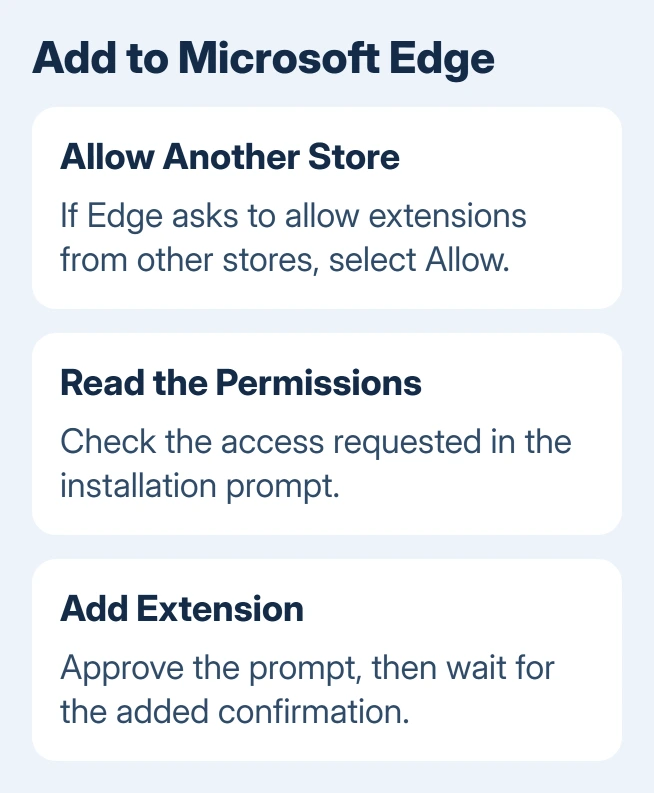
Select Get extension in the banner, or Get on the page. If Edge asks to Allow extensions from other stores, select Allow to continue. Review the next permission prompt and choose Add extension.
Wait for Edge to confirm that the extension was added, then check its extension list. This adds the tool to Edge through another store. It doesn't transfer a running Chrome session or sign you into the extension's service.
If your employer or school blocks installation, ask IT to approve the extension and store. Send the listing address and exact block message so they can check that product against their policy.
Disable or remove an add-on you don't want
Open Extensions > Manage extensions and switch the add-on off to stop it temporarily. If a website started behaving differently after installation, disable that new tool and reload the affected page before deleting browser data.
If disabling the tool leaves a website showing outdated pictures, try the Edge cache-only cleanup. That clears downloaded page resources while keeping saved passwords.
To uninstall, choose Remove under the installed extension and confirm Remove in the prompt. The toolbar icon's right-click menu also offers Remove from Microsoft Edge > Remove.
If the add-on still fails, contact its developer through the listing or support page. Include your Edge version, extension version, affected website and exact message. For a browser-wide problem, use Help and feedback > Send feedback.
The Short Version
Open Edge Add-ons in Edge, select Get and approve Add extension. Check the installed copy's permissions before downloading again. Try the Chrome Web Store for missing tools; use Manage extensions to disable or remove them.
Checked November 15, 2026.