Edge's Extensions menu is where you hide an extension's icon: select the puzzle-piece button, then the eye icon beside that extension. If Hide from toolbar is grayed out for all of them, the puzzle-piece button itself has been switched off.
Three other cases look alike: a single grayed-out extension on a work PC is pinned there by IT, a puzzle-piece button that won't go away is a 2026 change with no setting yet, and a stuck profile can be fixed by re-adding it before sync.
In this guide
1. Hide an icon from the Extensions menu
This is the normal way to tidy the toolbar.
- Select Extensions, the puzzle-piece icon beside the address bar.
- Find the extension in the list.
- Select the eye icon next to it, and the extension's icon leaves the toolbar.
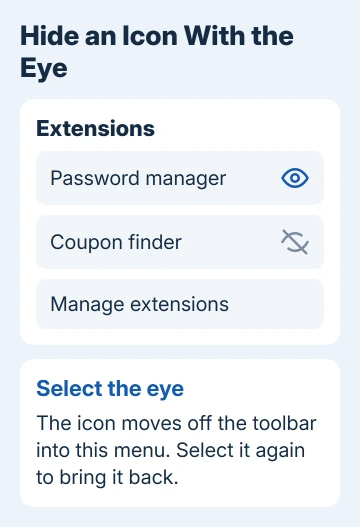
The extension keeps running, and only its icon moves into the menu. Select the eye again to bring it back. You can also right-click an icon on the toolbar and choose Hide from toolbar, which does the same in one step.
If you'd rather turn an extension off completely, open the puzzle-piece menu, choose Manage extensions and flip its switch, as the Edge extensions help page shows. That removes the icon and stops the extension too.
2. Hide is grayed out for all of them? Turn the button back on
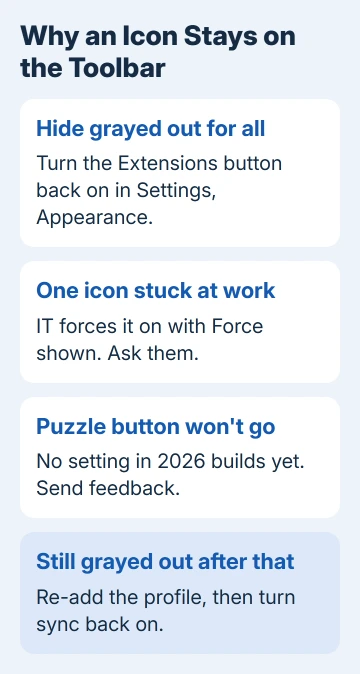
This is the case from the original thread. The asker hid the puzzle-piece button itself, and every extension icon landed back on the toolbar with Hide from toolbar grayed out, since Edge had no menu left to put them in.
- Open Settings and more (the three dots) > Settings > Appearance.
- Under Customize toolbar, turn on the Extensions button, or set it to Show automatically if your version offers a list.
- Open the puzzle-piece menu and hide each icon with its eye.
That fix got more than 100 helpful votes in the thread. Leave the button on afterwards, because on older versions switching it off again brings the icons straight back.
3. Only one extension is stuck? Check for a work policy
IT staff at a company or school can pin an extension so you can't hide it. The Edge management settings for extensions include a toolbar state called Force shown, which always shows the extension and stops you hiding it.
I'd start with edge://management on a work laptop, since it settles the question in seconds. If Edge says your browser is managed, open edge://policy and look for ExtensionSettings.
A toolbar_state of force_shown next to that extension's ID (the long string of letters Edge uses to name it) is why Hide is grayed out.
You can't change this from your side. Ask IT whether the extension has to stay visible, since someone chose that setting on purpose.
4. The puzzle-piece button won't go away
Edge used to let you hide the Extensions button itself in Settings > Appearance. Since the spring 2026 updates, owners report that switch is gone, and the button stays on the toolbar as long as you have extensions.
An adviser on Microsoft's forum confirmed in April 2026 that the option had disappeared after an update, and in August another owner said it still hadn't come back.
People testing Edge's preview builds had reported the same change in September 2025, in the Canary channel and in Edge 140 on a Mac.
For now, Edge offers no supported way to hide it. Send feedback from Settings and more > Help and feedback > Send feedback so the Edge team sees the request.
5. Still grayed out? Re-add the profile, then sync
If Hide stays grayed out even with the button on, try the asker's own fix. They signed out, added the profile back without sync, and turned sync on only once the toolbar behaved; as their extensions synced back in, Hide worked again.
- Go to Settings > Profiles and select Sign out. Leave the box that clears browsing data empty, so nothing saved only on this PC is lost.
- Add the same account back to Edge, but don't turn on sync yet.
- Check that the puzzle-piece button is showing, then hide the icons you don't want.
- Go to Settings > Profiles > Sync and turn sync back on. As your extensions sync back in, the Hide option should work for each of them.
If Edge signs you back in by itself while you do this, stop Edge signing in automatically first.
When nothing works
Create a new Edge profile from Settings > Profiles > Add profile, install one extension and try hiding it there. If it hides fine, the problem sits in your old profile, and moving to the new one is the cleanest fix.
If the new profile behaves the same, report it from Help and feedback > Send feedback, with the version shown at edge://settings/help. All of this works the same for extensions from the Edge Add-ons store and from the Chrome Web Store.
The Short Version
Use the eye icon in Edge's puzzle-piece menu to hide an icon. If Hide is grayed out for all of them, turn the Extensions button back on in Settings > Appearance. One stuck icon on a work PC is forced on by IT.
Checked November 19, 2026.