Microsoft Edge can sign into a browser profile using the account already signed into Windows. Signing out once doesn't always prevent that automatic behavior.
On a personal Windows PC, disabling the ImplicitSignInEnabled policy stops that route while leaving manual browser sign-in available.
A signed-in website, a synced Edge profile and a work policy are different cases. Check the profile icon first: a website remembering you doesn't necessarily mean the browser profile has signed in again.
In this guide
1. Check whether Edge or just a website signed in
Select the profile icon in Edge. Check whether it shows your Microsoft account or work account, then open the profile settings. That shows which account the browser itself uses.
A Microsoft website can still show an account while the Edge profile is signed out. That website session is separate from profile sync. Turning sync off won't automatically sign you out of every website you've visited.
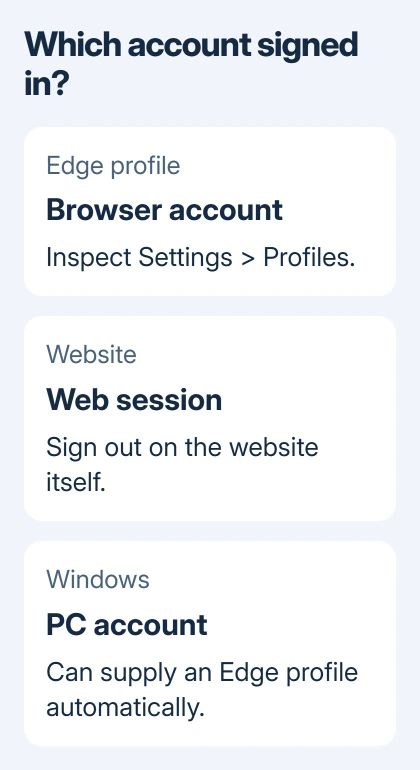
Open Settings > Profiles to inspect the browser account. If the status says sync is off, that only tells you about syncing; it doesn't necessarily mean the browser account is signed out.
Microsoft's Edge profile instructions also describe separate profiles and guest browsing. Use Browse as guest for a temporary session when you don't want to use the regular profile.
For an unwanted website login, sign out on that site. If Edge keeps filling a saved password, review the saved entry separately. These steps handle website access; they don't stop Windows from signing the browser profile in.
2. Sign out of the current browser profile
In Edge settings, select the signed-in profile and use its Sign out control. Read the confirmation carefully, especially any choice about keeping browsing data on the PC, then confirm the sign-out.
Closing Edge doesn't sign out of its profile. Reopen the browser and inspect the profile icon to see whether the account returned.
A clean sign-out and sign-in is also the first fix when a profile's sync never gets past Setting up sync, and the stuck sync steps go on from there.
Signing out and back in also resets a toolbar that sync keeps refilling, a fix covered in hiding extension icons in Edge.
Don't remove the entire profile just to test this. Favorites and other data stored only in that profile can matter, especially when sync wasn't enabled. Try signing out first.
If the browser stays signed out, stop there. If the account returns through Windows sign-in, use the policy in the next section. On a work-managed PC, ask the administrator about the policy instead.
A profile that returns immediately with a work account can be required by the organization. Type edge://policy into the address bar, then look for account policies before trying to remove it repeatedly.
3. Disable automatic Windows account sign-in
This Windows policy is named ImplicitSignInEnabled. Implicit sign-in means Edge uses your Windows account to sign you into the browser automatically.
The policy description says disabling it stops implicit sign-in. It applies to Edge on Windows, requires a browser restart, and doesn't apply to macOS, Android or iOS.
On your own Windows PC, open Start, type Registry Editor, and open it. Accept the administrator prompt if requested. Before changing an existing policy value, record its current value so you can restore that choice.
- Navigate to HKEY_LOCAL_MACHINE\SOFTWARE\Policies\Microsoft.
- Open the Edge key. If it doesn't exist, right-click Microsoft, choose New > Key, and name it Edge.
- In the Edge key, create New > DWORD (32-bit) Value named ImplicitSignInEnabled.
- Open that value, set Value data to 0, and select OK.
- Close Edge completely, reopen it, then visit edge://policy to check the applied policy.
The policy uses a 32-bit DWORD even on a 64-bit Windows installation. Keep the spelling exact; a similar-looking value name won't control the documented setting.
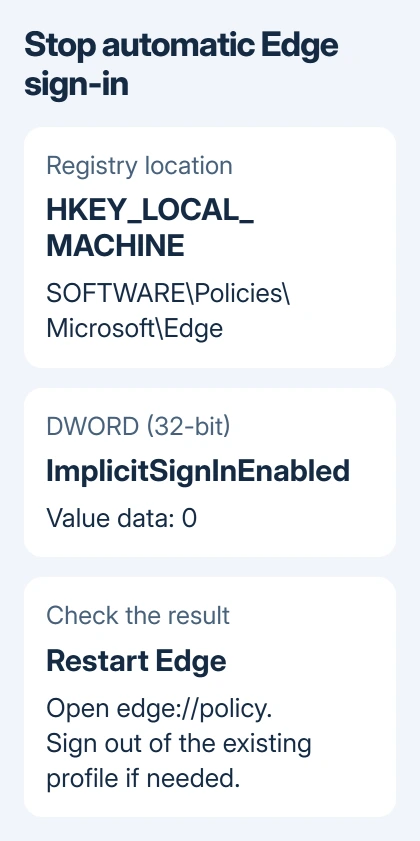
Sign out of the existing Edge profile if it's still signed in. Stopping automatic sign-in doesn't immediately sign out a profile that's already using the account.
Check the profile after another browser restart. Manual sign-in should remain available because this policy controls the automatic Windows route, rather than banning all browser accounts.
4. Use BrowserSignin only to block all profile sign-in
A separate policy, BrowserSignin, controls whether users can sign into Edge at all. Its values are 0 for disabled, 1 for allowed, and 2 for forced sign-in.
Choose this stronger setting only if you don't want anyone to sign into a browser profile. It changes more than the unwanted automatic behavior, including access to account features such as browser sync.
On a personal Windows PC, use the same Edge policy key to create a DWORD (32-bit) Value named BrowserSignin, set it to 0, and restart Edge. Check its status in edge://policy afterward.
I'd use ImplicitSignInEnabled before blocking all sign-in when only the automatic account return is unwanted. You don't need to block every browser sign-in just to keep the profile signed out.
Browser sign-in and website access remain separate. Disabling BrowserSignin doesn't block sign-in on websites, and it doesn't sign Windows out of its own Microsoft account.
5. Keep work-managed account rules with the administrator
An organization-managed PC may require its account through BrowserSignin or NonRemovableProfileEnabled. Those policies can prevent profile removal or require sign-in to use the browser.
Give IT the account name shown by the profile and the policy names listed in edge://policy. Ask whether automatic browser sign-in or a nonremovable work profile is required for that device.
Don't disconnect the Windows work account as a shortcut. That can affect access to company services and device management, while the browser policy still needs an administrator's decision.
If a personal PC still receives an old work policy, ask the organization's IT team whether it's still enrolled in their device management. An old email account can still carry device settings after you've stopped using it for mail.
6. Reverse a personal policy change when needed
To restore the earlier behavior, return the value to its recorded setting. If you created a value that wasn't there before, remove only that value, then restart Edge and check edge://policy again.
Once you remove your setting, Edge can use its default or your organization's policy. Don't delete the whole Edge policy key, since it can contain unrelated settings.
For a continuing failure on an unmanaged PC, contact Microsoft Support with the policy status and whether the profile or only a website signs in. The local Windows account guide covers a separate operating-system choice.
A shared computer also needs appropriate separate Windows user accounts. Separate browser profiles alone aren't a substitute for controlling who can open the Windows session.
The Short Version
Sign out of the Edge profile, then disable ImplicitSignInEnabled on a personal Windows PC if Windows keeps signing it back in. Use BrowserSignin only to block all browser profile sign-in. Send required work-account policies to IT.
Checked November 15, 2026.
 If you have any business, I can build it online