Setting up sync that never finishes means Edge can't complete its connection to Microsoft's sync service, and the thing in the way is often on your own PC or network rather than at Microsoft's end.
The fix with the most votes on Microsoft's forum is unblocking edge.activity.windows.com in a Pi-hole, a network-wide ad blocker. Stopping Edge from deleting cookies when it closes, and pausing Bitdefender, worked for other owners.
Start with a quick sign-out and sign-in, though; it takes a minute.
In this guide
1. Sign out of Edge and sign back in
Open Settings and more (the three dots) > Settings > Profiles and click Sign out. Sign in again using the same account, then turn sync back on under Profiles > Sync.
Microsoft's own troubleshooting steps for this exact message start with that. If Edge signs you straight back in before you can do anything, Edge's automatic sign-in is the reason.
Still stuck? Open a new tab, go to edge://sync-internals and find Server URL under Environment Info. An empty Server URL means Edge never reached the sync service, so something on your network or PC is in the way (steps 2 to 4).
The same page may show Disabled under Transport State, with Waiting for sync url as the disable reason. On one PC like that, reinstalling Edge and trying the Beta and Dev versions changed nothing, so I wouldn't spend time there.
Edge leans on your Windows account for sign-in too. In Windows Settings > Accounts > Your info, check that your Microsoft account shows as connected; for a work account, look under Accounts > Access work or school.
2. Let Edge keep its cookies after you close it
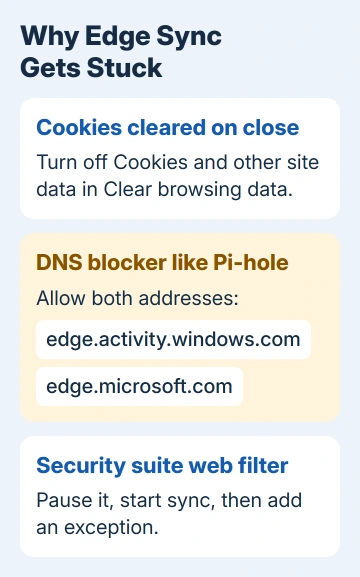
Edge can delete every cookie each time you close it, and that wipes the sign-in cookies sync needs. On one PC this setting turned out to be the whole problem, and only in the stable version of Edge.
Go to Settings > Privacy, search, and services > Clear browsing data and open the option for what to clear each time you close the browser. Turn off Cookies and other site data, restart Edge and sign in again.
After this, websites will keep you signed in between sessions. If you cleared cookies for privacy, use an InPrivate window for the sites you want forgotten; it gives you the same clean slate without breaking sync.
3. Unblock Microsoft's sync addresses
A network-wide ad blocker can block an address sync depends on. If you run a Pi-hole, add edge.activity.windows.com to its allow list.
The sync service itself lives at edge.microsoft.com, with cloud messaging addresses under *.cloudmessaging.edge.microsoft.com. Allow those in your firewall, filtering router or DNS blocker as well.
Then restart Edge so it looks the addresses up again.
Secure DNS in Edge can send lookups somewhere other than your Pi-hole. To check which DNS server Edge is really asking, see whether Edge uses its own DNS server.
4. Pause your security suite
Security suites that filter web traffic can get in the way too. On one PC, simply turning off Bitdefender got sync working.
Turn the suite's web protection off for a minute, start sync, then switch protection back on and add Edge or edge.microsoft.com to its exceptions. Don't leave the whole suite off just to keep sync happy.
5. Re-sync, then reset sync
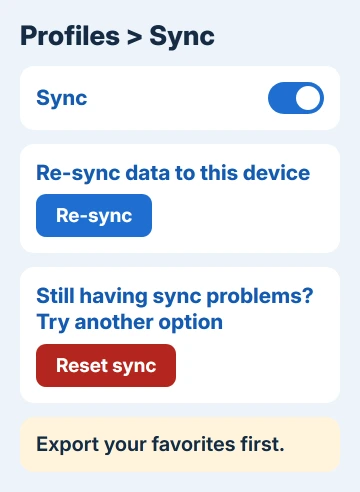
If sync worked before and has stalled, Edge can pull your data down again. Go to Settings > Profiles > Sync and, under Re-sync data to this device, click Re-sync. It takes anywhere from a few seconds to a few minutes.
Export your favorites before you go further: press Ctrl+Shift+O, click More options (the three dots) and choose Export favorites. If anything goes missing after a reset, you can import that file again.
If Re-sync doesn't help, click Still having sync problems? Try another option, then Reset sync, and keep Edge open until the reset finishes. A reset clears your synced data from Microsoft's cloud.
The reset also takes seconds to minutes. If Edge says it couldn't be completed, wait a few hours and try again. Afterwards, sign back in on your other PCs so they sync from the fresh copy.
6. Work or school accounts
With a work account, sync also depends on your organization: IT needs to check that the Microsoft 365 and Azure licenses behind your account are valid.
An admin policy can also turn sync off completely, and edge://sync-internals then shows DISABLED_BY_ADMIN.
One owner juggling accounts in four Microsoft 365 organizations got sync going by deleting the Edge profile folder and starting over, but it broke again days or weeks later. I'd hand a work account to IT before trying that.
When sync still won't start
Leave edge://sync-internals open, then use Settings and more > Help and feedback > Send feedback, so Microsoft gets the sync details with your report. Or contact Microsoft Edge support through Microsoft's support site.
Once sync does run, the Sync Node Browser tab in edge://sync-internals lists your devices under Device info, which lets you check that both PCs are on the same account.
Until it's fixed, export your favorites on the PC where they're correct and import them on the other one. It isn't sync, but it gets your bookmarks onto both machines today.
The Short Version
Try a fresh sign-in first, then check Server URL in edge://sync-internals. Turn off clearing cookies on close, and unblock edge.activity.windows.com and edge.microsoft.com in any Pi-hole, firewall or DNS blocker.
Pause web protection in suites like Bitdefender, then try Re-sync and Reset sync after exporting your favorites. Work accounts need IT to check licenses and policies.
Checked November 19, 2026.
 If you have any business, I can build it online