A stuck Outlook process or a damaged app can stop Outlook from opening on a Mac. Quit a stuck copy and restart the Mac first. For a macOS damaged-app warning, replace Outlook from a trusted installation source.
Write down the warning's full wording before starting repairs. A damaged-app warning, an unsupported-version warning and a bouncing Dock icon don't all point to a broken mailbox.
In this guide
1. Quit the stuck copy and reopen Applications
Press Option + Command + Esc to open Force Quit. Select Microsoft Outlook, choose Force Quit, then try opening it again from Finder's Applications folder. This applies to Intel and Apple silicon Macs.
If Outlook isn't listed, there may be no running copy to close. Open it from Applications once and watch what happens. Check whether a window appears, an error replaces it or the app closes immediately.
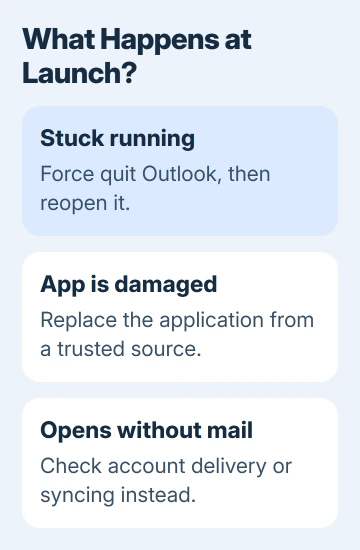
Restart through Apple menu > Restart if reopening doesn't help. Save other work first. A restart clears the stuck session, but it doesn't replace damaged Outlook application files or change the version you installed.
For the same launch symptom in a browser, use the Chrome Mac launch checks; its profile lives separately from Outlook mail.
Once Outlook opens, read its lower status area. A large mailbox can make it pause while downloading or syncing. Give visible mailbox activity two to three minutes before treating that pause as another launch failure.
If Outlook opens normally but mail is missing, switch to mail-delivery troubleshooting. A reinstall won't locate mail sitting in another folder.
2. Read a damaged or incompatible app warning literally
When macOS says Outlook is damaged, the warning is about the app it's trying to open. It isn't a request to erase your mailbox or run a Windows Outlook data-file repair tool.
Apple's damaged-app explanation says the application's code no longer matches its signed original. The app may be corrupted or modified. Replace that copy instead of weakening the Mac's security checks to force it open.
For a work Mac, ask IT to supply or reinstall the managed Outlook package. For your own installation, use the same trusted source that supplied it, such as the Mac App Store or the Microsoft download your license gives you access to.
Check for important mail stored only on this Mac before removing anything. Keep the Outlook data folders while replacing the app, especially when it won't open for an export. Local-only folders need their own backup.
An incompatible-version warning means you need an Outlook release your macOS can run. Updating Outlook and updating macOS are related, but installing the newest app blindly won't make an older operating system meet its requirements.
If several apps also fail after a system update, describe that wider behavior to support. When other installed apps won't launch either, reinstalling Outlook alone won't tell you much about the wider problem.
3. Update Office through an app that still opens
If Word or Excel launches, open it and choose Help > Check for Updates. For Office obtained from Microsoft's installer, this opens Microsoft AutoUpdate. Install the offered updates, quit the Office apps when requested and retry Outlook.
The Office update instructions explain this shared updater. Outlook doesn't have to remain open for another Office app to reach it.
For a Mac App Store installation, open App Store > Updates and install the available Outlook update. Use the update route for your installation rather than adding a second copy from a different source as a first repair.
Check macOS through System Settings > General > Software Update. Older macOS releases put Software Update inside System Preferences. Allow required restarts to finish before trying Outlook again.
I'd update Outlook before rebuilding the mailbox setup. That keeps your settings in place while you install app fixes. When no compatible update appears, ask support which Outlook release this Mac can run.
4. Check add-ins only when the app stays open
For Outlook that opens and then freezes while reading mail or arranging a meeting, check recently installed add-ins. This step needs a working Outlook window; it doesn't apply to a macOS warning that prevents launch entirely.
Use Tools > Get Add-ins > My add-ins where available, then temporarily remove or disable a recent third-party add-in. Quit Outlook, reopen it and try the same message or meeting action again.
The Mac Outlook troubleshooting steps include this check. If removing one add-in stops the crashes, ask its provider for an update before enabling it again.
If the controls aren't available in your managed installation, give IT the add-in name and the action that causes the crash. Don't remove unrelated Office components to imitate a menu path your version doesn't show.
If a legacy copy opens but its account stops connecting, ask IT whether that account needs current Outlook. Describe it as a connection failure rather than a launch error so they check the right part of the setup.
5. Try a separate Mac account before a deeper rebuild
Open System Settings, search for Users & Groups, and choose Add User. Authenticate as an administrator and create a separate account if this is your Mac. Managed devices may need IT to do this.
Sign into the new macOS account, open Outlook and add the affected email account. That lets you try Outlook with separate Mac user settings. It doesn't move local-only mail out of the original account or automatically repair its settings.
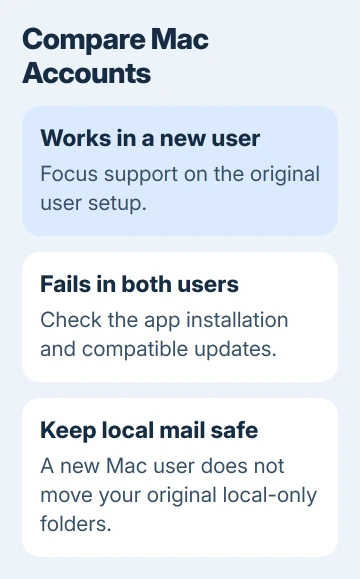
If Outlook works there, ask support to check the original user's setup before you delete any profiles. If both accounts show the same launch warning, the app itself is more likely to be at fault. Try replacing that copy next.
Before reinstalling, check that your mail has synced, keep your sign-in details ready and back up local-only data. Use the original source or IT's package. Leave mailbox folders out of an Office cleanup until you have a recovery plan.
If it still fails, open Microsoft's Outlook support request with the error wording, macOS version, Outlook version and second-account result. Windows Outlook startup repairs use different tools and don't apply to this Mac app.
The Short Version
Force quit and restart first. Update through another Office app or the App Store, and replace a damaged application from a trusted source. Test a separate Mac account before rebuilding settings, while preserving any local-only mail.
Checked November 13, 2026.