
Deleting Mac downloads means removing the saved files in Finder, then emptying the relevant items from the Trash when they are no longer needed. Clearing Safari's downloads list only cleans up the browser's record of those downloads.
Start with the actual folder containing the files. A browser can save outside the usual Downloads folder, so an empty list or a missing Dock shortcut does not establish that the files are gone.
Open the folder and select the unwanted files
Click Downloads in the Dock, then Open in Finder. Apple documents this folder-or-stack route in its Dock folder guide. The icon can look like a stack of files instead of a blue folder.
When the Dock shortcut is missing, activate Finder and press Option+Command+L. Apple's Mac shortcut list identifies this as the command for opening Downloads.
In Finder, review the filenames and keep anything still needed. Select individual items deliberately rather than treating the folder as disposable; downloads can include the only saved copy of a document.
Status: Mac file removal and Safari download-list controls checked November 3, 2026, against Apple documentation. Trash recovery ends when its contents are permanently removed.
For an organized review, adjust Finder's folder order to group the files usefully. Keep the selection limited to items whose names and purpose have been checked.
With the unwanted files selected, press Command+Delete, or drag them onto the Trash. Apple says this moves them into the Trash in its file-deletion instructions.
The items should disappear from their original folder. Open the Trash to confirm which files moved before taking the permanent step.
Empty the intended items or recover a mistake
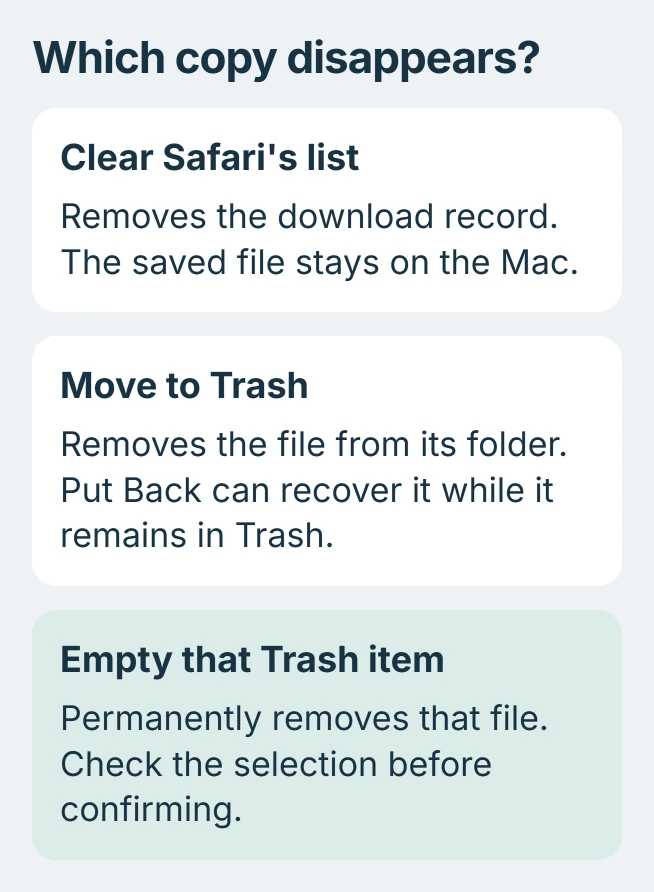
An accidental removal is recoverable while the file remains in the Trash. Select it there and choose File > Put Back to return it to its earlier location.
For permanent removal of one item, Control-click that file inside the Trash, choose Delete Immediately, then confirm Delete. This avoids emptying unrelated items already in the Trash.
To clear everything in that window, choose Empty and confirm Empty Trash. Inspect all its contents first. Apple states that emptied items are permanently deleted, so keep a backup of anything whose future use is uncertain.
Finder can also remove items after 30 days if that setting is enabled. Do not use the Trash as a long-term storage folder for documents you plan to keep.
Find a download saved somewhere else
In Safari, open the Show Downloads list and select the magnifying glass beside the file. Apple's Safari download guide uses this control to locate the saved item on the Mac.
If that entry cannot find the file, it may have been moved or removed. Search for its filename in Finder and inspect any match before deleting it.
For future downloads, check Safari > Settings > General > File download location. That preference chooses the destination; changing it does not collect existing downloads from their earlier folders.
Safari's Clear button and Remove From List command affect the download list. Use them when tidying the browser record, then manage the file separately in Finder when storage is the concern.
If the selected destination is in iCloud Drive, pause before deleting a shared or synced document. Apple applies iCloud Drive deletion rules to that file; it is not merely an extra local download copy.
Handle installers and files that refuse removal
A downloaded installer and an installed app are separate items. For Chrome, finish copying the app into Applications and confirm that copy opens before discarding its downloaded disk image.
Ejecting a mounted installer image is another action again. It closes the mounted volume; it does not delete the downloaded DMG file from its folder.
For an item marked as locked, select it in Finder, open File > Get Info, and inspect Locked. Apple documents clearing that checkbox before moving an owned file to the Trash. Respect any administrator-password requirement.
For a continuing removal error, record the filename's location and exact message, then contact Apple Support or the Mac's administrator. Avoid a Terminal command that deletes an entire folder to solve one stubborn file.
The Short Version
Locate the saved download in Finder, review the selection, and move unwanted files to the Trash. Use Put Back before permanent removal if needed. Browser-list cleanup and ejecting an installer do not perform that file deletion.

Isaac Smith is the founder and editor of PC Glance, a website that covers computers, laptops, and technology. He is a tech enthusiast and a computer geek who loves to share his insights and help his readers make smart choices when buying tech gadgets or laptops. He is always curious and updated about the latest tech trends.