

You sort one Finder folder by Date Added. Then every folder you open is sorted that way too. That is annoying when each folder used to keep its own order.
I read Apple's two Finder pages on sorting and views, and a MacRumors thread from 1 October about macOS 27. A member pointed to one button, and Apple documents how it works.
What one owner saw
The thread opened with a plain question: "Has anyone found folder-by-folder sort is broken in Finder?"
They set one folder to Date Added. Then, they wrote, "every other folder I view using Finder is also sorted the same way." In their view, macOS 27.0 seemed to have dropped per-folder sorting.
It had worked before the update. In their words: "it was working in macOS 26.6.2 before I upgraded to 27.0."
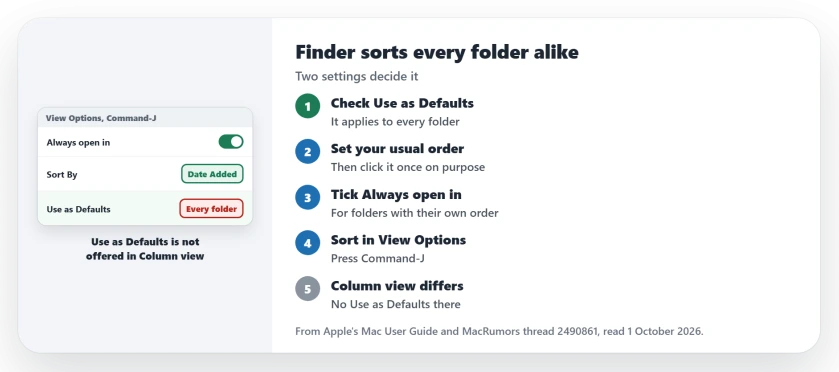
Status: checked 1 October 2026. One owner on macOS 27.0 saw one folder's sort spread to every folder. A member traced that to Use as Defaults, and Apple documents both settings.
How Apple says sorting should work
Apple's rule is simple: "Your settings for sorting and arranging items in a folder apply until you change them."
Its example: "For example, if you sort your Documents folder by Date Added, the next time you view that folder, it's sorted by Date Added." So each folder should remember its own order.
A second member on macOS 27 tried. It did not fail. They wrote: "I do not see this behavior." So it is not simply the update.
1. Check whether Use as Defaults got clicked
A member answered with the likely cause: "If changing Sort By in one folder flips every other folder, check whether Use as Defaults got clicked in View Options (Cmd-J)."
They explained what that button does: "That writes a global default." Apple says the same in its own words.
Apple's description of the button: "Apply these settings to any folder that uses the same view: Click Use as Defaults." One click covers every folder in that view.
2. Set the order you want everywhere
One way back is to use that same button on purpose. Open a typical folder. Pick the order most folders should have.
Then open View Options with Command-J and click Use as Defaults once. Every folder in that view now starts from your choice.
3. Tick Always open in for the odd ones out
For folders that need their own order, Apple offers a per-folder setting. You can "always use the customized view settings for just that specific folder", as Apple puts it.
Select the folder, press Command-J, and set its Sort By. Then select the Always open in checkbox.
The member who answered keeps per-folder sorting this way. In their words: "Per-folder Sort By from Cmd-J still sticks for me on 27 when I leave that alone."
4. Sort from View Options, not only the column header
Apple gives two ways to sort. In View Options: "Click the Sort By pop-up menu, then choose the sort order, such as Date Modified or Name."
In List view you can also click a column name. Apple says: "Click the column name again to reverse the sort order." Header click not holding? Use View Options instead.
5. Watch Column view and subfolders
Column view plays by other rules. Apple's page says Use as Defaults does not exist there.
Subfolders can surprise you too. Apple's note on Always open in: "The checkboxes must be selected for the main folder and deselected for the subfolder."
If Column view itself misbehaves, the Finder column view page covers its scrolling and resizing faults. And if dragging files stopped working after the update, see the drag and drop page.
Why does Finder sort every folder the same way?
One likely cause is the Use as Defaults button in View Options. Apple says that applies the settings to every folder that uses the same view.
How do I set a different sort order for one folder on a Mac?
Select the folder, press Command-J, set Sort By, then tick Always open in. Apple documents both steps.
Does Use as Defaults work in Column view?
No. Apple's page leaves Column view out of it.
The Short Version
- One folder's sort order spreads to all of them.
- Use as Defaults applies it to every folder in that view.
- Pick your usual order, then click it once on purpose.
- For exceptions, set Sort By and tick Always open in.
- Sort from View Options with Command-J.
- Column view has no Use as Defaults.
- Subfolders need their own checkboxes cleared.
Where to Next
Press Command-J in a folder you use every day and set the order you want. Click Use as Defaults once, then fix the exceptions one by one.
If one folder still refuses to keep its order on macOS 27, leave a comment with the view you use. Whatever holds for owners goes here.

Isaac Smith is the founder and editor of PC Glance, a website that covers computers, laptops, and technology. He is a tech enthusiast and a computer geek who loves to share his insights and help his readers make smart choices when buying tech gadgets or laptops. He is always curious and updated about the latest tech trends.