

Select all on a Mac with Command+A after clicking the intended window or text field. In Finder, that selects the items in the active window. In a typing field, it selects that field's text rather than every file on the computer.
Check the highlighted selection before copying, moving or deleting anything.
Put focus on the intended window first
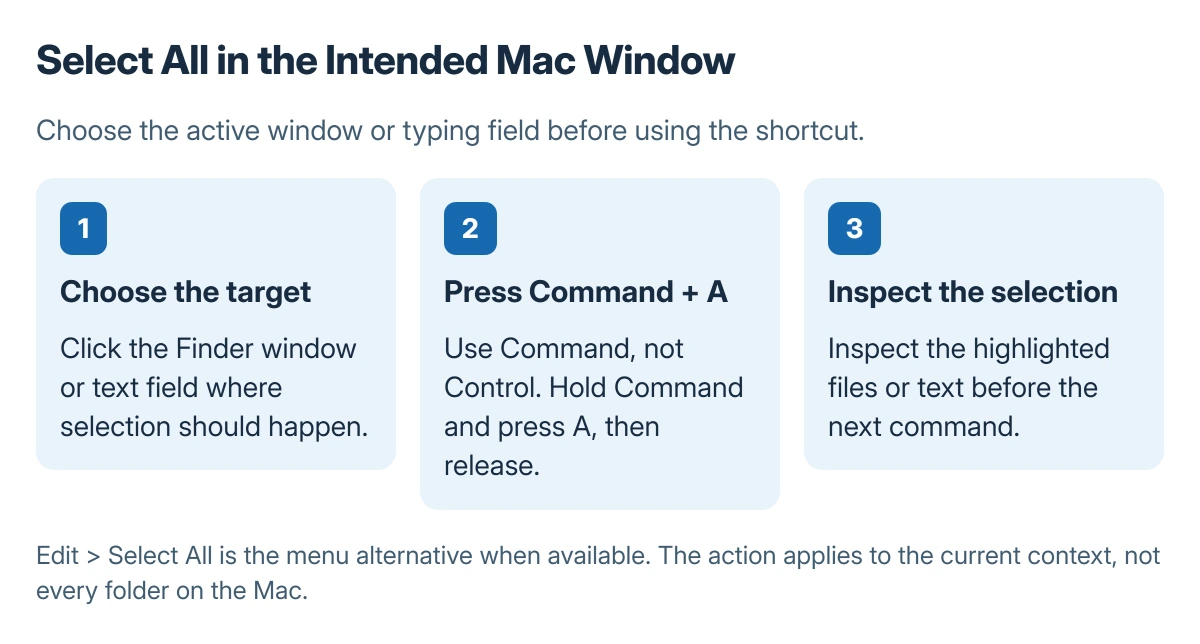
Click the Finder window that contains the files, or click inside the text field that should be selected. Hold Command, press A, then release both keys. Inspect what is highlighted before the next action.
Status: Apple's Mac selection and shortcut instructions checked 23 October 2026. Active-window selection is distinct from selecting a whole disk. No files or app content were changed here.
Apple says to make the window active before pressing Command-A in its Mac selection instructions. A selected address bar, search field or document can therefore produce a different result from a selected Finder window.
If the address text becomes highlighted when files were intended, click back into the file window and try again. That is a focus correction, rather than a reason to change the keyboard layout.
Open Edit for the menu command
With the correct app active, open Edit in the menu bar and choose Select All when offered. The displayed shortcut belongs to that app's command and is useful when the physical keyboard labels are unfamiliar.
Apple documents Command-A as Select All in its Mac shortcut reference. Mac shortcuts use Command for this action; pressing Control+A as on a Windows PC is not the same combination.
If Select All is unavailable, check that the field or document can be selected in that app. Some views do not offer a selectable text surface. An app can also assign its own shortcut behavior.
Select a smaller group when all items are unnecessary
For separated files, hold Command while clicking each intended item. To remove one item from an existing group, Command-click that item again.
Apple states that adjacent items can be selected by clicking the first, then Shift-clicking the last. Check the ordering first; the Finder sorting controls affect which files appear between those endpoints.
For a text passage, dragging over the text can be more precise than selecting the whole document. Apple also describes double-clicking a word and triple-clicking a paragraph.
Inspect the selection before using it
A selection is only the group the next command will act on. Copying it, moving it and deleting it are separate actions with different results. Avoid issuing Delete just to test whether Select All worked.
If typing also stops across Mac apps, use the Mac keyboard-focus checks. That wider failure is different from Command-A selecting the address bar instead of the file list.
For an app that ignores both its menu and shortcut, record the app name and current view and check its own help. Selecting every item in one window does not include files hidden in other folders or other open apps.
The Short Version
Click the intended window or field, press Command+A, and inspect the highlighted group. Use Edit and Select All as the menu alternative. Command-click or Shift-click when only part of a file list is needed.

Isaac Smith is the founder and editor of PC Glance, a website that covers computers, laptops, and technology. He is a tech enthusiast and a computer geek who loves to share his insights and help his readers make smart choices when buying tech gadgets or laptops. He is always curious and updated about the latest tech trends.