

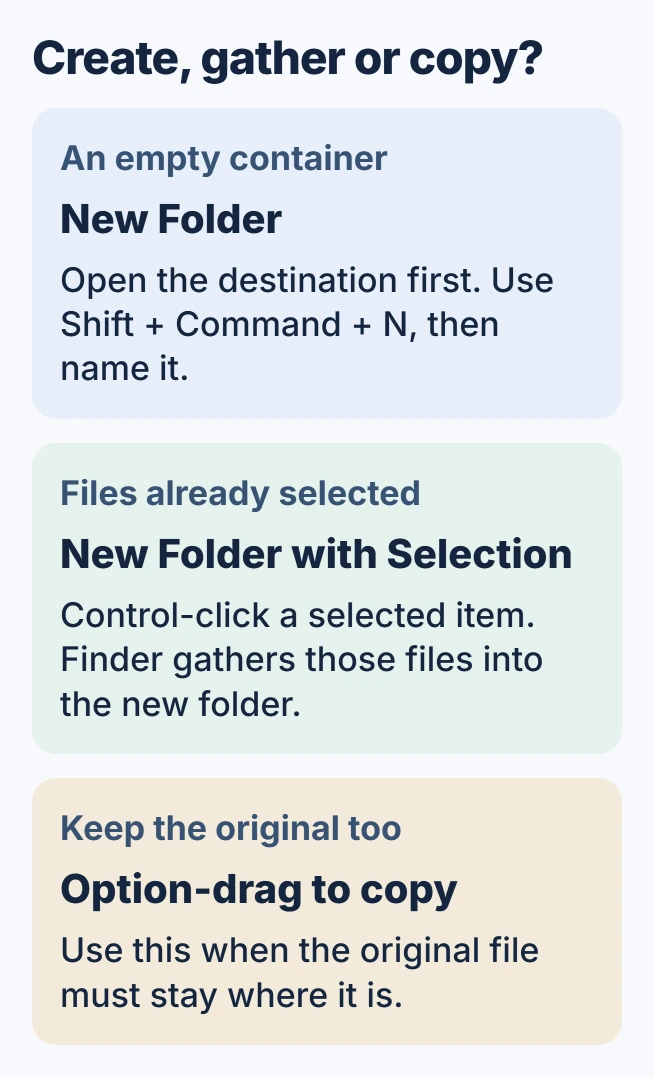
To make a folder on Mac, open the destination in Finder, or click the desktop. Choose File > New Folder or press Shift+Command+N, then type a name and press Return.
To gather files already in one place, select them and use New Folder with Selection. Finder creates the folder and moves those selected items into it.
Open the destination before creating the folder
Click Finder in the Dock, then navigate to the location that should contain the new folder. Apple's folder organization guide documents the menu and keyboard routes.
After naming the folder, open it to confirm the result. A new empty folder should contain no files yet. To make a subfolder, open the parent folder first and repeat the creation command there.
Status: Apple's Finder folder, file-movement and iCloud instructions checked October 30, 2026. Folder examples are instructional; no Mac files were created or moved.
Our location check is to reopen the new folder from the place where it should live. That catches a folder made on the desktop when the intended destination was Documents or an external drive.
Gather existing files into one new folder
Select only the items that belong together. Control-click a selected item and choose New Folder with Selection, then name the folder. Apple says this works on desktop items and inside a Finder window.
For a mixture of selected and unselected items, review the selection before using the command. The Mac file-selection controls explain how to choose a range or individual files.
Open the result and check its contents. If unrelated files were included, undo the action immediately and make a narrower selection before repeating it. A descriptive folder name cannot correct the wrong contents.
Decide whether files should move or be copied
Drag a file onto a folder to put it there. Hold Option during the drag to leave an original at the starting location. Apple documents that modifier as the copy choice.
Moving between disks has different behavior: an ordinary drag copies the files. Hold Command during that drag to move them instead. Inspect both locations afterward before removing any additional copy.
If the files are present but their order is unexpected, adjust Finder's folder-specific sorting. Sorting changes the view, rather than relocating the files to another folder.
Check the destination when New Folder is grayed out
Apple states that a dimmed New Folder command means a folder cannot be created in the current location. Try a normal folder owned by the signed-in account to distinguish a destination restriction from a general Finder problem.
For a destination that rejects changes, Apple's file-movement checks cover available storage and permissions. A network folder may need its owner's authorization.
Apple also identifies NTFS disks as read-only on Mac without additional support. Do not erase a populated drive simply to make New Folder available. Preserve the files and ask the drive owner which writable destination to use.
If creation also fails in an ordinary local folder with adequate space, contact Apple Support with the location and exact message. Keep permission changes limited to locations the account is allowed to manage.
Know when Desktop and Documents are syncing
Apple's iCloud Desktop and Documents guide explains that these folders can be stored in iCloud Drive. Creating a folder there can therefore make it available on other signed-in devices.
Check that storage arrangement before filing material intended to remain local. A folder name does not control cloud sync. Deleting a synced item also removes it from devices that share those iCloud files.
The Short Version
Choose the Finder destination, create and name the folder, then check its contents. New Folder with Selection gathers existing items. Use the appropriate move or copy action and check whether the destination is synced or read-only.

Isaac Smith is the founder and editor of PC Glance, a website that covers computers, laptops, and technology. He is a tech enthusiast and a computer geek who loves to share his insights and help his readers make smart choices when buying tech gadgets or laptops. He is always curious and updated about the latest tech trends.