An Apple silicon MacBook enters Recovery by holding Power from shutdown; an Intel MacBook uses Command-R just after power-on. If the normal login screen keeps appearing, check which method matches your processor.
Recovery opens repair and reinstall tools outside the desktop. Entering it doesn't wipe your files. Erasing is a separate choice, so you can check the available tools without starting a reset.
In this guide
Check which startup method your MacBook needs
If the desktop opens, choose Apple menu > About This Mac. The Chip field identifies Apple silicon. If it lists an Intel processor, use the keyboard shortcut at startup.
Don't decide from the MacBook name alone. The Air and Pro ranges each include Intel models and models with Apple silicon, and a Touch ID button isn't enough to tell them apart.

If the Mac won't start and you don't know its processor, try one method, then shut down before trying the other. Apple's Recovery startup page says it's safe to try the steps for either type when you're unsure.
Connect your charger before continuing. If the Mac shows no sign of power at all, use the MacBook power checks first. Recovery can't open until the Mac can switch on.
Open Recovery on an Apple silicon MacBook
Choose Shut Down in the Apple menu and allow the Mac to switch off. If it won't respond, keep Power pressed for up to ten seconds to force it off. Unsaved changes can be lost in a forced shutdown.
- Press Power and keep it pressed. If the keyboard has Touch ID, press that button down.
- Continue holding while the Mac switches on.
- Release when Loading startup options or the Options icon appears.
- Click Options, then Continue.
- If asked, select the startup disk, such as Macintosh HD, and click Next.
- Select a user you know the password for, click Next, and type the password for that Mac user.
A quick press starts the Mac normally. Keeping the button held is what opens startup options, so don't release it simply because the display has lit up.
When you see the startup disk and the Options gear, you're at startup options. Selecting the disk starts macOS; selecting Options > Continue opens Recovery. Choose Options when you need the repair tools rather than the usual desktop.
After entering any requested password, wait for the utilities window. Once it offers tools such as Disk Utility and Reinstall macOS, you've reached Recovery and can choose the task that brought you there.
Use Command-R on an Intel MacBook
Begin with the Mac shut down. Use the built-in keyboard, especially if your Mac doesn't always recognize an external keyboard during startup.
- Give Power a normal press and let go.
- Immediately hold Command-R together.
- Keep the keys down until you see the logo or the rotating globe.
- Choose a network if prompted, or connect Ethernet through a suitable adapter.
- Select the startup volume and a user when asked, then type the password for that Mac user.
If the desktop opens, the Mac may have missed the keys at startup, or you may be using the other processor's method. Shut down and retry from power-off instead of pressing Command-R after the login screen appears.
If you're using an external keyboard, connect it by cable when possible. A wireless keyboard that works at the desktop might not connect in time for the startup shortcut.
A PC keyboard can complicate this further. Try the MacBook's built-in keyboard before changing disk settings or assuming the Recovery system is damaged.
Try Internet Recovery when Intel Recovery won't load
If your Intel Mac can't open its built-in Recovery system, try starting Recovery over the internet. A spinning globe means the Mac is starting Recovery over the internet; it doesn't mean your files have been erased.
Shut down, switch on, and immediately hold Option-Command-R to start Internet Recovery. Shift-Option-Command-R is the other supported combination. Hold the keys until the startup screen changes.
The combinations also change which macOS reinstall may be offered. Option-Command-R may offer the latest compatible version. Shift-Option-Command-R may offer the original version or the nearest version that remains available.
Use those shortcuts on Intel Macs. On Apple silicon, return to the held-power-button route rather than adding Intel startup keys to it.
For a globe with an exclamation point, record its error number. Try Ethernet, a different network, or a later attempt. Internet Recovery can fail on a connection that works at the normal desktop.
I'd change the network connection before doing anything to the disk. An error on the globe screen points to a connection problem during Recovery startup, and erasing storage doesn't repair that connection.
Choose the tool without accidentally erasing the Mac
The utilities window can include Restore from Time Machine, Reinstall macOS, and Disk Utility. Terminal and other tools are available through the menu bar.
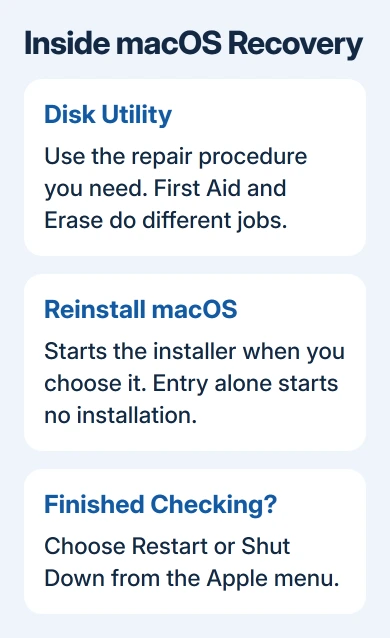
Use Disk Utility when following a disk-repair procedure. Its First Aid and Erase controls have different purposes. Don't choose Erase just to check whether the disk is visible.
Reinstall macOS starts the operating-system installer. Entering Recovery doesn't begin that installation automatically, and the version it offers depends on your Mac and how you opened Recovery.
For selling or clearing the computer, follow the complete MacBook factory-reset procedure. It covers the account and erasure steps that entering Recovery alone doesn't perform.
To leave without making changes, choose Apple menu > Restart or Shut Down. Restart normally when you want the usual desktop again.
When neither method reaches the utilities
A completely black display, an exclamation point in a circle, and a failed Internet Recovery globe need different help. Note exactly which screen you see so support can help with that problem.
Open Apple Support's Mac startup help from its Recovery page. Give your MacBook model, processor if known, the startup method you tried, and any symbol or error number. Ask for help reaching Recovery before accepting a disk erase.
The Short Version
Apple silicon: shut down, hold Power until startup options, then choose Options > Continue. Intel: power on and hold Command-R immediately. Try Intel Internet Recovery if that fails. Leave through the Apple menu when done.
Checked November 11, 2026.