Problems after a MacBook Air upgrade can come from incompatible startup software. Update affected apps if the desktop opens, or try safe mode when startup stalls, then use what happens in safe mode to decide whether to reinstall macOS.
An installer still showing a progress bar is a different case. Don't treat an unfinished installation as a broken desktop, and don't erase the Mac just because an upgrade went badly.
In this guide
1. Match the repair to the screen you can reach
Connect the MacBook Air to power. If it reaches the desktop, save a current backup of your files before deeper repairs. Write down the macOS version from Apple menu > About This Mac and the exact symptom you're trying to fix.
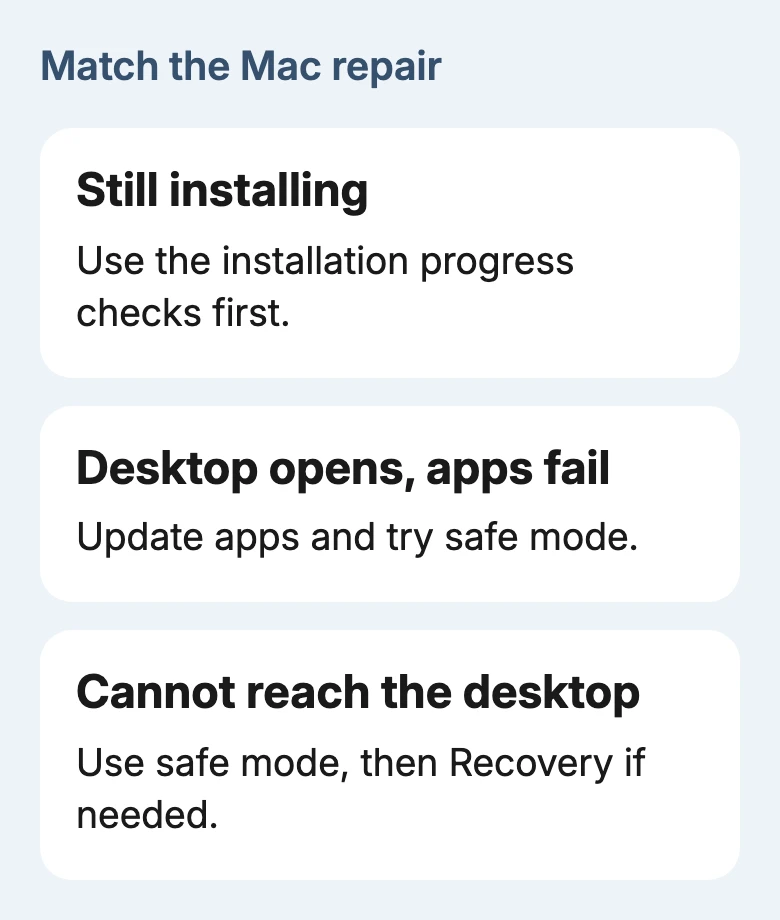
If one app quits, check that app first. If the Mac freezes before login, focus on startup repair. Open another built-in app and check whether the whole system is affected or only that one program.
For an installation that hasn't finished, check the macOS progress bar first. Repeated restarts during installation can be normal, and the remaining-time estimate isn't a reliable clock.
For an installation error rather than a completed upgrade, follow the macOS installation failure checks. The steps here focus on trouble after the upgrade, or startup that no longer reaches a usable desktop.
2. Install the fixes available for the new macOS
On a Mac that reaches the desktop, open Apple menu > System Settings > General > Software Update. For an older macOS layout, the route is System Preferences > Software Update.
Install an available update for your current macOS release, then reopen the app or repeat the action that failed. Read the offered version before accepting a separate major upgrade.
Open the App Store, select Updates, and update affected apps installed there. For an app downloaded from its developer, use its update command or the developer's current installer and compatibility information.
If just an older app fails, check its macOS compatibility with the developer. Ask for a supported version or export instructions. Reinstalling macOS won't make that app compatible.
Move to safe mode for failures across several apps or freezing during login. I'd try safe mode before removing software at random. Whether the fault happens there helps you decide what to change next.
3. Start in safe mode using the right Mac procedure
Safe mode starts macOS with some startup software blocked. It also performs checks and clears certain caches. The startup steps depend on the processor, not the MacBook Air's screen size.
Open About This Mac when possible. A Chip label means Apple silicon. A Processor label followed by Intel identifies the Intel model.
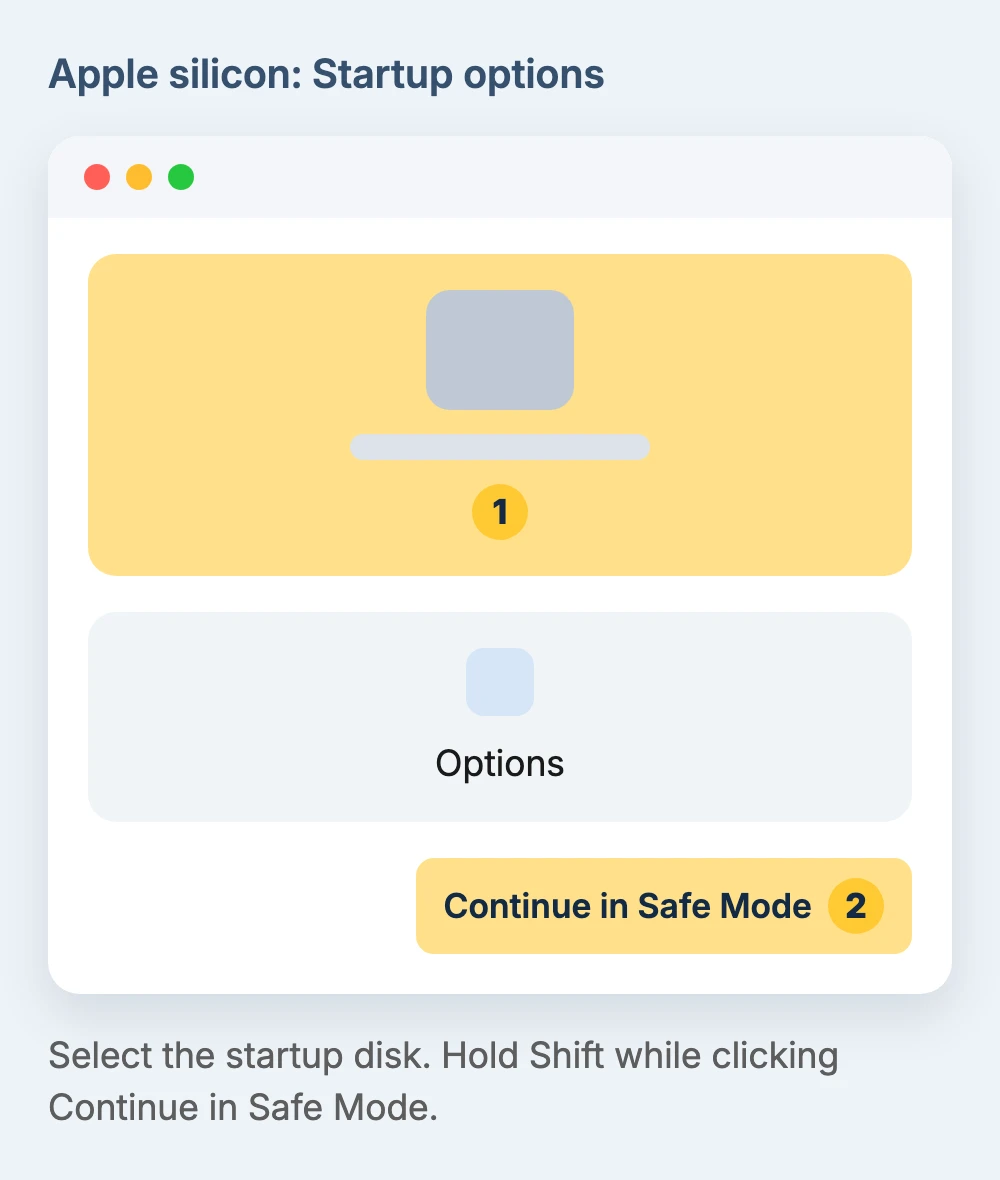
MacBook Air with Apple silicon
- Choose Apple menu > Shut Down and wait for shutdown to finish.
- Hold the power button, including Touch ID, until startup options appear.
- Select your startup disk.
- Hold Shift, then click Continue in Safe Mode.
- Log in when asked. A second login may be required.
Intel MacBook Air
On Intel, hold Shift immediately as you start or restart the Mac. At the login window, let go of Shift and sign in. You may need to log in again; Safe Boot appears in the menu bar on a login window.
Test the same failure you saw during normal startup. Graphics, audio, networking, and accessories can behave differently in safe mode. Focus on the fault you came to fix; those other differences don't all mean something else is broken.
Apple's safe mode instructions explain both startup methods and what the result means. A normal restart exits safe mode.
4. Remove login items when normal startup brings it back
If safe mode works and the next normal startup also works, resume normal use. The startup checks may have cleared it. If it returns only during normal startup, check software that opens at login.
Open System Settings > General > Login Items & Extensions. Some earlier versions label the page Login Items. On older macOS releases, use System Preferences > Users & Groups > your account > Login Items.
Write down every Open at Login entry before removing anything. Select them and use the remove button, then restart. The apps won't open automatically at login, but they and your documents stay on the Mac.
If normal startup now works, restore a single entry, restart, and repeat for each item. When the fault returns, remove the last item added and check that app's updates or developer support.
If the Mac still fails with those items removed, don't keep changing the list. Software that isn't in the login list can also affect startup. Check whether safe mode also fails and whether your disk appears in Recovery.
5. Reinstall from Recovery when the fault persists
When the problem also occurs in safe mode, reinstalling macOS from Recovery is a supported next step. A standard reinstall keeps your personal files and installed apps in place.
On Apple silicon, shut down, keep Power pressed until you reach startup options, choose Options, then Continue. On Intel, start the Mac while holding Command-R to enter its built-in Recovery system.
For startup errors, open Disk Utility and select View > Show All Devices. Start First Aid with the last listed volume, then check the remaining volumes, followed by their containers and the storage device. Quit Disk Utility when finished.
Stop if First Aid cannot repair the disk or Disk Utility cannot see it. Arrange Apple service or data recovery advice, especially when files aren't backed up.
Choose Reinstall macOS from the Recovery utilities. For a choice of Macintosh HD versus Macintosh HD - Data, install on Macintosh HD. Keep the Mac powered with its lid open throughout installation.
Reinstallation isn't an undo button for a major upgrade. Before returning to an older release, check compatibility and plan how you'll get your files back from the backup.
Ask Apple Support for startup or reinstall help with the Mac model, version, screen, and safe mode result.
The Short Version
Start with app and macOS updates. Enter safe mode using the method for your processor, then remove login items if normal startup alone fails. Persistent system or startup faults need the Recovery tools.
Checked November 29, 2026.
 If you have any business, I can build it online