Google FinderHelper belongs to Google Drive's Finder integration. Quit Google Drive from its menu-bar settings, then check whether CPU use stops. Try restarting Drive before removing anything.
A battery-menu warning alone doesn't tell you how much processor power the helper is using now. Check Activity Monitor before deciding whether you need a repair or simply caught Drive while it was busy.
In this guide
1. Quit Drive and compare the CPU reading
Save and close files you're editing inside Google Drive. Click the Google Drive icon in the Mac's menu bar, open Settings, and choose Quit. This closes the desktop client without disconnecting your account.
Open Finder > Applications > Utilities > Activity Monitor, then select CPU. Choose View > All Processes and search for FinderHelper. Clear the search to compare other processes if the helper has disappeared.
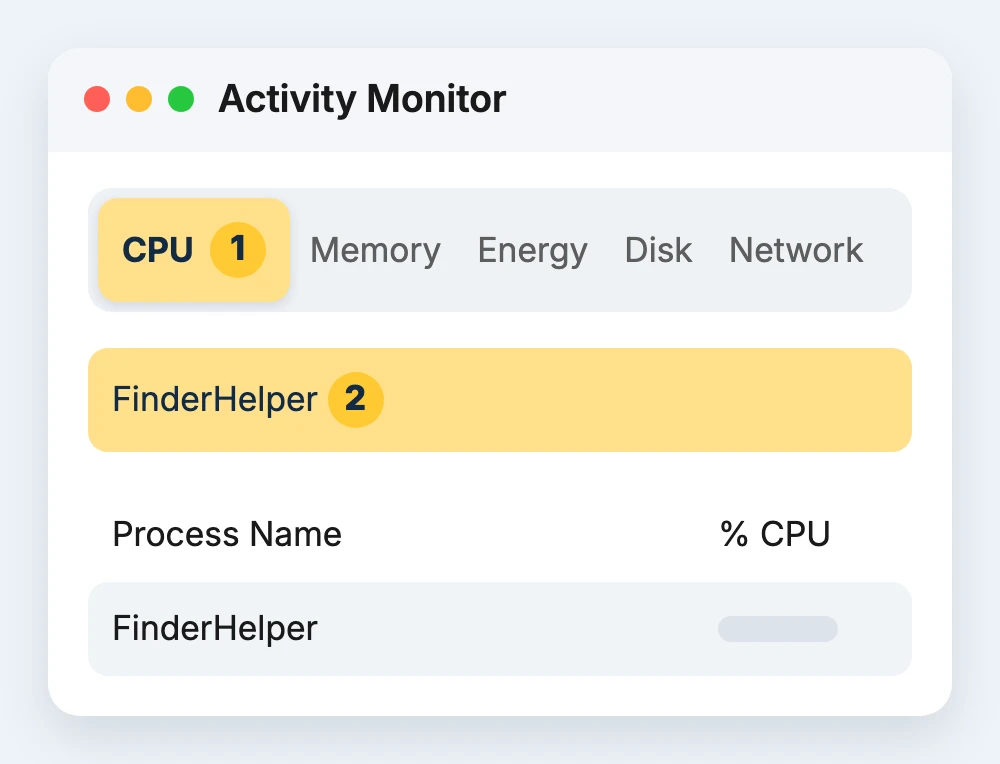
Look at the current reading rather than judging the Mac by fan noise alone. A helper that disappears or stops using CPU after Drive quits points to Drive's integration. A different process still doing the work needs a different repair.
I'd check Drive this way first: it connects the busy helper to the app you can restart. Repeatedly force-quitting FinderHelper leaves the main app running and doesn't give you the same clean comparison.
For a Mac that stays slow after Drive closes, check the wider Mac slowdown causes. Keep the repair matched to the process that's still busy.
2. Reopen Drive and check its sync activity
Open Google Drive from Applications. Let its menu-bar panel load, then look at Sync status. Current versions show recent files and current syncing there; older versions may show an Activity view instead.
Compare sync progress with the CPU reading. Watch whether the queue finishes or keeps returning the same error. Let a working transfer finish before judging the helper's activity.
For a visible sync error, open its details and deal with the named problem. A full cloud account, a file you can't access, and a folder the app can't locate need different actions. Changing Mac performance settings won't fix those messages.
Once the queue is settled, check whether FinderHelper stays active while you aren't opening Drive files. If reopening Drive brings back the same sustained CPU use, save open documents, then choose Restart from the Apple menu.
Drive's restart procedure works on Intel hardware as well as Apple silicon. Watch whether the activity settles after restarting Drive or the Mac, then returns during ordinary file access.
3. Protect local changes before disconnecting
Account disconnection is a larger step than quitting. Before using it, copy any unsynced work to a local folder outside Google Drive. Open the copies to check that they contain your latest edits.
Pay particular attention to Lost & Found if Drive has reported files it couldn't sync. Google's Drive troubleshooting instructions warn that this folder is deleted when the account disconnects.
Streaming also changes what remains on the Mac. Disconnecting a streaming account removes its offline files. Keep separate copies of files you need locally rather than assuming an offline marker will preserve them after sign-out.
Leave the account connected if an unresolved upload holds important changes. Recover that file first. Reducing background activity isn't a reason to risk the only file containing your recent work.
With an organization-managed account, check the removal plan with IT. They can check the installed build and account restrictions while you preserve the local files.
4. Disconnect and remove Drive if you don't need it
One owner with the FinderHelper problem reported that deleting the app solved it. Use the desktop client's removal procedure rather than hunting for a helper inside its application bundle.
After securing your files, open the Drive menu, then Settings > Preferences > Advanced Settings. Choose Disconnect account and confirm with OK. The current quick account route is also available through the panel's profile picture.
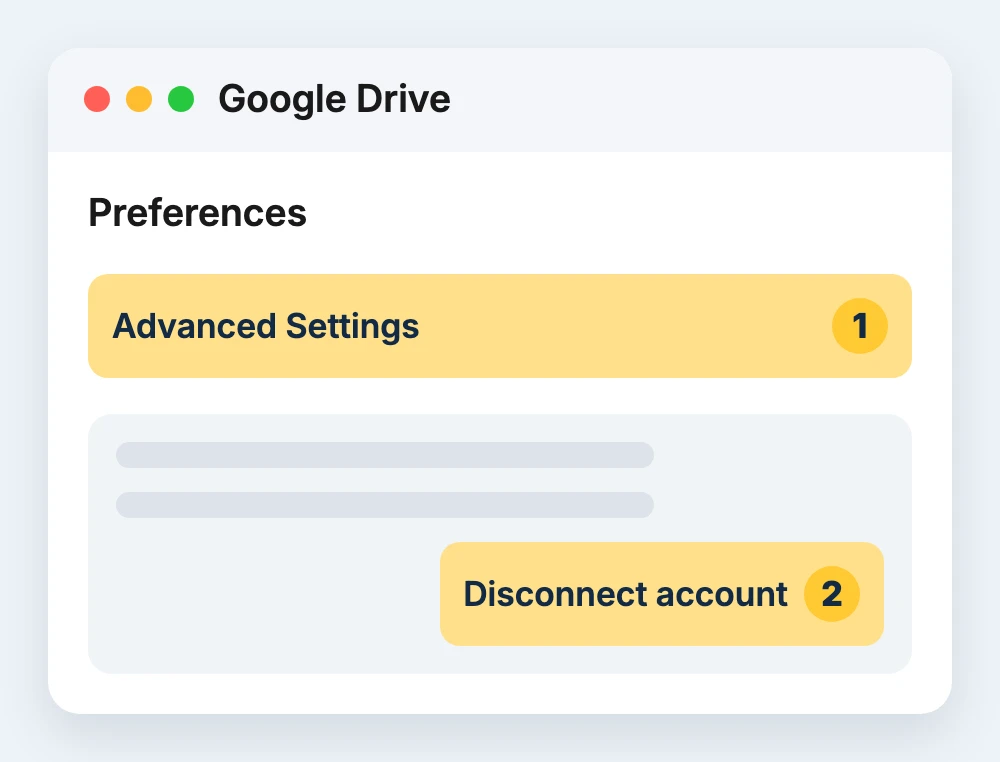
Next, open the Drive menu again and choose Settings > Quit. In Finder, open Applications, select Google Drive, and choose File > Move to Trash. If Finder asks for authorization, supply an administrator's password.
Remove the application, not the contents of your synced folders. Deleting a document while syncing is active is a file change, not an uninstall command. Leave your document folders alone during this step.
Restart the Mac and check Activity Monitor again. If FinderHelper no longer appears, the background component has gone with the client. If CPU use remains high under another name, note that name before making further changes.
When you need Drive and the problem returns
If you rely on Finder access to Drive, send a report rather than repeatedly removing background components. Open the Drive panel and choose Settings > Send feedback. Describe what happens after quitting and reopening the app.
Select Include diagnostic logs when offered, then Submit. Include your macOS version and Mac model. Mention whether Sync status was transferring files or displaying an error when the activity occurred.
For managed Drive, have your administrator review the desktop installation using those results. They can arrange a current reinstall through the approved software channel if restarting hasn't helped.
If Office pauses with a message about an unavailable server, check its remembered file locations. Use those steps for the server error; keep the CPU checks for FinderHelper activity.
The Short Version
Quit Drive and check FinderHelper in Activity Monitor. Reopen Drive, check syncing, then restart the Mac if needed. Protect local files before disconnecting; remove the client only if you can give up its Finder integration.
Checked November 29, 2026.
 If you have any business, I can build it online