The supplied iCloud account was unable to unlock this volume means the Mac couldn't unlock its disk with that account. Try the account linked to the Mac, or its FileVault recovery key when requested. An unrelated iCloud password won't help.
Check what the current screen requests: a Mac login password, an Apple Account sign-in, or a FileVault recovery key. These are different credentials. Use what the screen asks for instead of trying the same password in every box.
In this guide
1. Match the password to the screen
At the normal Mac login window, enter the password for your Mac user account. That isn't automatically your Apple Account password, even if the email address on the Mac belongs to the same person.
Check Caps Lock and the keyboard's input language. A different keyboard layout can change the characters entered by punctuation keys. Correct the layout before deciding that a password you remember has stopped working.
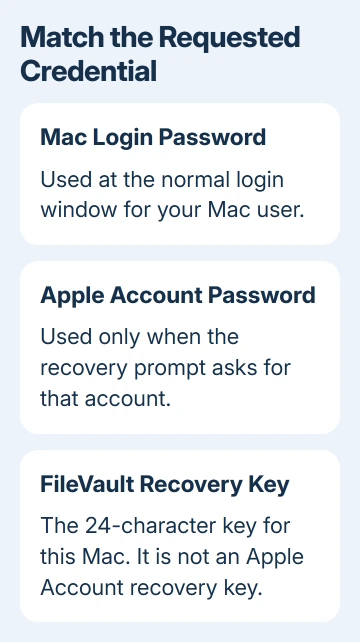
When Recovery asks for an Apple Account, use this Mac's previously linked account. Enter its current password and the account's email or phone number. If it asks for a verification code, check your trusted device.
An account that works on another device can still be the wrong one for recovering this Mac. Consider an older account used during setup, especially after an email change. For a work Mac, ask its administrator about the linked account.
Don't erase the Mac while unbacked-up files still need recovering. Erasing is the last recovery route, and it removes the data you're trying to regain access to.
2. Use the reset option offered at login
Restart the Mac and return to its login window. If a question mark appears beside the password box, click it to see a hint or reset message. Otherwise, entering a password up to three times can reveal the available reset option.
Click Reset Password or Restart and show password reset options if offered. The wording and available route depend on the Mac's setup, so you haven't necessarily missed a setting if the Apple Account option isn't there.
Apple's Mac login password recovery instructions describe the screens this process can show. Enter the password or key the screen asks for. Different Macs can offer different recovery methods.
If asked to deactivate the Mac, allow the temporary deactivation. If asked to create a new keychain, follow that prompt. A new login keychain doesn't restore passwords held in the old one.
When the process lets you choose a user, select your account and create its new login password. Restart if instructed, then test that password at the normal login window. Reaching your desktop confirms that the reset worked.
If the account is locked, wait for the time shown and restart before trying again. Repeated guesses during the lockout won't shorten it. If the reset still ends at the volume-unlock error, move to Recovery.
3. Start Recovery for your Mac's processor
Shut down the Mac before starting this sequence. Apple silicon and Intel Macs use different controls to enter Recovery. The Intel keyboard shortcut won't start it on an Apple silicon Mac.
On Apple silicon, hold down power until the startup options become visible. Select Options > Continue. The power button is the Touch ID button on MacBooks that have one.
On an Intel Mac, switch it on, immediately pressing Command-R together until a logo or rotating globe appears. Use the built-in keyboard on a laptop when an external keyboard isn't responding early in startup.
If you're unsure which chip your Mac has, check the purchase details or device list on another device for your Mac's model. The MacBook Recovery guide explains the two startup routes.
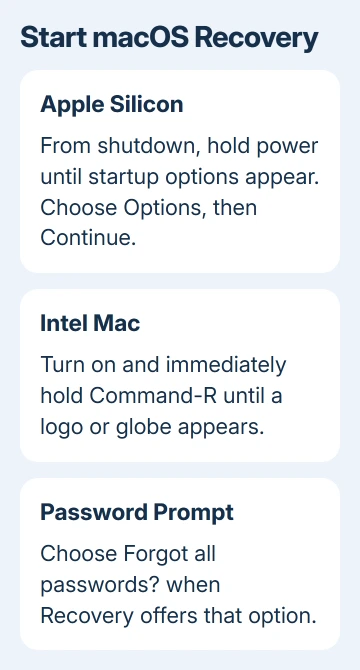
At Recovery's user-selection prompt, choose Forgot all passwords? if you can't supply a user's password. Continue with the account or recovery-key route it offers. Choose the startup volume, often named Macintosh HD, if asked.
After Exit to Recovery, look for the utilities window offering Time Machine and macOS reinstallation. If you've already created a new password, restart and try it. If you haven't, use the password assistant in the next section.
4. Open the password assistant if no reset finished
In Recovery, choose Utilities > Terminal from the menu bar. Type resetpassword and press Return. This opens the password reset assistant; it isn't a command that bypasses disk encryption.
Choose I forgot my password or My password doesn't work when logging in, then Next, if those choices appear. Provide the information requested. The assistant may still require an authorized account or FileVault key.
If the same iCloud error returns, running the command again won't give you a different way to unlock the disk. Note the exact message and the volume you selected. The FileVault key is the next useful route when the screen offers it.
I'd keep the failed Apple Account route and the key route separate. A password reset tool can't turn an account that lacks access into a key for an encrypted disk.
5. Look for the FileVault key, including on another device
A FileVault recovery key is a 24-character code for unlocking the Mac's encrypted storage. It differs from an Apple Account recovery key. A code for one Mac also won't unlock another Mac's volume.
For a Mac using macOS Tahoe 26 or later, the key might be available in Passwords on another iPhone, iPad or Mac. That device needs iCloud Passwords & Keychain turned on using your Mac's Apple Account.
Open Passwords, search for recovery key, and open the entry matching the locked Mac. Reveal the Recovery Key field. If no matching item appears, don't substitute a different device's entry.
The FileVault key in Passwords guide explains a missing entry. Its key-creation steps need access to the Mac; they can't create a replacement from a locked screen.
For an organization-owned Mac, ask IT whether it holds the FileVault key for the device's serial number.
Enter the key where Recovery requests it and continue the reset. You'll need the actual key for this route. Signing in to iCloud on the web can't unlock the encrypted disk in its place.
6. Ask about data access before choosing Erase Mac
Open Apple Support, select your Mac and describe the password reset rejection, or ask your organization's Mac administrator. Provide the model, the complete error, the recovery route attempted and whether a FileVault key is available.
If no supported password or key route works, Apple's remaining route is erasing the Mac, reinstalling macOS and restoring a backup. Ask support about your files and backup before choosing Recovery Assistant > Erase Mac.
Erasing doesn't recover the old encrypted files. After erasure, an Activate Mac screen can still require the associated Apple Account. Confirm access to that account and your backup before proceeding with a fresh setup.
The Short Version
Use the credential the screen requests. Try the login reset, then the correct Recovery startup sequence and password assistant. Use the Mac's FileVault key when available; have support review the remaining options before erasing data.
Checked November 12, 2026.