Apps that won't open on a 2019 MacBook Pro often need a restart or a compatible update. Quit the stuck app completely, then reopen it. If an alert says the app needs updating, check for a version that supports your macOS.
Every 2019 MacBook Pro uses an Intel processor. Apple silicon startup instructions and Rosetta installation advice don't apply to this model, even if the Mac is running a newer operating system.
In this guide
1. Quit the app completely, then restart the Mac
Press Command-Q while the app is selected. If it doesn't respond, press Option-Command-Esc, choose the app and click Force Quit. On a Touch Bar model, Esc may be shown at the left of the Touch Bar or supplied as a physical key.
Force quitting can lose unsaved work in that app. Once it closes, open Finder > Applications and launch the app there. This avoids repeatedly clicking a Dock shortcut when you need to see whether the installed app opens.
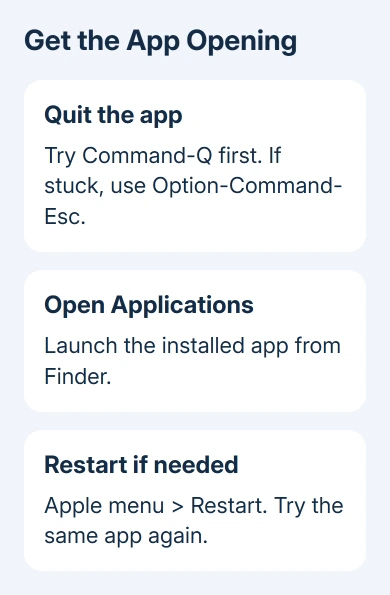
Apple says its app troubleshooting steps start with quitting and reopening, followed by a restart, updates and reinstallation. If the app fails again, choose Apple menu > Restart and try it once more after signing in.
Try another installed app as well. If only one fails, focus on its update or installation. If several unrelated apps won't open, check macOS and the software that loads at startup.
If the Mac won't restart normally, keep its power or Touch ID button pressed until shutdown, allowing up to 10 seconds, then turn it on again. Use that forced shutdown only when your Mac won't respond to the normal restart command.
2. Match the alert to the installed app
Read the complete alert before dismissing it. An app that needs updating, an app blocked by security and an app damaged during installation each need a different fix. Repeating the same restart won't change an incompatible app.
Open Apple menu > About This Mac and note the macOS version. Then check the app developer's supported macOS versions and download choices. A 2019 purchase date doesn't tell you which operating system is installed today.
An older 32-bit app can't run on macOS Catalina 10.15 or later. The term describes an older app format, and the fix is a compatible version from its developer. Mojave 10.14 was the last macOS release that ran those apps.
Choose the Intel-compatible download
On this Intel Mac, choose an Intel-compatible or Universal app download when the developer offers separate versions. An Apple-silicon-only build is meant for a different processor and can't be repaired by installing Rosetta here.
If the alert says the developer can't be verified, use the Mac app security guidance. Confirm the download came from the developer before following the steps to allow an exception.
A warning that software will damage the computer needs removal rather than a security override. Send the exact warning to the developer if you believe its official installer has been blocked incorrectly.
3. Update the affected app and supported macOS
For an App Store download, open App Store > Updates and install the offered app update. For software installed elsewhere, use its own update command or the developer's download page.
Launch the updated app, then repeat what wasn't working. If it opens but crashes with one document, try another document before changing the system. If other documents open, focus on that file before changing the system.
On Ventura or later, check System Settings > General > Software Update. On Monterey or earlier, use System Preferences > Software Update. Install what's offered for this model; the latest major release may not support it.
The 2019 16-inch model supports Tahoe 26. The 2019 13-inch and 15-inch models stop at Sequoia 15, according to the MacBook Pro model list. Match the app to your model's supported system.
I'd check the app's requirements before a major macOS upgrade. Updating the operating system can help a supported app, but it can't make an abandoned 32-bit version compatible with Catalina or later.
For a failure limited to Photos or Passwords after an operating-system change, the Photos and Passwords opening checks address that narrower case. If several unrelated third-party apps fail, continue with these checks.
4. Start this Intel Mac in safe mode
This startup mode leaves optional startup software unloaded and clears certain caches, which are stored files macOS reuses. It can help you check whether those startup extras are stopping the app from opening.
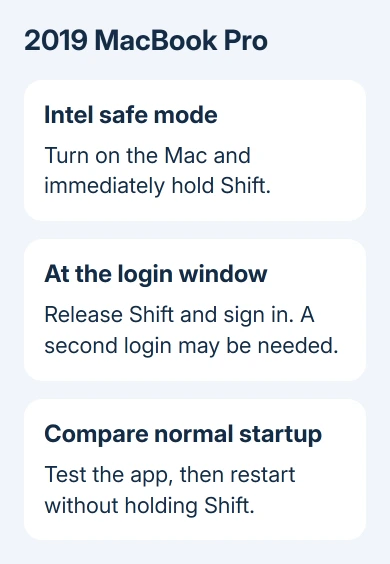
Shut down the Mac. Press power, then hold Shift immediately. Keep Shift held until you reach login, then release it. Sign in, then sign in again if asked. This is the Intel procedure used by every 2019 MacBook Pro.
Don't hold the power button waiting for startup options. That route belongs to Apple silicon Macs. If you're checking a different Mac, About This Mac shows Processor for Intel or Chip for Apple silicon.
Try the affected app in safe mode, then restart normally without holding Shift. Try the app again after that normal startup. If it keeps opening normally, you don't need to change anything else at startup.
If the app opens only in safe mode, check login items and extensions, the extras that load at sign-in or add features. Turn off optional additions using their own controls, then try the app again. Leave unrelated system files alone.
5. Reinstall one app with its data protected
Reinstall when a compatible, updated app still won't open. Save a separate copy of documents or app data you need first, because app removal can erase internally stored data.
Use the Mac app removal instructions to check for the developer's uninstaller. Then reinstall from the App Store or the developer's official source and try launching before adding optional plug-ins.
For an app installed by your workplace or school, ask its administrator to check access restrictions and the approved installer. A standard user account may not have permission to run it, and reinstalling won't change that policy.
When to ask the developer or Apple
If one app fails, contact its developer with the Mac model, macOS version, app version, exact alert and safe-mode result. If several apps fail after restarting and installing supported updates, ask Apple Support about those app failures.
The Short Version
Restart the app and check its supported versions and updates. Intel safe mode on a 2019 MacBook Pro starts with Shift held during startup. Protect app data before reinstalling; send a persistent single-app fault to its developer.
Checked November 12, 2026.