Press Command+D while viewing a page in Safari or Chrome to save a bookmark on a MacBook. Choose the folder before confirming, so you can find the page again instead of wondering where it went.
Safari calls its quick-access collection Favorites. Chrome uses a Bookmarks bar. The shortcut is shared, but each browser keeps its own folders. Check whether you're using Safari or Chrome before saving.
In this guide
Save the current Safari page in a chosen folder
Open the exact webpage you want to return to. For a long guide, that means opening the guide itself rather than saving the search results used to find it. Check the page title before creating the bookmark.
Press Command+D. The menu alternative is Bookmarks > Add Bookmark. In newer Safari layouts, the toolbar's sharing menu also offers Add Bookmark to, with recently used folders available as shortcuts.
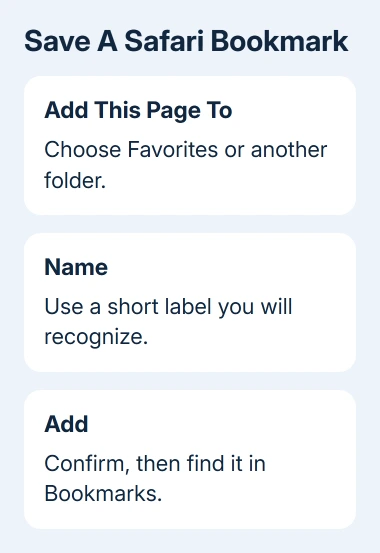
In the bookmark dialog, choose the destination from Add this page to. Favorites is a convenient choice for a site you open often. A separate folder works better for project links that shouldn't fill your everyday shortcuts.
Edit the name if the page title is long or unclear. A short label such as Warranty claim will be more recognizable than a title packed with the company's slogans. Add a description if it helps distinguish similar pages.
Click Add to finish. Closing the dialog without that final confirmation can leave the page unsaved. Open the Bookmarks sidebar afterward and check the folder you selected; the new name should be there.
Apple's Safari bookmark instructions also describe the toolbar route. Use the menu names when your toolbar looks different from someone else's MacBook.
This procedure doesn't change between a MacBook Air and MacBook Pro, or between Intel and Apple silicon. Safari's version and window layout affect the controls you see more than the model name on the laptop.
Open a saved page and make Favorites easier to reach
In Safari, choose Bookmarks > Show Bookmarks. Open the relevant folder in the sidebar and click the saved name. Opening it from the sidebar confirms that the bookmark works, even if you still have the original page open in a tab.
If the sidebar is already visible, choose Bookmarks within it. Recent Safari layouts may group several sidebar views together. Switch to Bookmarks if the panel currently shows tabs or another collection.
To keep your Favorites visible beneath the toolbar, choose View > Show Favorites Bar. The bar displays the Favorites collection; it doesn't automatically display every folder in your bookmark library.
If a saved page isn't on that bar, check where you placed it. A bookmark inside a separate project folder can be correctly saved without appearing among your Favorites. You don't need to save another copy to check that it's there.
The start page can also display Favorites. If you've hidden or changed that part of the start page, check the sidebar instead. Changing the start-page layout doesn't remove your saved bookmark.
I'd use Favorites for the handful of pages you reach for daily and folders for everything else. A crowded bar soon becomes slower to use than a clearly named folder.
Add the page in Chrome on a MacBook
With the page open in Google Chrome, press Command+D, or click the bookmark control at the right of the address bar. Check the name and destination in the bookmark panel, then confirm with Done when shown.
Choose Bookmarks bar for a visible shortcut, or select another folder for a saved reference. If the first panel shows only a few locations, use its folder chooser to reach the rest of your folders.
Chrome's Bookmark manager is under the three-dot menu, then Bookmarks and lists. Open it to find the new bookmark, organize folders, or search for a saved title when you can't remember where you put it.
For the bar itself, the Mac shortcut is Command+Shift+B. It toggles the bookmarks bar's visibility. If the bar disappears after using that shortcut, press it again; the bookmarks weren't deleted.
Check the Chrome profile before saving work or personal links. Different profiles keep separate browsing information. A bookmark saved in one profile can be absent when you open another, even on the same MacBook.
For bookmarks missing on another device, the Chrome bookmark syncing checks explain local and account storage. Creating a bookmark on the Mac is only the first part of getting it onto a phone.
Rename, move or remove a bookmark without resaving it
In Safari's Bookmarks sidebar, Control-click the saved entry to see its editing choices. Use the rename or edit option to change a confusing label. Use the move option when the entry belongs in another folder.
Bookmarks > Edit Bookmarks offers another way to manage the collection. Check the website address as well as the visible name if a bookmark repeatedly opens an old page. Renaming the label alone doesn't change the destination.
Chrome lets you edit entries in Bookmark manager. Open the entry's menu, choose Edit, and review its name and URL. A URL is the website address; changing it changes the page that bookmark opens.
For an obsolete saved link, use the Mac bookmark deletion steps for your browser. If account syncing is on, a bookmark you delete can disappear on your other devices syncing that collection, too.
Keep a bookmark when you want a reusable link. Use Safari's Reading List when your aim is to collect pages to read later. Adding something to Reading List doesn't place it in the Favorites folder.
Check a missing bookmark in the browser that saved it
Start with the browser and folder chosen during saving. Safari bookmarks don't automatically become Chrome bookmarks because both browsers run on the same MacBook. Importing bookmarks and syncing them through an account are separate tasks.
In Safari, open the Bookmarks sidebar and search the saved name. In Chrome, search Bookmark manager in the correct profile. Search using an unusual word in the title if you accepted the original title instead of naming it yourself.
If a test bookmark disappears after reopening the browser, report its version, profile, and folder to support. Say whether the entry vanished before or after the restart. That helps support tell a saving problem from a hidden bar.
The Short Version
Open the page, press Command+D, choose a folder, and confirm. Find Safari entries in the Bookmarks sidebar and Chrome entries in Bookmark manager. Favorites and the bookmarks bar show selected folders, not every saved page.
Checked November 11, 2026.