Signing in to Gmail doesn't mean Chrome has saved your bookmarks in that account. For Chrome bookmarks that aren't syncing, check the browser account and save any local bookmarks to it. Both devices need the same Google Account.
A missing bookmarks bar is a different problem: the bookmarks can still be present in the full list. Check that list before changing account settings or trying to recover deleted data.
In this guide
1. Find the bookmarks in the original Chrome profile
Start on the computer that still has the bookmarks you want. Open Chrome's three-dot menu and choose Bookmarks and lists > Show all bookmarks. Search for a familiar saved page and check its folder.
If the bookmarks are present there but absent from the bar, use our show the bookmarks bar guide. Making the bar visible doesn't transfer bookmarks between devices.
Select the profile icon near Chrome's upper-right corner and check the account address. Check that it matches the account in Chrome on your second device. Personal and work accounts keep separate bookmark collections.
Open another existing Chrome profile if the current one doesn't have the bookmarks. Each profile can hold its own browsing information. Don't delete an old profile while it may still contain the only copy of your saved pages.
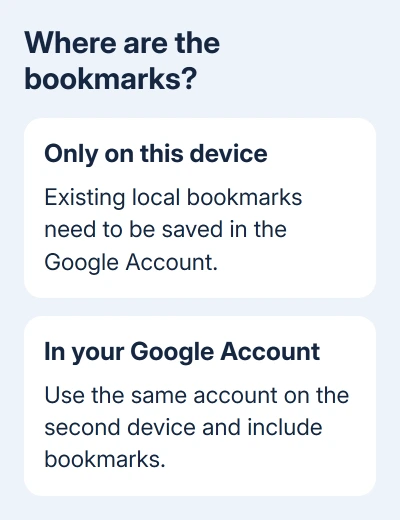
Google says bookmarks saved only on a device need to be saved in the account to reach other devices. That difference matters even when both computers can open Gmail normally.
2. Save the device's existing bookmarks in the account
On the computer with the bookmarks you want, sign in to Chrome using the Google Account where you want those bookmarks saved. Select Profile > Save x items in Account when Chrome offers that option. The number replaces the x in the label.
Choose the information you want to save, then select Save in account. This saves information already on the device. Signing in and saving a new bookmark doesn't tell you where your older bookmarks were stored.
Keep the original computer available while you check the second device. Find the same account in Chrome there, open its bookmarks, and search for one of the older pages you just saved.
If the old collection appears, the transfer worked. If it doesn't, create one clearly named temporary bookmark on the original computer. Check whether that new bookmark reaches the second device.
If the new bookmark arrives but the older ones don't, check the older collection on the original device. If neither arrives, check the account settings and sign-in next.
3. Check what Chrome saves in your Google Account
On a computer, open Chrome > three-dot menu > Settings > You and Google. Select your account name, then check which information Chrome saves in the account. Turn on the control for bookmarks if it is off.
Some Chrome versions still use Sync and Google services > Manage what you sync. In that interface, allow Bookmarks, or choose the option to sync everything if that matches what you want stored.
Check the same setting on the other device. The account must be right on both sides, and bookmarks must be included. Turning on History and tabs alone isn't the control for transferring a missing bookmark collection.
On Android, open Chrome's three-dot menu, choose Settings, and select the account at the top. Check the account's saving or sync controls for bookmarks. Open Bookmarks from Chrome's menu to check the result.
On iPhone or iPad, open Chrome's menu and Settings, then check the signed-in Google Account and the information saved to it. Use Chrome's bookmarks view for the comparison, rather than Safari's bookmarks list.
Chrome's wording changes between versions, so follow the account and bookmark controls you actually see. It's normal for the phone's menu to look different from the computer's.
4. Finish a paused sign-in
A Verify it's you message or paused sync needs attention before bookmarks can update normally. On the computer, select Verify it's you > Sign in again and complete the Google Account sign-in.
Use the same account you checked earlier. After sign-in finishes, reopen the bookmarks list on the second device and look for the temporary bookmark. That gives you a specific change to check rather than comparing two large folders by eye.
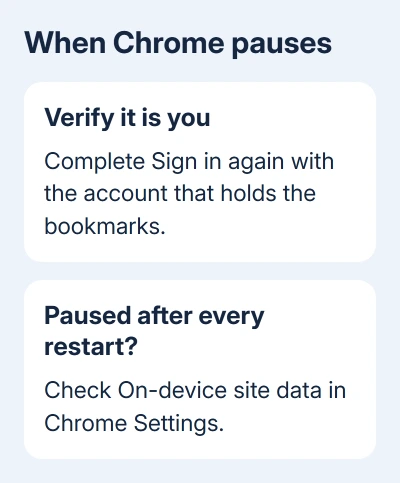
If sync turns off each time Chrome closes, open Settings > Privacy and security > Site Settings > Additional content settings > On-device site data. Choose Allow sites to save data on your device.
That setting helps when Chrome keeps signing you out. It doesn't save local bookmarks in your account for you. If Chrome stays signed in but only an old folder is missing, return to the device that holds that folder.
On a managed work or school computer, some account features may be restricted. If the control is disabled or a management message appears, ask the administrator whether that Chrome profile can save information in your account.
5. Resolve a passphrase prompt without deleting account data
Chrome can protect saved information with a separate sync passphrase. If you set one, a new device needs that passphrase to use the protected data. It can be different from your Google Account password.
Enter the existing passphrase when Chrome requests it. If the passphrase isn't being accepted or syncing still fails with it, update Chrome and try again. On a computer, open Help > About Google Chrome, then relaunch when offered.
I'd keep a bookmark export before attempting any account-data reset. Our Chrome bookmarks export guide explains how to save an HTML copy from the computer that still has the collection.
Changing or removing a passphrase deletes encrypted information from Google's servers and signs devices out. Keep your complete collection safe before considering that reset; it isn't an ordinary reconnect button.
If your bookmarks still won't update, open Chrome's Help > Report an issue. Include the Chrome versions, devices affected, any error, and whether the temporary bookmark reaches the other device in either direction.
The Short Version
Find the original bookmarks, match the Chrome account on both devices, and save local items in that account. Enable bookmarks in the account settings, finish paused sign-in, and respond to any passphrase request before considering a reset.
Checked November 11, 2026.