A blank Chrome camera preview usually comes from blocked site or computer access, or a wrong camera choice. Allow the website, then check the selected camera. If it fails outside Chrome too, check the computer's camera controls.
Chrome on Windows and Mac uses different system permission screens. A Chromebook has its own camera controls, so use the Chromebook branch rather than following the Windows privacy menus.
In this guide
1. Allow the affected website to use the camera
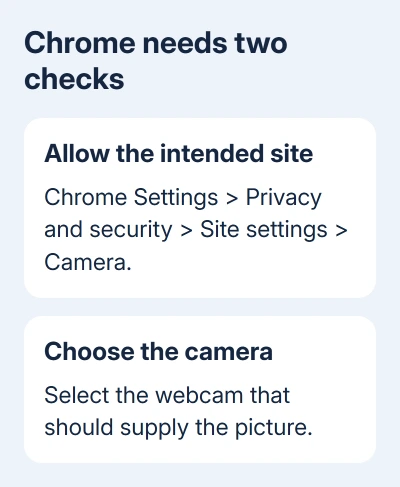
Open Chrome > three-dot menu > Settings > Privacy and security > Site settings > Camera. Check the blocked-site list. Select the affected site's name and change its camera permission to Allow.
Reload the tab that needs video. If the site requests access again, choose Allow while visiting the site or Allow this time, depending on the choices Chrome offers. Allow access only for a site you intended to use.
Google says its Chrome camera troubleshooting steps start with site permission. The camera and microphone have separate controls, so an allowed microphone doesn't mean the website can show video.
Check the site's preview after reloading. If the preview works, Chrome can send video to that site. If permission is allowed but the picture is still missing, check which camera Chrome has selected before changing drivers.
2. Choose the camera that should provide the picture
Return to Settings > Privacy and security > Site settings > Camera. Use the camera selector to choose the built-in webcam or the USB camera you actually want. Several entries can appear when other camera software is installed.
Choosing a camera you aren't using can leave the preview blank even when permission is allowed. Choose a recognizable hardware name, return to the site, and reload its preview. If the site has its own camera selector, check that choice too.
For a USB webcam, check that it is connected and that its privacy shutter is open. For a built-in webcam with a shutter or camera-disable key, check the laptop's manual for that control. The key varies by model.
If the picture appears after you switch cameras, the old camera choice was the problem. Keep the working camera selected and try the call again. If no usable camera appears in the list, check system access next.
I'd check the source selector before reinstalling anything. It's especially useful when a laptop has both its own webcam and a monitor with another camera attached.
3. Give Chrome camera access in Windows
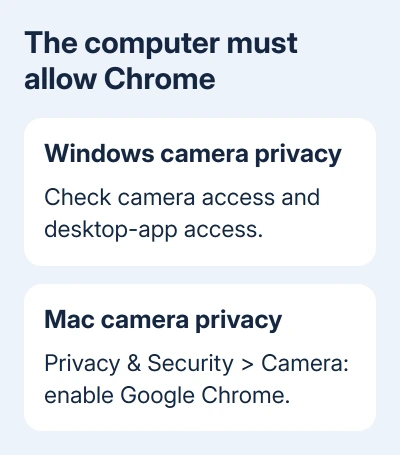
On Windows 11, open Settings > Privacy & security > Camera. Enable Camera access and the option that lets apps use the camera. Check Let desktop apps access your camera for desktop Chrome.
On Windows 10, open Settings > Privacy > Camera. Use Change to enable device camera access if needed. Enable Allow apps to access your camera and Allow desktop apps to access your camera.
Chrome is a desktop app, so allowing Store apps alone doesn't give it camera access. Some newer Windows setups offer controls for individual desktop apps. Check Chrome there if your page lists it.
If a camera control is unavailable or marked as managed, ask the computer's administrator to allow the browser. Don't keep reinstalling Chrome while a system policy is blocking the access it needs.
Close Chrome and reopen it after changing access, then return to the site's preview. If the camera also fails in Windows Camera, use the Windows camera troubleshooter guide for the device and driver checks.
4. Permit Chrome in macOS, or use Chromebook controls
In current macOS, choose Apple menu > System Settings > Privacy & Security > Camera. Enable Google Chrome. Quit and reopen Chrome if macOS requests it, then check the site's camera preview again.
That list contains installed apps that have requested access. If Chrome isn't there, return to the website and attempt to enable its camera so the request can appear. Complete the computer permission prompt as well as the site's permission.
For a Mac that still has System Preferences, open Security & Privacy > Privacy > Camera. Follow the menus on your Mac; the newer System Settings layout doesn't match that older window.
An external camera that isn't connected won't become available just because Chrome has permission. Confirm its connection and camera selection after granting access. A Mac camera that fails outside Chrome needs the Mac camera repair checks.
On a Chromebook, check its physical shutter and the Camera access privacy control first. Then compare the Camera app with the failing website. Our Chromebook camera guide gives that system's own steps.
5. Restart the session and compare another camera app
Leave the call, restart Chrome, and try joining again. If that doesn't help, restart the computer. Google's camera steps include restarting the call, browser, and computer before seeking hardware support.
For the comparison, open Windows Camera or the Mac's Photo Booth. Close the comparison app before retrying the website. You're checking whether the camera works outside Chrome.
If that app shows a picture, focus on Chrome, its permissions, the selected camera, and the affected service. If it doesn't, check system access or the camera hardware.
If only one service fails, tell its support team what error appears and whether the separate camera app works. An account restriction won't be repaired by changing permission for an unrelated website.
An employer or school can manage Chrome's camera settings. Ask the administrator to check browser policy and operating-system camera access when your settings can't be changed.
When the camera still won't appear
Contact the computer or webcam maker with the camera model, operating-system version, Chrome version, and results from the other camera app. Say whether Chrome lists the camera and whether the site permission is allowed.
For a camera that works elsewhere but fails across Chrome sites, use Chrome > Help > Report an issue. Include the error and permission-check results. Keep using a working approved meeting app while the browser issue is reviewed.
The Short Version
Allow the intended site, select the right camera, and give Chrome system access. Use the Windows, Mac, or Chromebook controls that match the computer. Restart the session, then compare another camera app before arranging hardware service.
Checked November 11, 2026.